
Testing Settings
The Testing Settings page is where you configure the external performance testing services used by Freesoul Deactivate Plugins PRO.
This page is available at: Freesoul Deactivate Plugins → Testing → Testing Settings
This page lets you connect FDP PRO to:
- GTmetrix
- Google PageSpeed Insights
Once these settings are configured, FDP PRO can use them when you run tests from the plugin interface and when scheduled Google PSI monitoring is enabled.

What this page is for
The purpose of the Testing Settings page is to store the credentials and preferences required to run performance tests from FDP PRO.
In practice, this page allows you to:
- Add your GTmetrix account email
- Add your GTmetrix API key
- Choose the GTmetrix testing location
- Add your Google PageSpeed Insights API key
- Define the URLs to monitor periodically
- Choose how often FDP PRO should run scheduled Google PSI checks
This page is a configuration page. It does not run tests by itself, but it enables FDP PRO to run them elsewhere in the plugin.
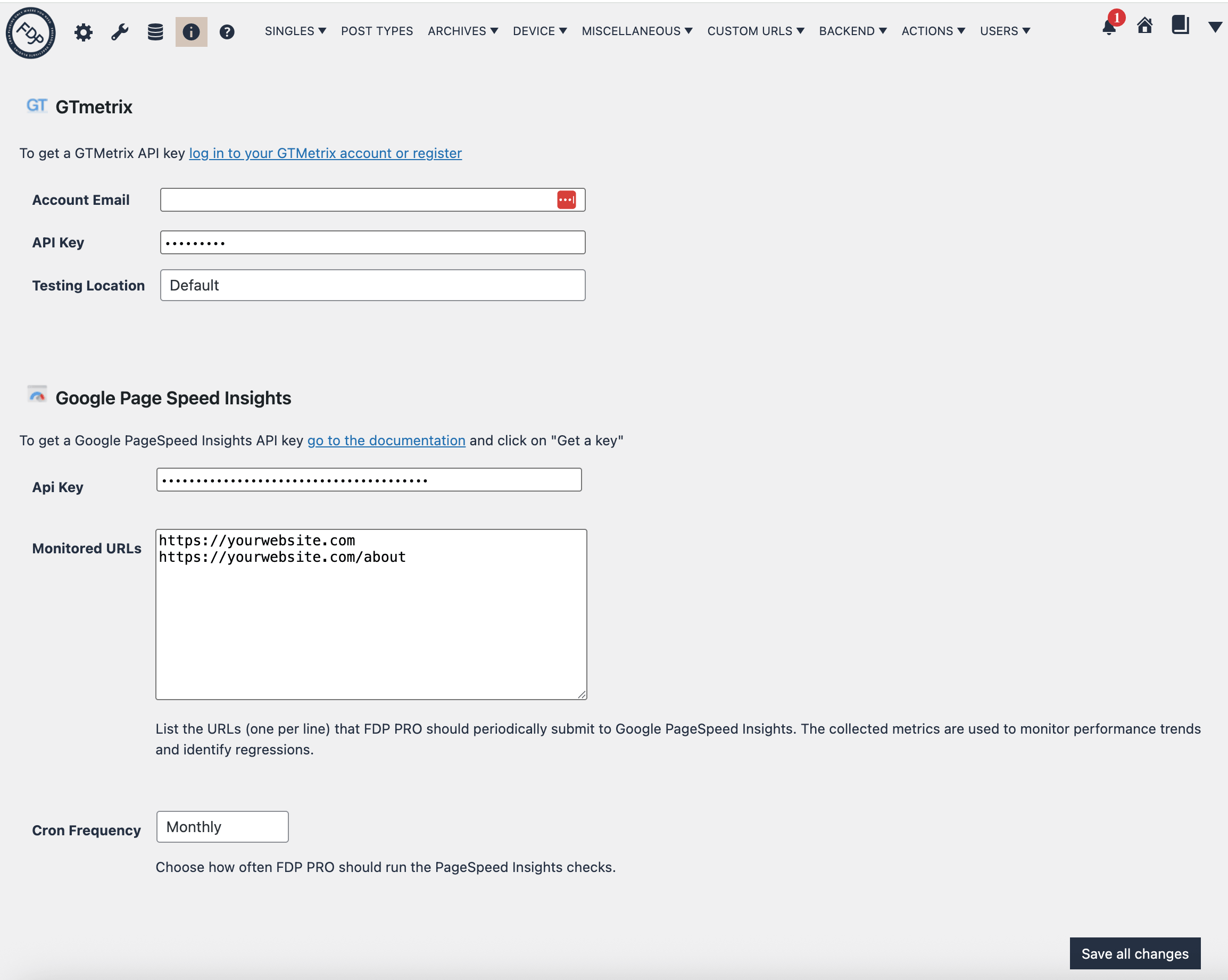
Page structure
The page is divided into two main sections:
- GTmetrix
- Google PageSpeed Insights
Each section contains the fields needed for that service.
GTmetrix Section
The GTmetrix section is used to connect FDP PRO to your GTmetrix account.
Account Email
In the Account Email field, enter the email address associated with your GTmetrix account.
This email is used together with the API key when FDP PRO communicates with GTmetrix.
API Key
In the API Key field, enter your GTmetrix API key.
If you do not already have one, the page includes a link to the GTmetrix API documentation so you can sign in or register and retrieve your credentials.
Testing Location
The Testing Location dropdown lets you choose the GTmetrix server location used for tests.
Available locations include:
- Default
- Vancouver, Canada
- London, UK
- Sydney, Australia
- Dallas, USA
- Mumbai, India
- Sao Paulo, Brazil
- Hong Kong, China
This setting affects where the GTmetrix test is executed from, which can influence the measured results.
When to configure GTmetrix
Configure the GTmetrix section if you want to:
- Run GTmetrix tests from FDP PRO
- Compare performance using GTmetrix data
- Standardize the location used in repeated performance tests
If you do not use GTmetrix, you can leave these fields empty.
Google PageSpeed Insights Section
The Google PageSpeed Insights section is used to connect FDP PRO to the Google PSI API and optionally enable periodic monitoring.
API Key
In the API Key field, enter your Google PageSpeed Insights API key.
The page includes a link to the official Google documentation explaining how to create the key.
Without a valid API key, FDP PRO cannot send PageSpeed Insights requests.
Monitored URLs
The Monitored URLs field is a textarea where you can list the URLs that FDP PRO should check periodically with Google PSI.
Enter one URL per line.
These URLs are used for recurring monitoring so you can track performance trends and detect regressions over time.
Typical examples include:
- The homepage
- Important landing pages
- WooCommerce product pages
- Checkout pages
- High-traffic content pages
Cron Frequency
The Cron Frequency dropdown defines how often FDP PRO should run the scheduled PageSpeed Insights checks for the monitored URLs.
Available options are:
- Never
- Daily
- Weekly
- Every 15 Days
- Monthly
If you select Never, FDP PRO will not schedule periodic PSI monitoring.
If you select another value, FDP PRO will use WordPress cron to process the monitored URLs according to the chosen frequency.
How monitored URLs are used
When you save the page, FDP PRO sanitizes the URLs, stores them, and prepares them for the scheduled Google PSI process.
This means the page is not only saving the list visually, but also preparing the monitoring queue used by the recurring checks.
How to use the Testing Settings page
A typical setup process looks like this:
- Open the Testing Settings page.
- Fill in your GTmetrix credentials if you want to use GTmetrix tests.
- Select the preferred GTmetrix testing location.
- Enter your Google PSI API key.
- Add the URLs you want to monitor, one per line.
- Choose a Cron Frequency for scheduled PSI checks.
- Save the settings.
Typical use cases
This page is useful when you want to:
- Prepare FDP PRO for manual GTmetrix tests
- Prepare FDP PRO for manual Google PSI tests
- Monitor selected URLs on a recurring schedule
- Build a history of performance checks for important pages
- Track performance changes after changing plugin rules in FDP
Important notes
- This page stores the credentials and preferences used by FDP PRO testing tools.
- It does not directly optimize the site.
- It does not directly launch a performance test by itself.
- For Google PSI scheduled monitoring, the URLs should be valid and publicly reachable.
- Results can vary depending on the service, selected device, testing location, and current site conditions.
Best practice
Use this page to configure your testing services once, then keep the settings stable while you optimize pages in FDP. This helps you compare results more consistently over time.
For example:
- Keep the same GTmetrix location for comparable tests
- Monitor the same strategic URLs in Google PSI
- Review reports regularly after changing plugin activation rules
Example workflow
A practical workflow could be:
- Add your GTmetrix and Google PSI credentials in Testing Settings.
- Save the page.
- Go to the FDP row you want to optimize.
- Run manual performance tests from the row action buttons.
- Review the results in the Reports pages.
- Refine your FDP rules and test again.
This approach gives you a repeatable performance optimization process inside FDP PRO.