
Remove Assets
The Remove Assets page lets you keep a plugin active for its PHP functionality while unloading its frontend assets on the URLs where those assets are not needed. This is useful when a plugin must still run in the background, but you want to avoid loading its CSS or JavaScript across the whole site.
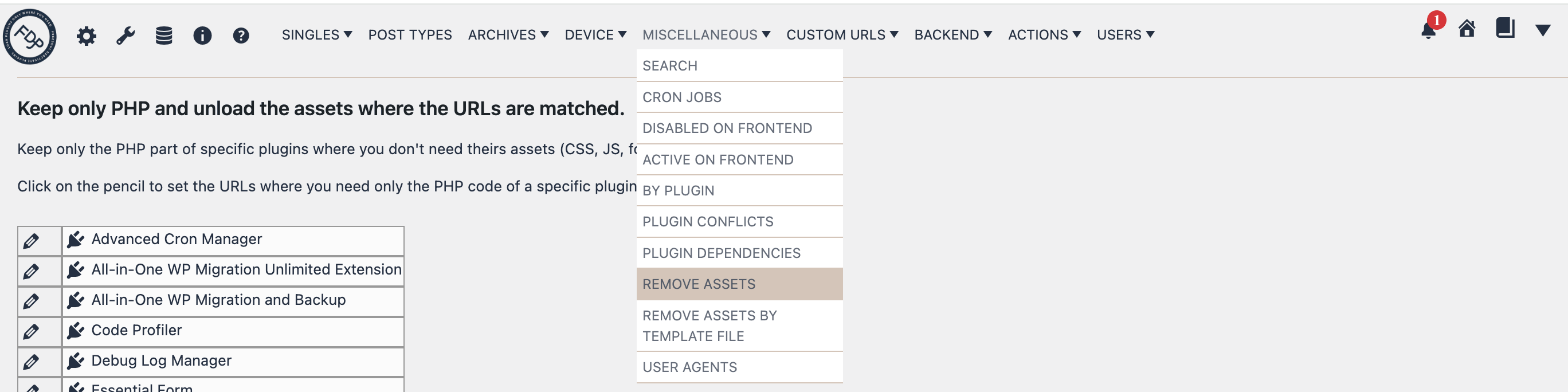
You can find this page in the FDP navigation at:
FDP > Miscellaneous > Remove Assets
What This Page Does
Normally, when a plugin is active, it may load:
- PHP logic
- CSS files
- JavaScript files
- other related frontend resources linked by those assets
The Remove Assets page is designed for cases where you want to keep the plugin itself active, but prevent its assets from loading except on selected URLs.
In other words, this feature is useful when:
- the plugin functionality is still needed
- but its frontend CSS or JS is only needed on some pages
This is very different from fully disabling the plugin. The plugin can still run, but its assets can be skipped outside the URLs you define.
How It Works
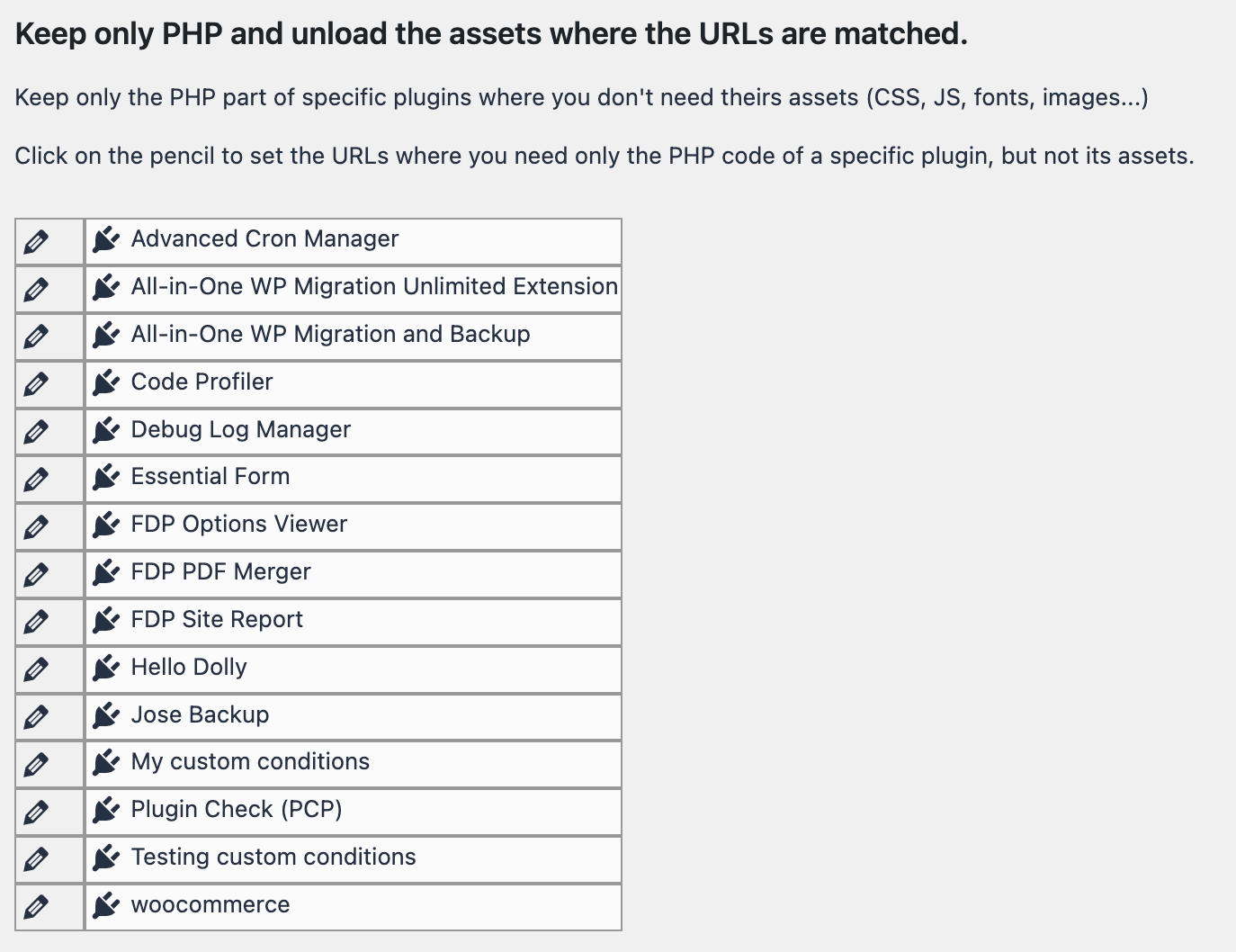
For each plugin, you can click the pencil icon and write the URLs where that plugin is allowed to load its assets.
This page works with an allowlist logic:
- on the URLs you specify, the plugin assets are allowed
- on the URLs that do not match, FDP unloads the assets added by that plugin
So the configuration does not mean “remove assets on these URLs”.
It means:
“Keep the plugin assets only on these URLs, and unload them everywhere else.”
How To Configure It
- Open FDP > Miscellaneous > Remove Assets.
- Find the plugin you want to optimize.
- Click the pencil icon next to that plugin.
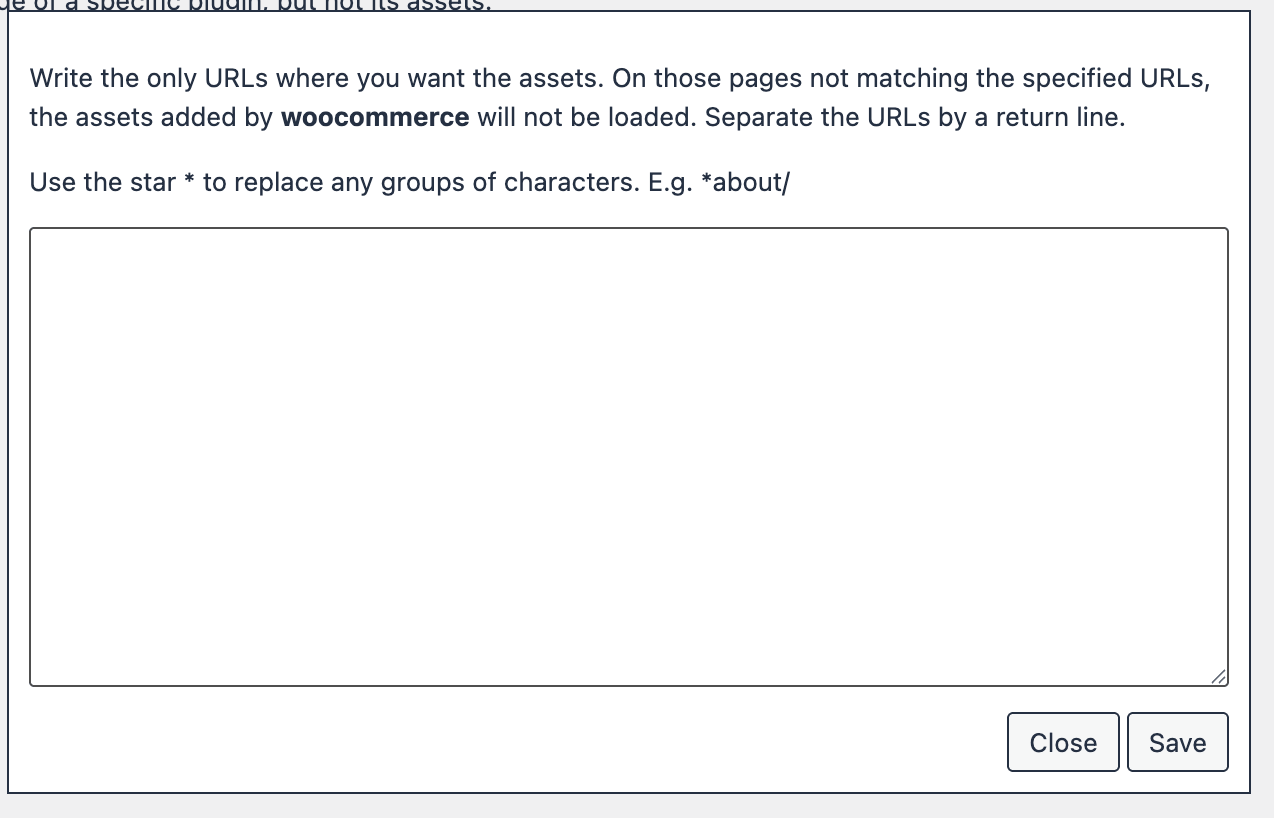
- Enter the URLs where the plugin assets should still be loaded.
- Put each URL on a new line.
- Save the popup.
- Save the page settings if needed.
URL Patterns
The popup accepts URLs line by line, and you can also use the * wildcard to match groups of characters.
For example:
*about/
This makes it possible to target families of URLs instead of writing every single page manually.
Use this carefully, because the broader the pattern, the more pages will still load that plugin’s assets.
Typical Use Cases
This page is especially useful when a plugin needs to remain active, but its frontend files are only useful in a few places.
Common examples:
- a contact form plugin that only needs CSS/JS on the contact page
- a slider plugin only used on one landing page
- a plugin that adds styling or scripts only to a small section of the site
- a plugin whose backend or PHP behavior is needed everywhere, but whose frontend assets are not
Difference Between Remove Assets and Disabling a Plugin
This is one of the most important things to understand.
Disable Plugin
If you disable a plugin with FDP, the plugin itself does not load for that request.
Remove Assets
If you use Remove Assets, the plugin still loads, but FDP tries to prevent its assets from being printed where they are not allowed.
So Remove Assets is the right tool when:
- you still need the plugin logic
- but you do not want its frontend files everywhere
When To Use Remove Assets Instead of the Asset Preview Panels
FDP PRO also provides more detailed CSS and JS asset management tools in preview mode. Those tools are ideal when you want to inspect individual handles and remove assets one by one.
Use Remove Assets when you want a simpler plugin-level rule.
Use the CSS/JS asset panels when you need finer control over individual assets.
A practical way to think about it is:
- Remove Assets = quick plugin-level asset restriction
- Asset Preview / CSS / JS panels = fine-grained per-asset control
Best Practice
This feature works best when you already know that:
- the plugin must stay active
- its assets are only needed on a small number of URLs
A good workflow is:
- Identify the pages where the plugin really needs its frontend files.
- Add only those URLs in Remove Assets.
- Test the rest of the site carefully.
- Confirm that the plugin still works correctly where needed and that no styling or JavaScript is missing on the allowed pages.
Important Notes
- This feature is frontend-oriented. It is meant to reduce unnecessary assets on public-facing pages.
- The page works per plugin, not per individual asset handle.
- If a plugin injects critical output through its CSS or JS, removing those assets may affect layout or interactivity.
Because of that, it is a good idea to test pages carefully after changing these rules.
Troubleshooting
If something looks broken after using Remove Assets, the most common reasons are:
- the URL was not added to the allowlist
- the pattern is too narrow and does not match all needed pages
- the plugin needs its CSS or JS on more pages than expected
If that happens:
- reopen the plugin row
- review the allowed URLs
- broaden the pattern if necessary
- test again
Summary
The Remove Assets page helps you optimize plugins that must stay active but do not need to load their frontend assets everywhere.
It answers the question:
Where should this plugin still load its assets?
Once you define those URLs, FDP unloads the plugin’s assets on the other pages, helping reduce unnecessary frontend weight while keeping the plugin’s PHP functionality available.