
Admin Menu Order
The Admin Menu Order page lets you reorganize the main WordPress admin navigation with a simple drag-and-drop interface. This is useful when you want faster access to the menu items you use most, or when you want to group related sections in a way that better fits your workflow.
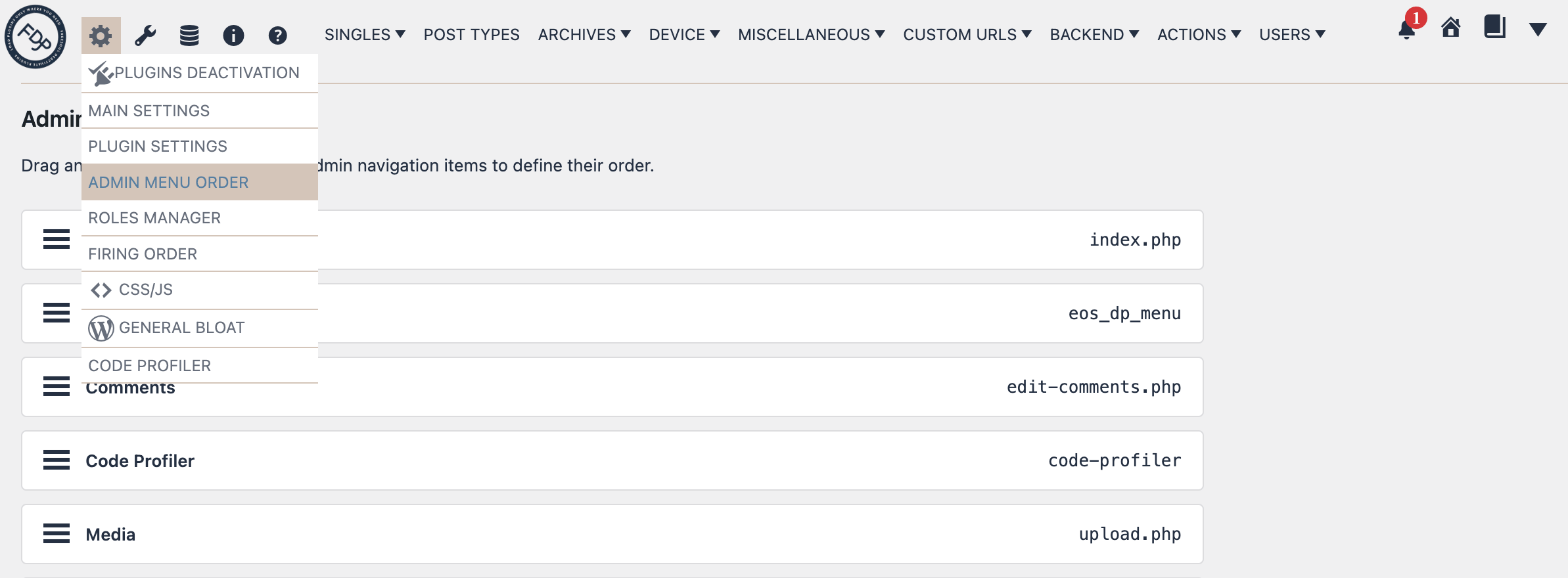
You can find the Admin Menu Order page directly in the FDP admin navigation. Open the FDP menu in the WordPress backend, then go to the Settings area (gear icon) and click Admin Menu Order.
It is available to users with administrative permissions.
What This Page Does
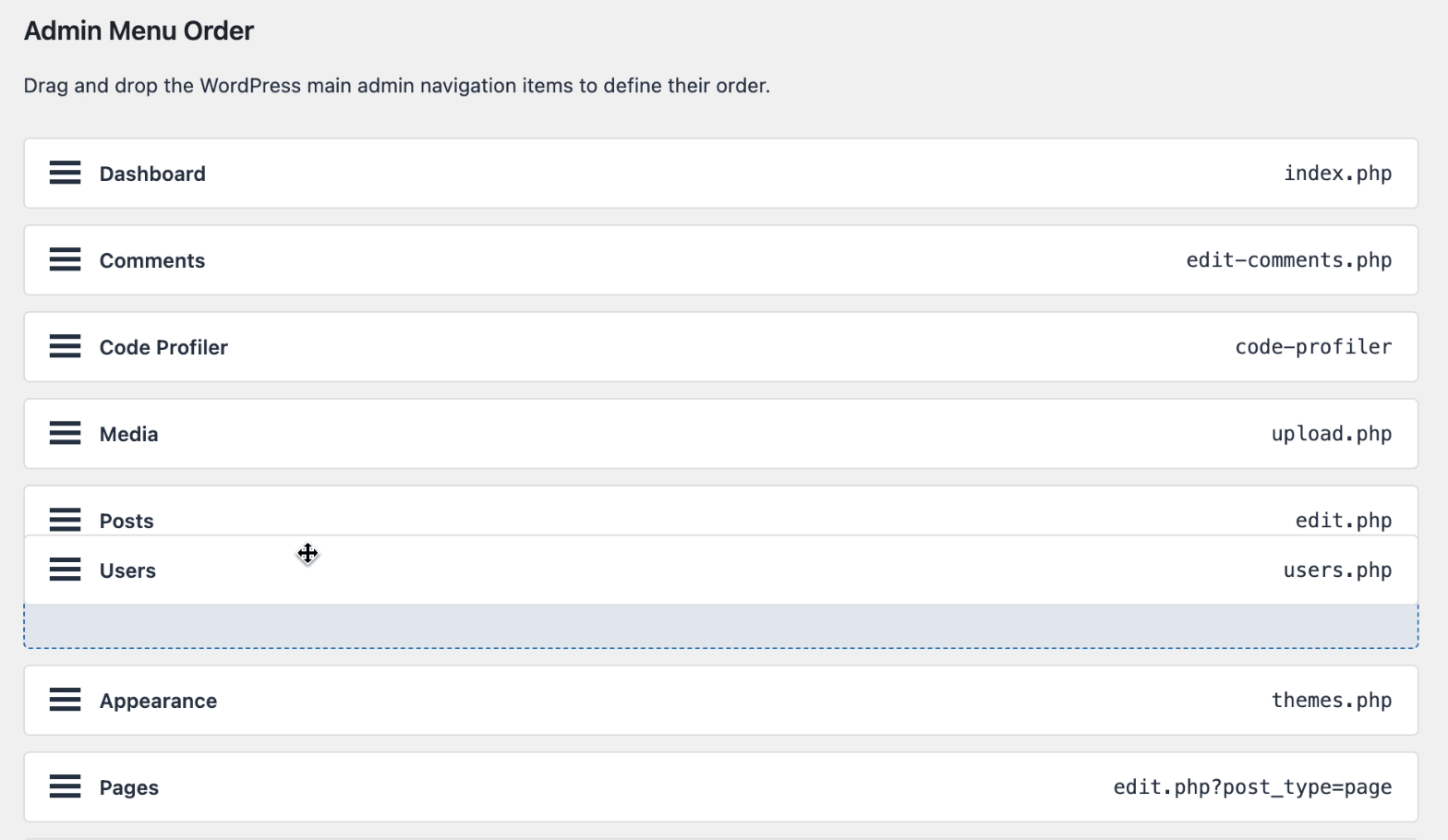
On the Admin Menu Order page, FDP PRO shows the WordPress main admin menu items as a sortable list. You can drag any row up or down to change its position, then save the new order.
Each row shows:
- the cleaned menu title
- the internal menu slug
How To Use It
- Open FDP > Admin Menu Order.
- Locate the menu item you want to move.
- Drag the row to its new position.
- Repeat for any other menu items you want to reorder.
- Click the Save button.
After saving, the new order is applied to the WordPress admin menu.
What Gets Reordered
This page is designed for the main WordPress admin navigation items. It affects the top-level menu entries shown in the left admin sidebar.
If Freesoul Deactivate Plugins rebuilds the admin menu in the backend, FDP PRO applies the saved order after that rebuild. This means the saved order can also be applied consistently when FDP restores menu items that would otherwise disappear because of disabled plugins.
Important Notes
- This page reorders the main admin menu items, not the submenu items inside each section.
- The order is saved in FDP PRO settings, so it remains available across admin page loads.
- Menu separators are not shown as draggable items.
- If a plugin adds or removes menu items later, the saved order is preserved for the existing known items, while new items are appended automatically until you reorder and save again.
When To Use Admin Menu Order
This feature is especially useful if:
- you want to move frequently used menu items closer to the top
- you want to keep related plugin menus together
- you manage a busy WordPress backend with many plugins
- you want a cleaner and more predictable admin workflow
Troubleshooting
If you do not see a menu item in the list, possible reasons include:
- the item is not part of the current main admin menu
- the plugin that adds it is not currently exposing that menu item
- your current user role does not have permission to access that menu entry
If you save the order and do not see any changes immediately, reload the backend page and check the left admin menu again.
Summary
Admin Menu Order gives you direct control over the order of the main WordPress admin navigation items. Just drag the rows into the order you want, save the changes, and FDP PRO will apply that order to the backend menu.