
Preview a Row with Hooks Enabled
Use the Hooks Preview button to open a preview of the page using the plugin configuration shown in the current row and display the WordPress hooks triggered during that request.
This feature is useful when you want to understand not only whether a page works, but also which hooks are firing and which functions are attached to them under the exact plugin setup shown in that row.
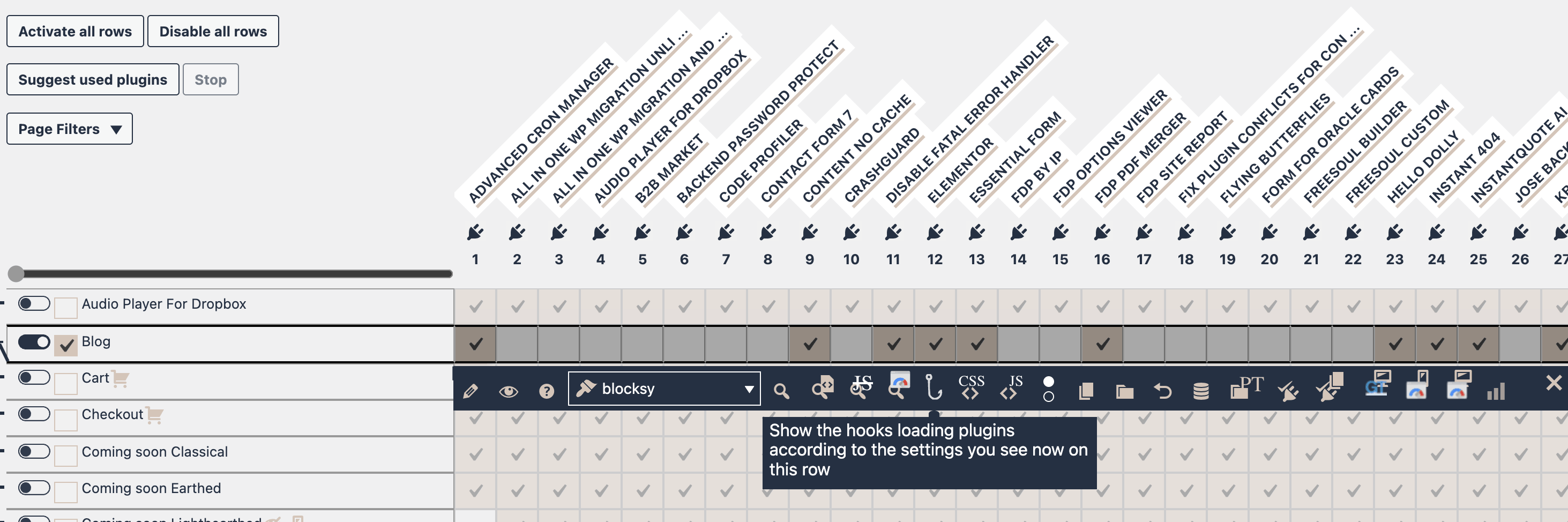
What This Button Does
The Hooks Preview button opens the page represented by the current row and applies:
- the plugin state currently shown in that row
- the selected theme for that row, when applicable
- the hooks display mode
In practice, FDP opens a preview URL that includes the current row configuration and adds the parameter needed to display hooks.
The Hooks Preview starts in Actions mode.
Where to Find It
Open the Action Buttons bar for the row.
Inside the row actions, look for the button with the hook icon.
This button is available only when FDP PRO is active.
What the Preview Is Based On
Like the standard preview button, the Hooks Preview uses the current row state visible in the FDP table.
That means it uses:
- the plugin checkboxes currently shown in the row
- the selected theme, if the row supports theme selection
- the row target, such as a single page, archive, or similar frontend target
You do not need to save the row first.
This lets you inspect hooks using a temporary configuration before committing the settings permanently.
How to Use It
- Open the FDP page that contains the row you want to inspect.
- Open the row action bar.
- Adjust the plugin selection for the row if needed.
- Optionally select a different theme.
- Click the Hooks Preview button.
The page opens in a new tab with the hooks interface enabled.
What You Will See
The Hooks Preview adds a hooks inspection interface to the page.
At the top of the interface, FDP displays a control panel with buttons such as:
- Actions
- Filters
- Not assigned
If hooks deactivation is enabled in your setup, you may also see:
- Global site view
The preview starts by showing Actions.
Actions and Filters
The Hooks Preview can show two different kinds of WordPress hooks:
Actions
These are hooks used to trigger behavior at specific points in page execution.
The Hooks Preview button for the row opens the page directly in Actions mode.
Filters
These are hooks used to modify values before they are returned or displayed.
You can switch from Actions to Filters using the controls in the hooks panel.
What Each Hook Entry Shows
For each hook, the interface can show:
- the hook name
- the number of callbacks attached to it
- the list of attached functions
- the priority of each function
- the source type:
- WordPress core
- plugin
- MU plugin
- theme
- child theme
- the file path related to the callback
- a link to inspect the file in the FDP Code Browser
- a link to the WordPress Developer Reference page for that hook
This makes the Hooks Preview useful not only for debugging plugin behavior, but also for understanding where a hook comes from and what code is attached to it.
What Happens When You Click a Hook
When you click or expand a hook entry, FDP opens a detailed panel for that hook.
Inside the panel you can inspect the callbacks attached to it, including:
- function or method name
- priority
- source type
- source file path
This is especially helpful when a page behaves unexpectedly and you want to know which plugin, theme, or core callback may be involved.
Why This Is Useful
The Hooks Preview is useful when you want to answer questions such as:
- Which hooks are being triggered on this page?
- Which plugin adds a callback to this hook?
- Is a theme or plugin adding unexpected behavior?
- Does a different row configuration trigger a different set of hooks?
- Which callback is likely responsible for a specific output or side effect?
Because the preview uses the row’s current plugin setup, you can compare the hooks generated by different FDP configurations before saving them.
Typical Workflow
A good workflow is:
- Configure the row.
- Open the Hooks Preview.
- Inspect the hooks currently firing.
- Return to FDP.
- Change the row configuration.
- Open the Hooks Preview again.
- Compare the results.
This is particularly useful when debugging plugin conflicts or trying to reduce unnecessary logic on a page.
Hooks Preview vs Standard Preview
Standard Preview
Use the normal preview button when you want to visually verify that the page still works.
Hooks Preview
Use the Hooks Preview button when you want to inspect the WordPress execution layer behind the page.
The standard preview answers:
Does the page work with this row configuration?
The Hooks Preview answers:
Which hooks and callbacks are involved when this row configuration loads the page?
Notes About What Is Recorded
The hooks interface tracks hooks during the preview request and renders them in the overlay/panel.
It can distinguish whether the callback comes from:
- WordPress core
- a plugin
- an MU plugin
- the active theme
- the child theme
This classification is especially useful when you are trying to understand whether a behavior comes from WordPress itself, a plugin, or theme code.
Best Practices
- Use Hooks Preview after you have already narrowed the row configuration down.
- Compare two row configurations if you suspect a plugin changes the hook map significantly.
- Start with Actions, then inspect Filters if needed.
- Use the file path and Code Browser link to inspect the actual source code behind a callback.
- Use standard preview first if you only need a visual test, and Hooks Preview when you need technical insight.
Example Use Cases
The Hooks Preview is especially useful when:
- a page output changes unexpectedly after disabling a plugin
- you want to know which callbacks still run after optimizing a row
- you suspect a theme or plugin adds expensive or unwanted logic
- you want to identify the code source behind a hook
- you want to compare hook activity between two FDP row variants
Summary
The Hooks Preview button opens a preview of the current row using the plugin settings shown in that row and displays the WordPress hooks triggered during that request.
Use it to:
- inspect hooks before saving row changes
- understand which callbacks are executed
- identify whether logic comes from core, plugins, MU plugins, or themes
- compare different row configurations at a deeper technical level
It is one of the most useful diagnostic tools in FDP PRO when you need more than a visual preview and want to understand how the page is built internally.