
Preview a Row and Open the Stylesheets Removal Interface
Use the CSS Assets Preview button to open a live preview of the page using the plugin configuration shown in the current row and, at the same time, display the interface for unloading plugin stylesheets.
This feature is useful when you want to optimize a page more deeply after deciding which plugins should remain active for that row.
What This Button Does
This button opens the page represented by the current row and applies:
- the plugin state currently shown in that row
- the selected theme for that row, when applicable
- the FDP assets interface in CSS mode
In other words, it does two things together:
- it previews the page using the row configuration you currently see in FDP
- it opens the PRO interface for managing the page stylesheets loaded by the remaining active plugins
This lets you move from plugin-level optimization to stylesheet-level optimization without leaving the preview flow.
Where to Find It
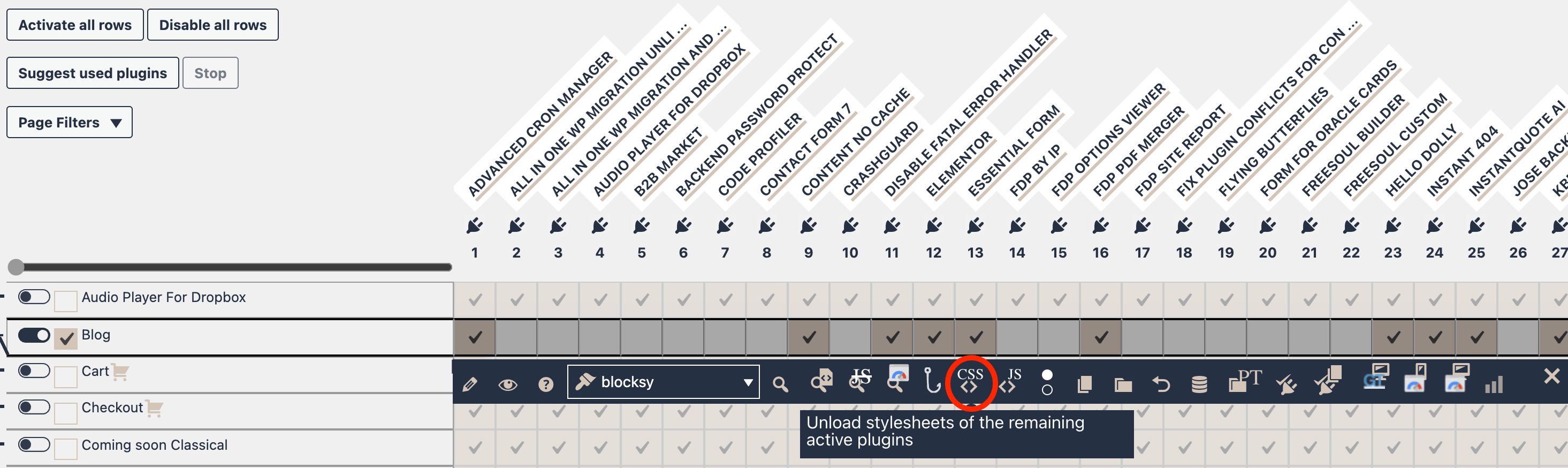
Open the Action Buttons bar for the row.
Inside the row actions, look for the preview button with the code icon and the CSS label.
When to Use It
Use this button when:
- you have already configured the row plugin setup
- you want to keep those plugins active
- but you want to remove some of their CSS from that page
This is especially useful when a plugin must stay active for functionality, but some of its stylesheets are not needed on that specific page.
Typical examples:
- e-commerce or membership plugins may load frontend CSS on pages where the functionality is needed, but the styling is not.
- some plugins also load styles that override the theme’s styling even when they are not needed.
How to Open the CSS Assets Interface
- Open the FDP page containing the row you want to optimize.
- Configure the plugin checkboxes in that row.
- Open the row action bar.
- Click the CSS Assets Preview button.
The page opens in a new tab with the assets management sidebar/interface.
What the Preview Is Based On
Like the standard preview, this button uses the current row state visible in the FDP interface.
That means the preview reflects:
- the plugin checkboxes currently shown in the row
- the current target page represented by the row
- the selected theme if a theme selector is available
You do not need to save the row first.
So you can test a temporary row configuration and then inspect the CSS loaded by that exact preview.
What You Will See in the Assets Interface
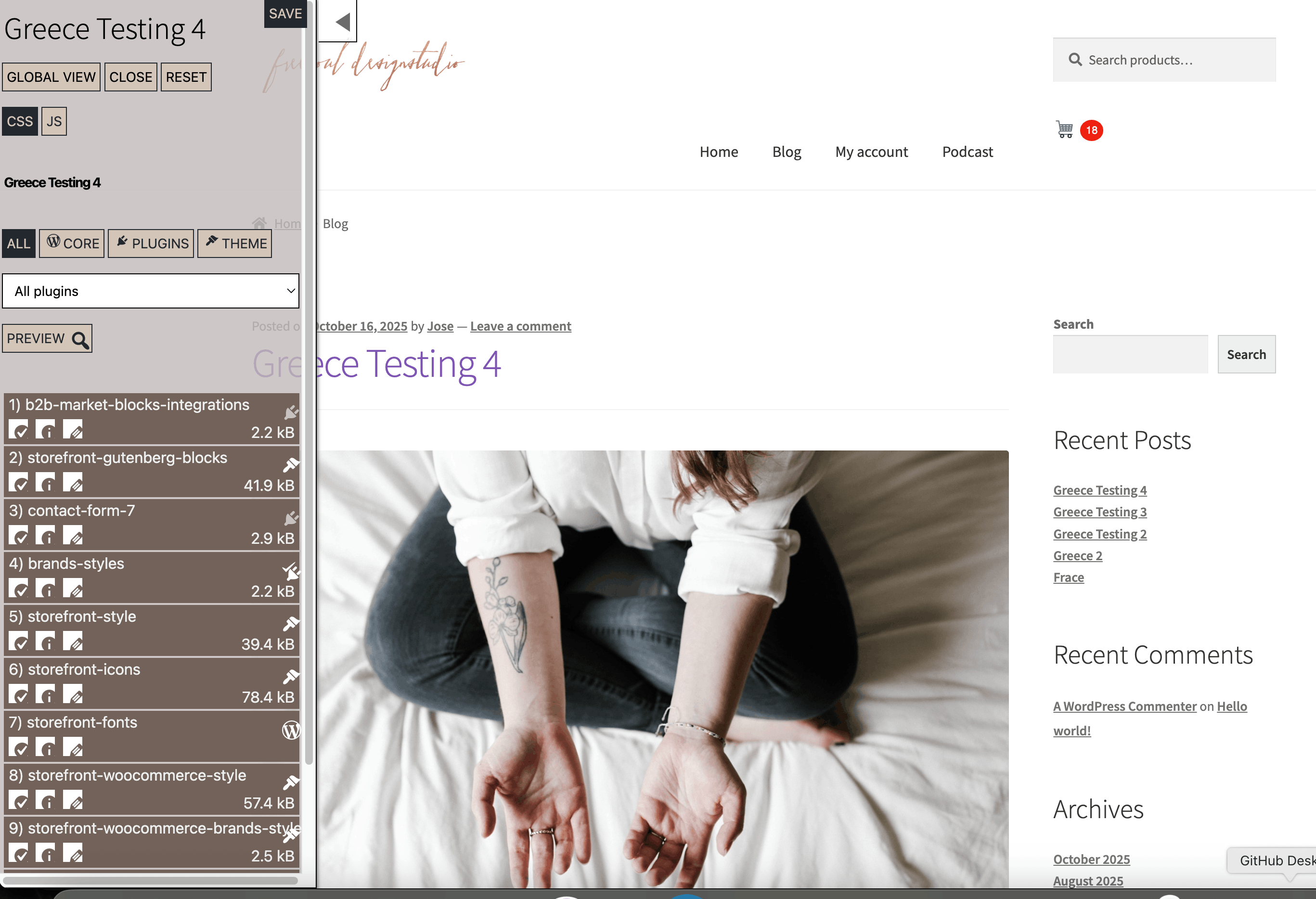
The CSS assets interface opens as a control panel attached to the preview page.
In this interface you can typically see:
- a Save button
- a Global View button
- a Close button
- a Reset button
- a switch between CSS and JS
- filters such as:
- All
- Core
- Plugins
- Theme
- a plugin filter dropdown
- a Preview control inside the panel
- the list of loaded assets
In this specific button flow, the interface opens in CSS mode.
What the CSS List Shows
For each stylesheet, the interface can show:
- the stylesheet handle
- whether it comes from core, a plugin, or the theme
- file size, when available
- whether the source plugin is currently active or disabled in the row preview
- an icon showing the source type
- action buttons for that stylesheet
This helps you understand not just what is loaded, but also where it comes from.
How to Disable a Stylesheet on the Current Page
Each stylesheet entry has controls for enabling or disabling it on the current page.
In CSS mode, the key controls are:
- Disable this stylesheet on this page
- Activate this stylesheet on this page
To remove a stylesheet from the current page preview:
- Locate the stylesheet in the list.
- Click the control that disables it for the current page.
- Continue testing the preview.
- Save the asset settings if the result is correct.
This is useful for fine-tuning the frontend after plugin-level optimization.
Edit Options for a Specific Stylesheet
Each stylesheet also has an Edit options button.
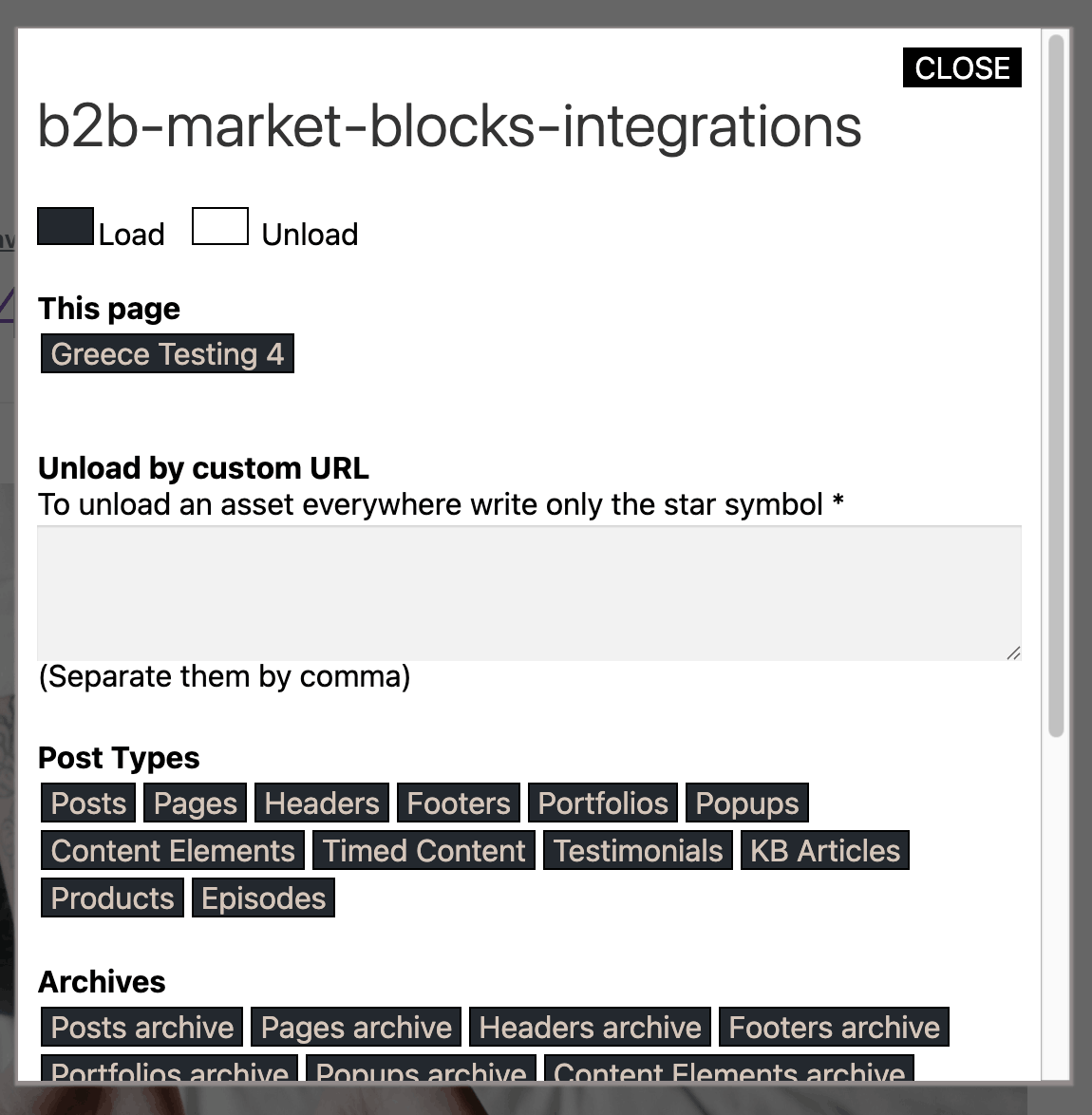
This opens more detailed controls, where you can define how that stylesheet should behave in different contexts.
Depending on the asset and page, the edit panel can include options such as:
- This page
- Unload by custom URL
- Post Types
- Archives
- Terms
This means the CSS interface is not limited to the current preview only. You can also define broader unloading rules from the same asset entry.
Custom URL Rules
Inside the stylesheet edit panel, you can also define custom URL rules.
A useful note from the interface is that if you want to unload an asset everywhere, you can use the star symbol: *
So the stylesheet controls can be used not only for page-specific optimization, but also for more global asset targeting.
Global View
The Global View button opens a broader view of the saved CSS asset rules.
Use this when you want to inspect asset settings beyond the current preview and understand how the stylesheet is handled across the site.
Reset
The Reset button resets the settings related to the current asset type.
When using the CSS preview interface, this means resetting CSS-related asset settings.
This is useful if you want to discard your stylesheet unloading changes and start over.
Save
The Save button in the assets panel saves the asset configuration.
Important distinction:
- the row preview is based on the current FDP row state
- the stylesheet interface manages asset-level rules
Saving asset settings is separate from saving the FDP row itself.
So if you are testing both plugin settings and CSS unloading rules, keep in mind that they belong to two different layers:
- FDP row settings
- asset management settings
Navigation Inside the Preview
While the CSS assets interface is open, internal links on the page are managed so that the asset mode stays active during navigation.
This allows you to continue working inside the assets inspection workflow without losing the interface immediately when moving through internal links.
Typical Workflow
- Configure the row in FDP.
- Open the CSS Assets Preview.
- Inspect which stylesheets are loaded by the remaining active plugins.
- Disable one stylesheet that looks unnecessary.
- Check whether the page still looks correct.
- Repeat carefully for other stylesheets.
- Save the asset settings once the page still looks correct and lighter.
Best Practices
- First optimize at the plugin level, then at the stylesheet level.
- Disable one stylesheet at a time when testing.
- Visually inspect the page after every important CSS change.
- Be cautious with stylesheets loaded by plugins that affect layout, forms, navigation, or responsive behavior.
- Use the current page preview before saving permanently.
- Use Global View if you want to review broader CSS unloading rules.
What This Feature Is Best For
This feature is best when:
- a plugin must remain active, but its CSS is not needed on the current page
- you want deeper frontend optimization after FDP row tuning
- you want to reduce unused styles without disabling the whole plugin
- you need page-level control over stylesheets
It is especially powerful when combined with normal FDP row optimization.
Summary
The CSS Assets Preview button opens a preview of the page using the plugin configuration shown in the current row and gives you the interface for unloading plugin stylesheets.
Use it to:
- preview the page with the current row settings
- inspect loaded CSS
- disable unnecessary stylesheets
- save asset-level optimization rules
- refine performance after plugin-level optimization
It is the natural next step when the row is already optimized at the plugin level and you want even more control over frontend CSS loading.