
Preview a Row with JavaScript Disabled
Use the JavaScript-disabled preview button to open a temporary preview of the page using the plugin state shown in the current row, while also disabling JavaScript execution for that preview.
This is useful when you want to understand whether the page still works correctly without front-end JavaScript, or when you want to isolate problems that may be caused by scripts rather than by PHP, plugins, or theme output.
What This Button Does
This preview button opens the page represented by the current row and applies:
- the plugin state currently shown in that row
- the selected theme for that row, when available
- a
js=offpreview mode
The page is previewed with the same logic as the standard preview, but with JavaScript disabled.
Where to Find It
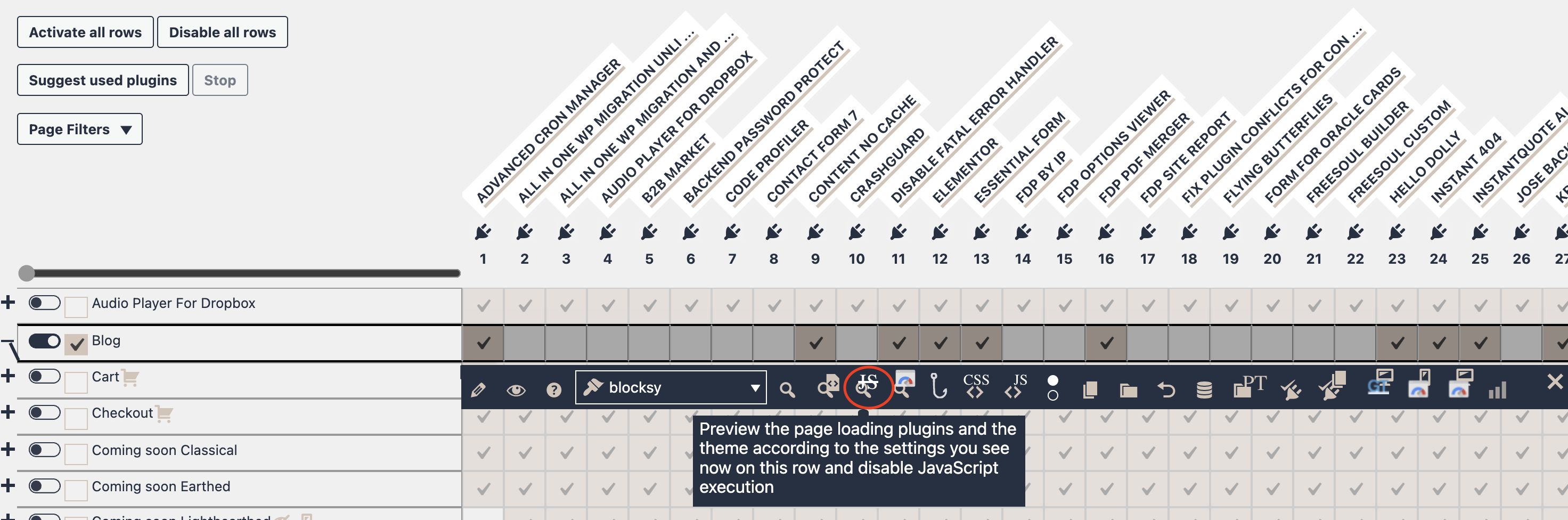
- Open the Action Buttons bar for the row
- Look for the preview icon with the JS label
When to Use the JavaScript-Off Preview
- check rendering without JavaScript
- identify script-related issues
- test server-side output independently
- inspect pages that break after scripts run
- compare normal vs no-JS preview
Rule: use standard preview for full behavior, JS-off preview to isolate script effects.
You Do Not Need to Save First
- change plugin settings
- optionally change theme
- click JS-off preview
- inspect result
- save only if needed
This allows safe testing before committing changes.
What “JavaScript Disabled” Means
This preview disables JavaScript execution to evaluate server-rendered output.
Useful for troubleshooting:
- blank sections caused by script errors
- broken interactions
- HTML vs script rendering issues
- front-end plugin conflicts
Standard Preview vs JavaScript-Off Preview
Standard Preview
Tests the full page with JavaScript enabled.
JavaScript-Off Preview
Tests the page without JavaScript.
Workflow:
- preview normally
- preview with JS disabled
- compare results
If issues appear only with JS, they are likely script-related.
What Settings Are Used
- current plugin checkboxes
- row target (single, archive, backend)
- selected theme
The preview reflects exactly what is configured in the row, but with JavaScript disabled.
Theme Selection
If available, the selected theme is applied.
This allows testing combinations like:
- plugins + current theme
- plugins + alternate theme
- plugins + alternate theme + JS disabled
Typical Use Cases
- investigate layout issues
- test progressive enhancement
- check content visibility without JS
- isolate plugin conflicts
- verify dependency on JavaScript
Example Workflow
- Open row actions
- adjust plugin settings
- optionally change theme
- run normal preview
- run JS-off preview
- compare results
What This Button Does Not Do
It does not save the row or permanently disable JavaScript.
It only applies temporary settings to the preview request.
If the Preview Helps You Find a Problem
- compare active plugins
- re-enable plugins one by one
- test with another theme
Summary
The JavaScript-disabled preview button lets you preview a page using the current row settings without JavaScript execution.
Use it to:
- test before saving
- compare JS vs no-JS behavior
- isolate script issues
- validate server-rendered output
It is a powerful tool to determine whether issues come from plugins or front-end JavaScript.