
How To Use The “Google PSI Test on Mobile” and “Google PSI Test on Desktop” Buttons
The Google PSI Test on Mobile and Google PSI Test on Desktop buttons let you run a Google PageSpeed Insights performance test for the page represented by the current row, using the exact FDP configuration currently shown in that row.
These buttons are useful when you want to compare performance after disabling specific plugins and check how the selected configuration affects the page on mobile or desktop.
What these buttons do
When you click one of these buttons, Freesoul Deactivate Plugins PRO sends the page to Google PageSpeed Insights and runs the test using the plugin setup currently defined in the row.
The test uses:
- The page linked to the current row
- The plugins disabled in that row
- The selected device mode: mobile or desktop
- The selected theme, when applicable
The result is then displayed inside FDP and also added to the internal reports.
Where to find them
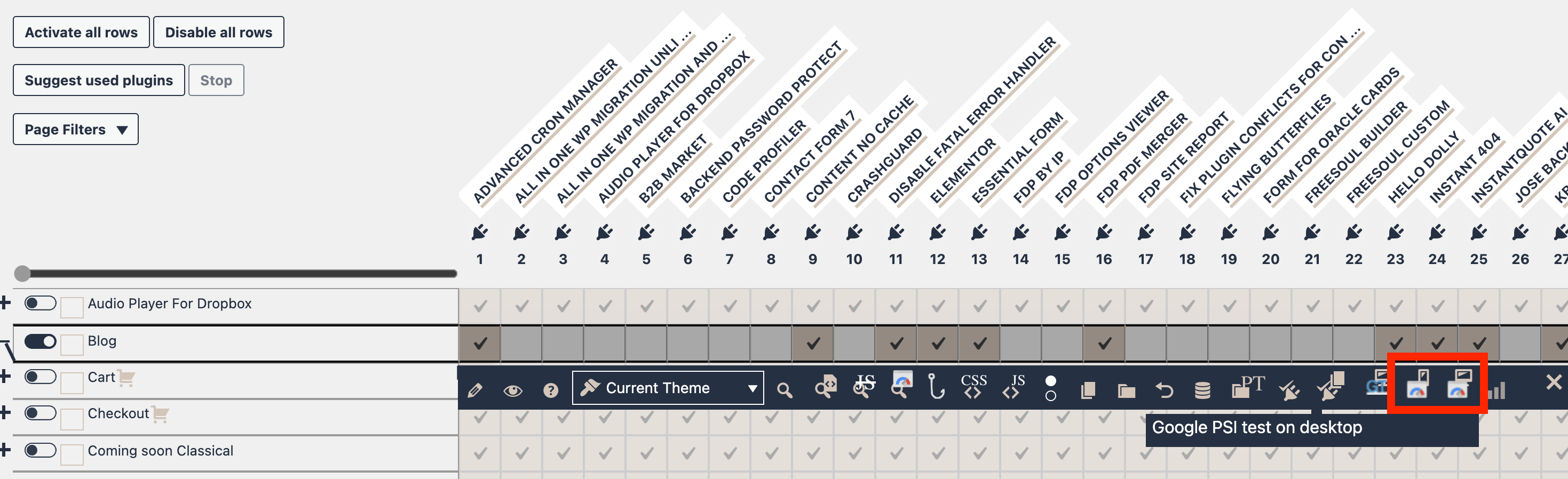
Open the Action Buttons Bar for a row.
You will see two separate buttons:
- Google PSI Test on Mobile
- Google PSI Test on Desktop
The mobile button uses a smartphone icon. The desktop button uses a desktop icon.
Before using these buttons
Make sure your Google PSI API key is configured in the plugin settings. Without a valid API key, the test cannot run correctly.
If you have not configured it yet, add your Google PageSpeed Insights API key in the FDP PRO testing settings first.
How to run a Google PSI test
- Open the FDP settings page that contains the row you want to test.
- Configure the row as needed by enabling or disabling plugins.
- Open the Action Buttons Bar for that row.
- Click Google PSI Test on Mobile to test the mobile version, or Google PSI Test on Desktop to test the desktop version.
- Wait for the test to complete.
- Review the results shown by FDP.
What information you will see in the result
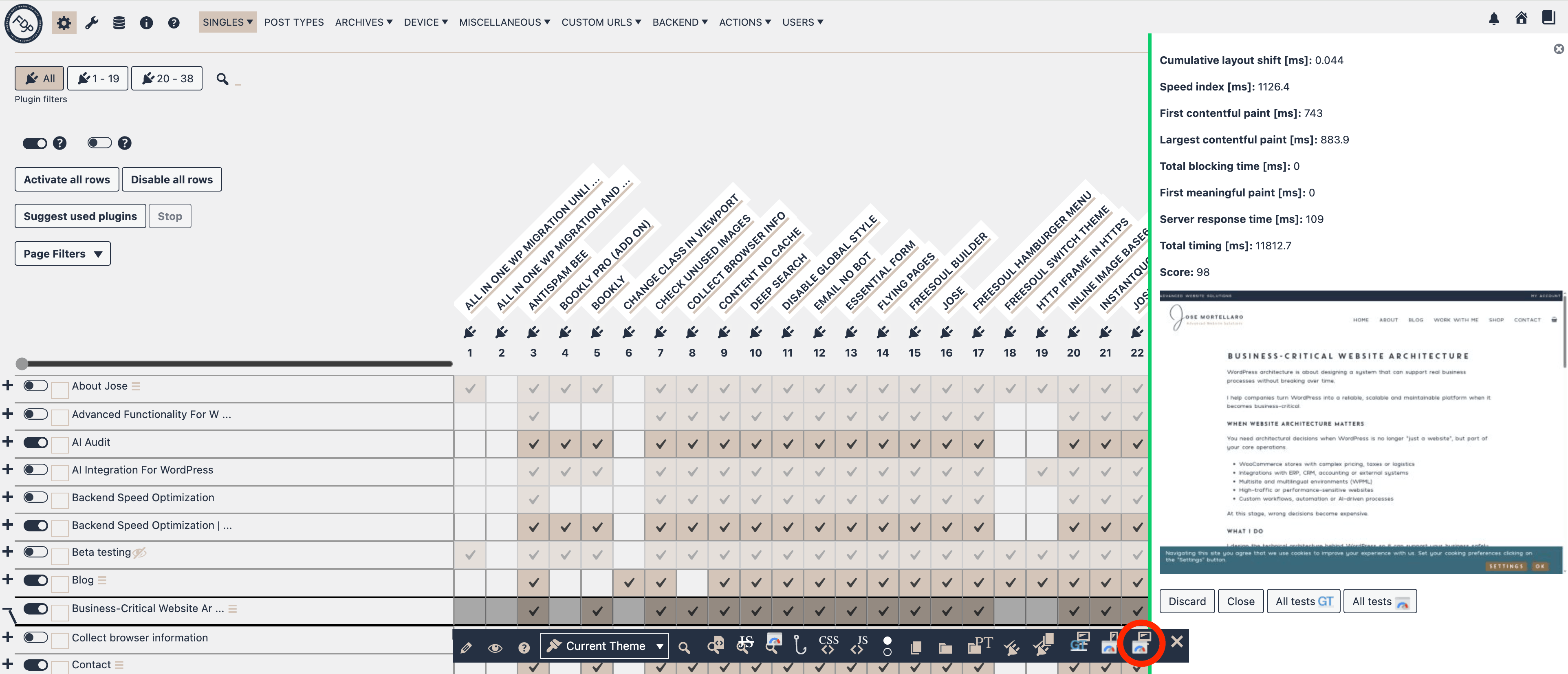
After the test finishes, FDP shows a summary with the main PageSpeed Insights data for that run.
The result can include:
- Page
- Theme
- Disabled Plugins
- Device
- Cumulative Layout Shift
- Speed Index
- First Contentful Paint
- Largest Contentful Paint
- Total Blocking Time
- First Meaningful Paint
- Server Response Time
- Total Timing
- Score
- Screenshot
A screenshot of the tested page is also shown when available.
Mobile vs Desktop
Use Google PSI Test on Mobile when you want to evaluate how the page performs for mobile users.
Use Google PSI Test on Desktop when you want to evaluate the desktop experience.
Because Google PSI uses different strategies for mobile and desktop, the results can be very different even for the same page and the same FDP row configuration.
Why these buttons are useful
These buttons are especially useful when you want to:
- Compare two different plugin configurations
- Measure whether disabling a plugin improves performance
- Check mobile performance separately from desktop performance
- Keep a record of your optimization tests inside FDP reports
Typical workflow
- Configure a row with the plugin combination you want to test.
- Run Google PSI Test on Mobile.
- Run Google PSI Test on Desktop.
- Review the scores and timing metrics.
- Adjust the row if needed.
- Run the tests again and compare the new results.
Important notes
- The test is run for the current row only.
- The results depend on the plugin configuration currently shown in that row.
- Mobile and desktop scores should be evaluated separately.
- The test is added to FDP reports, so you can review it later.
- If too many requests are sent in a short time, FDP may ask you to wait a few seconds before trying again.
Best practice
Run both tests after every meaningful change to the row configuration. This helps you understand whether a plugin combination improves performance only on desktop, only on mobile, or on both.
It is also a good idea to compare performance results together with a real page check, because a better score is useful only if the page still works correctly.
Example
Suppose you disable a few plugins for a specific page row and want to verify the impact. Run Google PSI Test on Mobile first, then Google PSI Test on Desktop. If the score improves and the page still works as expected, you may keep that configuration. If the page breaks or the score does not improve, you can continue adjusting the row and test again.
Google PSI Report Page
You will find a report containing the results of all tests in Freesoul Deactivate Plugins → Testing → Reports.
See Google PSI Reports documentation for more details.