
Remove Assets By Template File
The Remove Assets By Template File page lets you unload plugin assets when a specific WordPress theme template file is used. This is useful when you want to keep a plugin active, but you know that its frontend CSS or JavaScript is unnecessary for all pages rendered by a certain template.
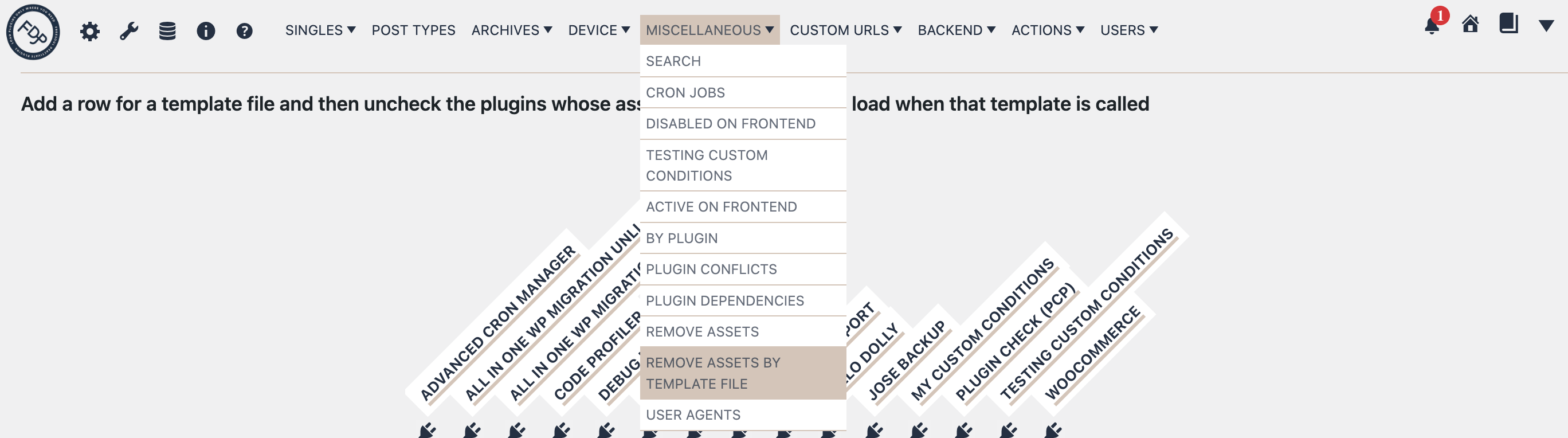
You can find this page in the FDP navigation at:
FDP > Miscellaneous > Remove Assets By Template File
What This Page Does
This feature works at the theme template file level.
Instead of saying:
“keep these assets only on these URLs”
you say:
“when WordPress uses this template file, unload the assets of these plugins”
This is especially helpful when many pages share the same template and you want one rule to cover all of them.
Examples of template files include:
- author.php
- single.php
- page.php
- archive.php
- custom template files used by your theme
How It Works
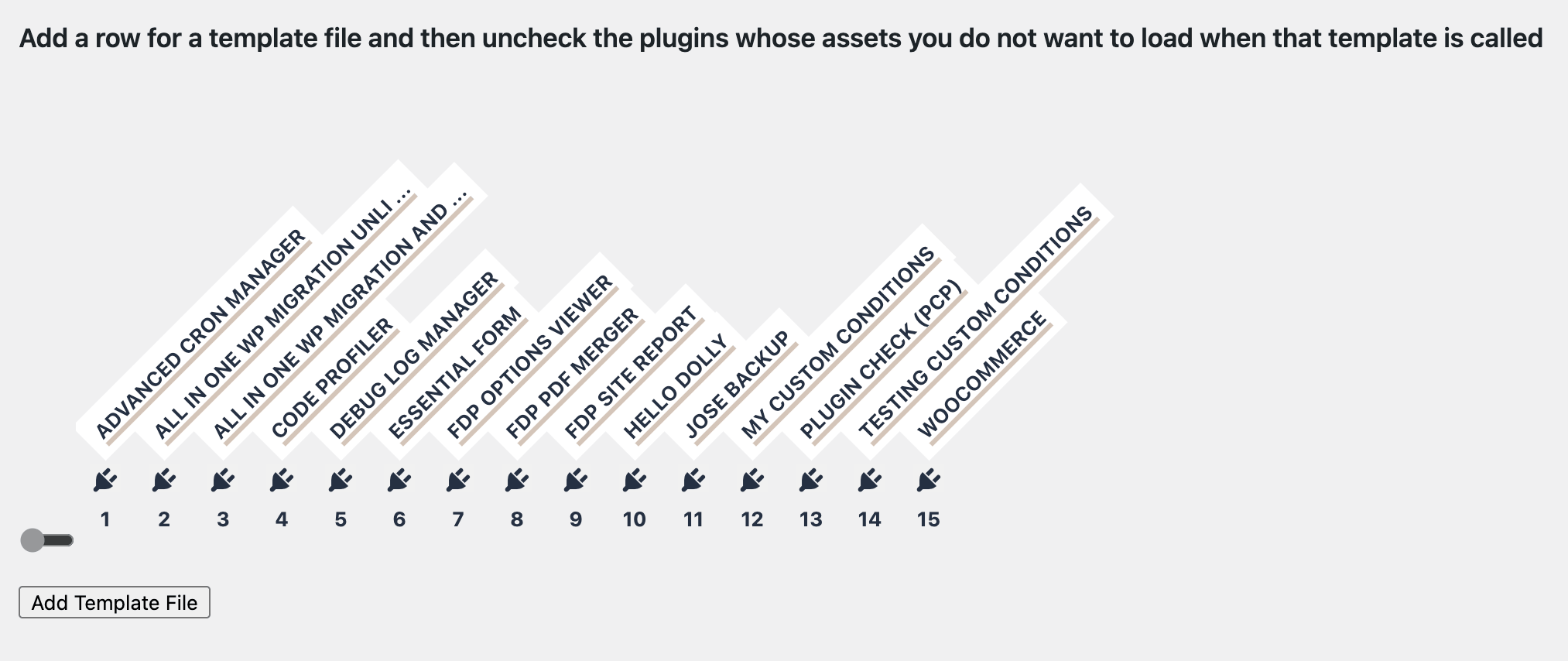
On this page, you add a row for a template file and then uncheck the plugins whose assets should not load when that template is used.
The plugin itself can still remain active. FDP only targets the plugin assets, such as:
- CSS files
- JS files
- related frontend asset files loaded through those assets
So this feature is meant to reduce unnecessary frontend weight while keeping the plugin logic available.
How To Configure It
- Open FDP > Miscellaneous > Remove Assets By Template File.
- Add a row for the template file you want to target.
- Enter the template file name, for example author.php.
- In that row, uncheck the plugins whose assets should be removed when that template is used.
- Save the settings.
Once saved, FDP checks which template file is currently being used and, if it matches one of your configured rows, it unloads the assets for the plugins you selected in that row.
Example
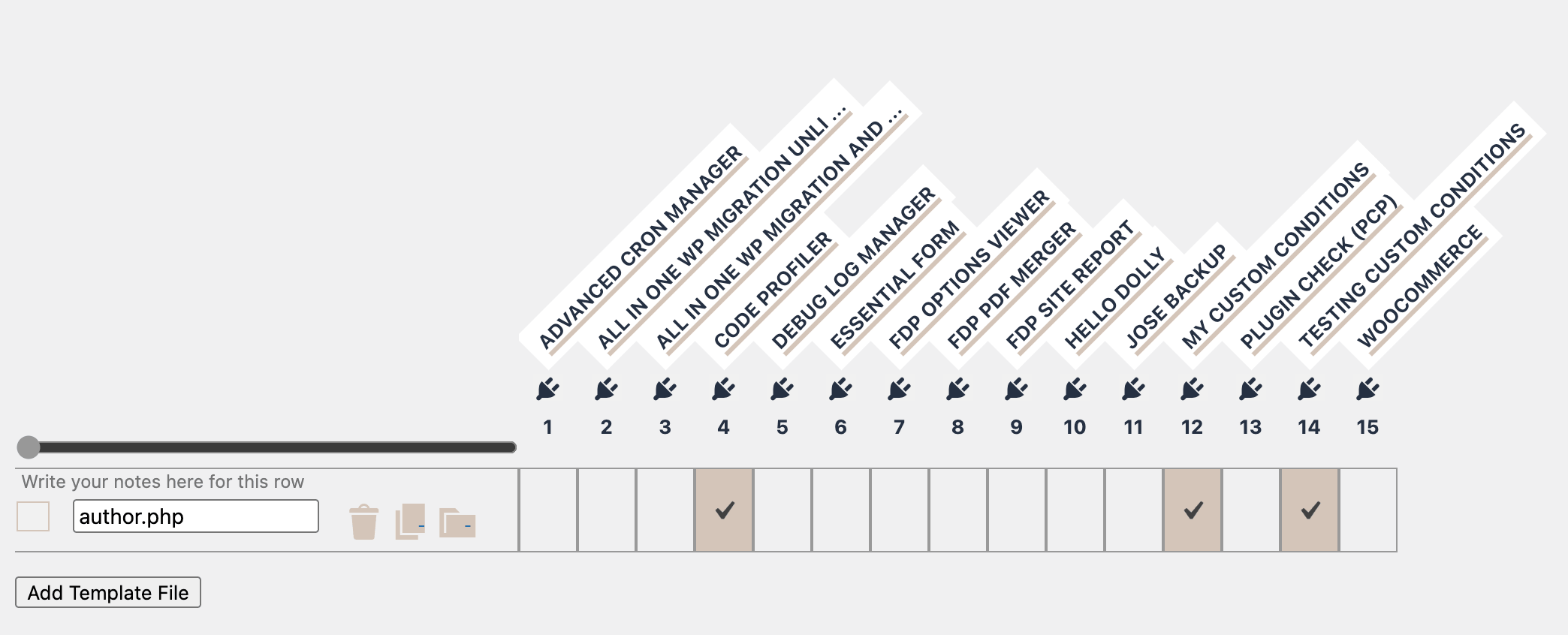
Suppose your theme uses author.php for author archive pages, and on those pages you do not need the frontend CSS and JS of a certain plugin.
You can:
- create a row for author.php
- uncheck that plugin in the row
- save the settings
From that point on, whenever WordPress renders a page using author.php, FDP unloads that plugin’s assets.
When To Use It
This feature is useful when:
- many pages share the same theme template
- you want one rule to cover all of them
- the plugin should remain active, but its assets are not needed for that template
- URL-based rules would be too long or difficult to maintain
Typical cases include:
- archive templates
- author pages
- custom single templates
- custom page templates used across multiple pages
- theme-specific templates for sections of the site
Difference Between Remove Assets and Remove Assets By Template File
These two features are related, but they work differently.
Remove Assets
Use this when you want to control asset loading based on specific URLs or URL patterns.
Remove Assets By Template File
Use this when you want to control asset loading based on the WordPress template file that renders the page.
So:
- Remove Assets = URL-based
- Remove Assets By Template File = template-based
If many pages share the same template, the template-based approach is often cleaner and easier to maintain.
Important Notes
- This feature works by matching the template file name used by the current request.
- The match is based on the template filename, such as author.php.
- It does not disable the plugin itself; it unloads the assets added by that plugin.
- It is best used when you are confident that a plugin’s CSS or JS is not needed for pages rendered by that template.
Best Practice
Before using this feature, make sure you know which theme template is actually rendering the pages you want to optimize.
A good workflow is:
- identify the template file used by the pages
- add that template file in Remove Assets By Template File
- uncheck only the plugins whose assets are clearly unnecessary
- test the affected pages carefully
This is safer than applying broad rules without knowing the template structure of the theme.
Troubleshooting
If assets are still loading, check the following:
- the template filename is correct
- the row was saved properly
- the page is really using that template
- the plugin assets are actually coming from the plugin you unchecked
If the page breaks after removing assets, the most likely reason is that the plugin still needs some CSS or JS on that template. In that case, re-enable that plugin’s assets for the template or use more granular asset management tools.
Summary
The Remove Assets By Template File page lets you unload plugin assets whenever a specific theme template file is used.
It answers the question:
When this template file is used, which plugin assets should not load?
This is a very useful feature when you want to optimize groups of pages that share the same template, while keeping plugin PHP functionality active.