
Plugin Conflicts
The Plugin Conflicts settings page lets you automatically disable specific plugins whenever another plugin is active. This is useful when two plugins should not run together on the same request.
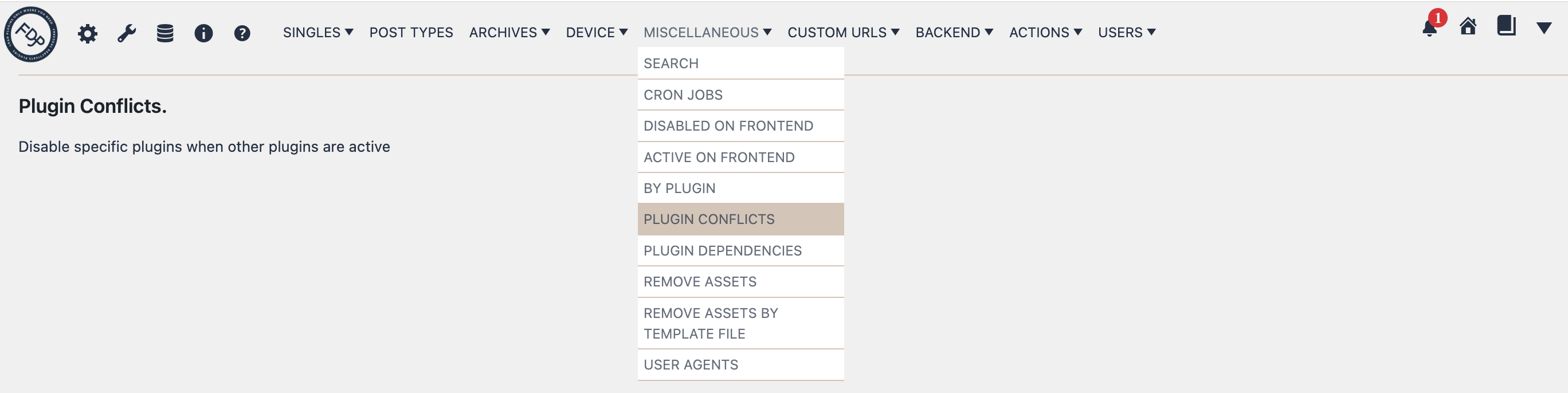
You can find this page in the FDP navigation at:
FDP > Miscellaneous > Plugin Conflicts
What This Page Does
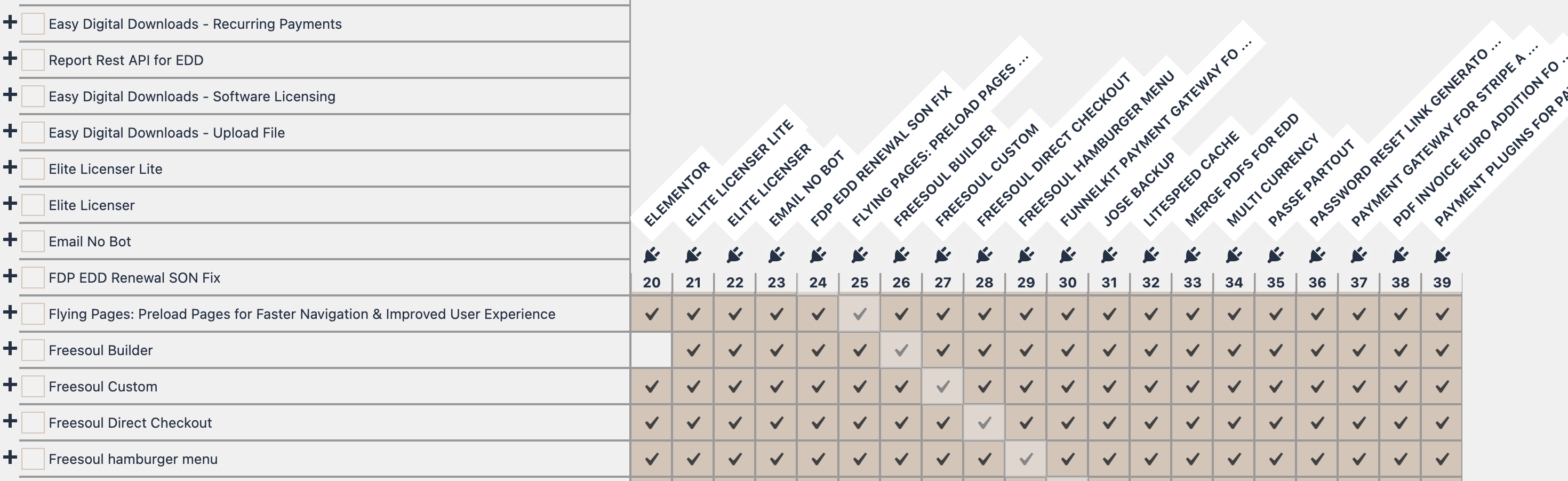
The page shows a matrix of plugins.
Each row represents the plugin that acts as the trigger.
Each column represents the plugin that can be disabled.
If you uncheck a checkbox in a row, FDP will disable the plugin in that column whenever the plugin of that row is active.
In simple words:
“If plugin A is active, disable plugin B.”
This allows you to create conflict rules without writing code.
Example
Suppose you want to disable Plugin B whenever Plugin A is active.
You would:
- Find Plugin A in the left row title.
- Move across that row until the column for Plugin B.
- Change that cell so Plugin B is marked as disabled in that condition.
- Save the settings.
From that point on, when Plugin A is active, FDP will prevent Plugin B from loading.
How To Read The Matrix
The row title is the “condition plugin”.
The column is the “plugin to disable”.
So each row answers this question:
Which plugins should be disabled when this plugin is active?
This is different from simply turning plugins off on specific pages. Here, the disabling rule depends on whether another plugin is active.
The Diagonal Cells
A plugin cannot disable itself from its own row. For that reason, the cell where the row plugin and the column plugin are the same is not meant to be used as a real option.
So, for example:
- WooCommerce row + WooCommerce column is not a real conflict rule
- only the other cells in the row matter
Typical Use Cases
This page is useful when:
- two plugins provide overlapping functionality
- one plugin creates errors, duplicated output, or unexpected behavior if another plugin is loaded at the same time
- you want to keep one plugin as the preferred one and automatically suppress another one in those cases
Difference Between Plugin Conflicts and By Plugin
These two pages look similar, but they solve different problems.
Plugin Conflicts
Disable specific plugins when another plugin is active.
Use this when the conflict happens because a plugin is running.
Example: “If Plugin A is active, disable Plugin B.”
By Plugin
Disable specific plugins when another plugin is disabled.
Use this when one plugin only makes sense if another plugin is available.
Example: “If Plugin A is disabled, disable Plugin B too.”
So:
- Plugin Conflicts = active plugin triggers another plugin to be disabled
- By Plugin = disabled plugin triggers another plugin to be disabled
How To Configure It
- Open FDP > Miscellaneous > Plugin Conflicts.
- Locate the plugin that should act as the trigger.
- In that row, select the plugins that must be disabled whenever that trigger plugin is active.
- Repeat for any other plugin combinations you want to manage.
- Save the settings.
After saving, FDP applies these rules automatically during plugin loading.
Good Strategy
A good way to use this page is to think in terms of “winner” and “loser”.
Ask yourself:
- Which plugin should remain active?
- Which plugin should be disabled if that one is present?
Then build the row accordingly.
This helps when two plugins overlap in caching, optimization, form handling, tracking, rendering, or similar frontend/backend behaviors.
Important Notes
- The rules are based on plugin slugs, not on page URLs.
- These settings are global, so they are not tied to a specific post, page, or archive by themselves.
- FDP applies the conflict logic during plugin loading, so the selected plugin is prevented from running when the condition matches.
- If multiple conflict rules apply, FDP can disable more than one plugin during the same request.
- The page only manages plugins that are currently available in the WordPress installation.
Troubleshooting
If a plugin is not disabled as expected, check the following:
- the correct row and column were used
- the settings were saved
- the trigger plugin is really active in that request
- another FDP rule is not affecting the same plugins in a different way
If needed, test with only one conflict rule first, confirm it works, and then add the others gradually.
Best Practice
Use Plugin Conflicts only for real incompatibilities or controlled precedence rules. If too many plugins disable each other in many combinations, debugging becomes harder.
The best approach is:
- keep the rules minimal
- only add conflict rules when they solve a concrete issue
- document internally why each rule exists
Summary
The Plugin Conflicts page lets you define plugin-to-plugin exclusion rules.
It answers the question:
When this plugin is active, which other plugins should FDP disable automatically?
This is a powerful feature for handling plugin incompatibilities, reducing overlap, and controlling which plugin should take priority when multiple plugins could interfere with each other.