
Run Google PageSpeed Insights for a Row
Use the Google PageSpeed Insights button to open a PageSpeed Insights report for the page represented by the current row, using the plugin configuration shown in that row.
This is useful when you want to measure performance for a specific FDP setup before saving it permanently.
What This Button Does
The PageSpeed Insights button opens a Google PageSpeed Insights report for the page linked to the current row.
The tested URL includes the temporary FDP preview parameters generated from that row, so the report is based on the plugin configuration currently shown in the row.
In other words, the report is not just for the live page as normally loaded. It is for the page as FDP prepares it using the row settings you currently see.
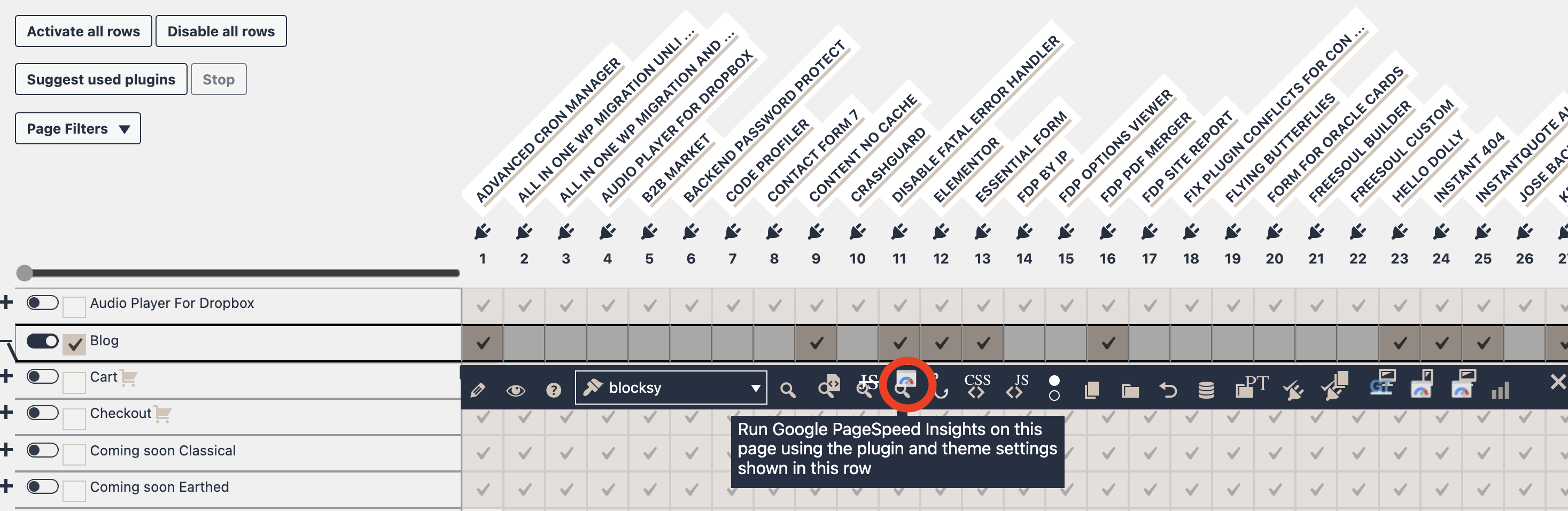
Where to Find It
- Open the Action Buttons bar for the row.
- Look for the preview icon with the PageSpeed logo.
This button is available for supported row types such as:
- single pages
- archives
- term archives
What Gets Tested
When you click the PageSpeed Insights button, FDP builds a preview URL that includes the information needed to load the current row configuration and by-pass full-page cache.
That preview URL is then passed to Google PageSpeed Insights.
The resulting report reflects:
- the current plugin selection shown in the row
- the current theme selection for that row, when available
- the FDP preview context for that configuration
This allows performance evaluation, without full-page cache, for the exact setup being tested in FDP.
You Do Not Need to Save First
The PageSpeed Insights button can be used before saving the row.
A typical workflow is:
- change plugin selection
- optionally change theme
- click PageSpeed Insights
- review the report
- decide whether to save
This allows safe performance comparison before applying changes permanently.
What the Report Is Based On
FDP generates a preview URL from the current row state and sends it to Google PageSpeed Insights.
The report reflects the plugin and theme configuration shown in that row, not just the default live page.
This is useful for comparing:
- heavy plugin removal
- minimal plugin configurations
- theme variations
- different row setups
Typical Use Cases
- compare plugin combinations
- test performance improvements
- measure theme impact
- evaluate row optimization before saving
- analyze Core Web Vitals changes
- deciding whether to disable a plugin
The last point is very important. With the GPSI preview, you can assess how critical a plugin is, especially when you’re unsure whether disabling it might affect the site’s functionality.
If a plugin does not significantly impact the PageSpeed Insights report and you are not completely sure, it may be better to keep it active.
On the other hand, if the impact is significant, you should take more time to investigate that plugin in detail, carefully inspect the page, and analyze its behavior before deciding whether it can be safely disabled.
Recommended Workflow
- Open the row action bar
- Adjust plugin selection
- Optionally change theme
- Click PageSpeed Insights
- Review the report
- Test another configuration if needed
- Save only when satisfied
This workflow helps optimize a page without affecting the rest of the site.
Standard Preview vs PageSpeed Insights
Standard Preview
Used to check whether the page visually works correctly.
PageSpeed Insights
Used to analyze performance of the current row configuration.
Summary:
- Preview = does it work?
- PSI = how fast is it?
Important Notes
- The report opens on Google PageSpeed Insights
- The URL is generated from the current row state
- No saving is required before testing
- The result reflects preview configuration, not only live page state
Best Practices
- test one change at a time
- compare before/after plugin changes
- use preview before PSI
- measure performance after each adjustment
- keep notes of configurations
Example Workflow
- identify slow page
- disable one plugin in row
- run preview
- run PageSpeed Insights
- compare results
- repeat with different plugins
Summary
The Google PageSpeed Insights button lets you test performance for the current row configuration.
Use it to:
- measure performance before saving
- compare configurations
- analyze plugin impact
- optimize page speed using real data
It is the fastest way to connect FDP row settings with real PageSpeed performance results.