
Plugin Settings
The Plugin Settings page lets you manage a set of global plugin-level behaviors for all installed plugins recognized by FDP PRO.
This page is not for row-based page rules. Instead, it is used to define how specific plugins should behave globally inside FDP PRO and, in some cases, inside WordPress itself.
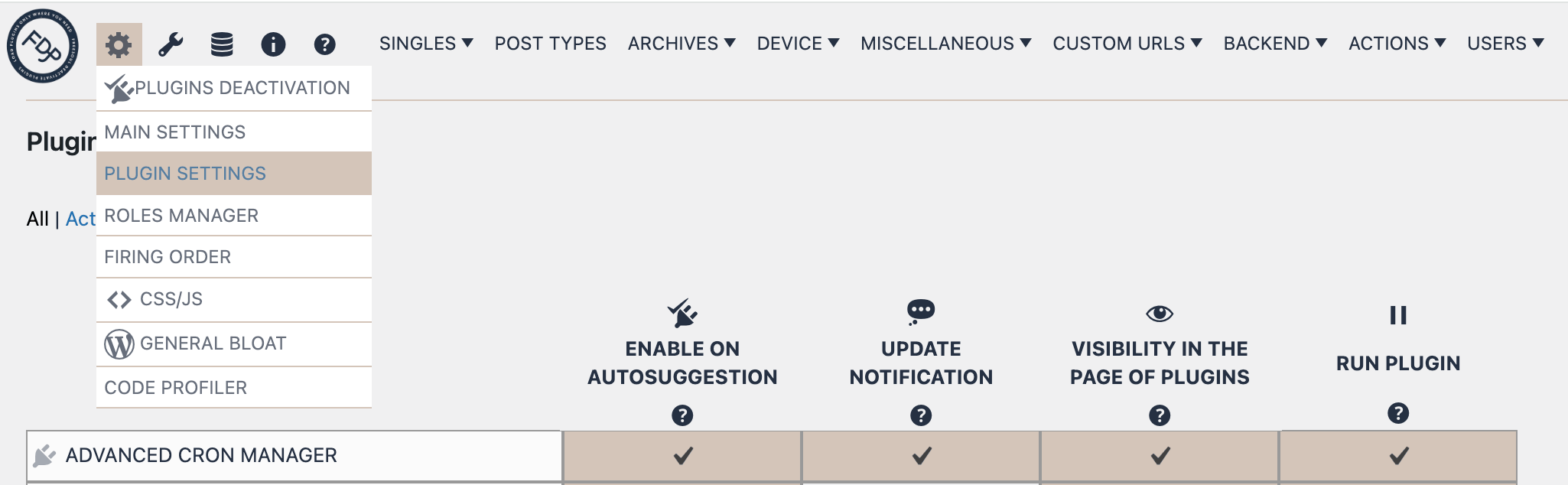
You can find the Plugin Settings page directly in the FDP admin navigation. Open the FDP menu in the WordPress backend, then go to the Settings area (gear icon) and click Plugin Settings.
What this page is for
The purpose of Plugin Settings is to give you a centralized overview of your plugins and let you configure a few special behaviors per plugin.
For each plugin, the page provides controls for:
- Enable on autosuggestion
- Update notification
- Visibility in the Plugins page
- Run plugin
These options are applied per plugin and saved globally.
Who can access this page
Users with plugin management permissions can use this page normally.
Users with the custom viewer capability can still open the page and inspect the settings, but saving changes requires plugin activation permissions.
Page layout
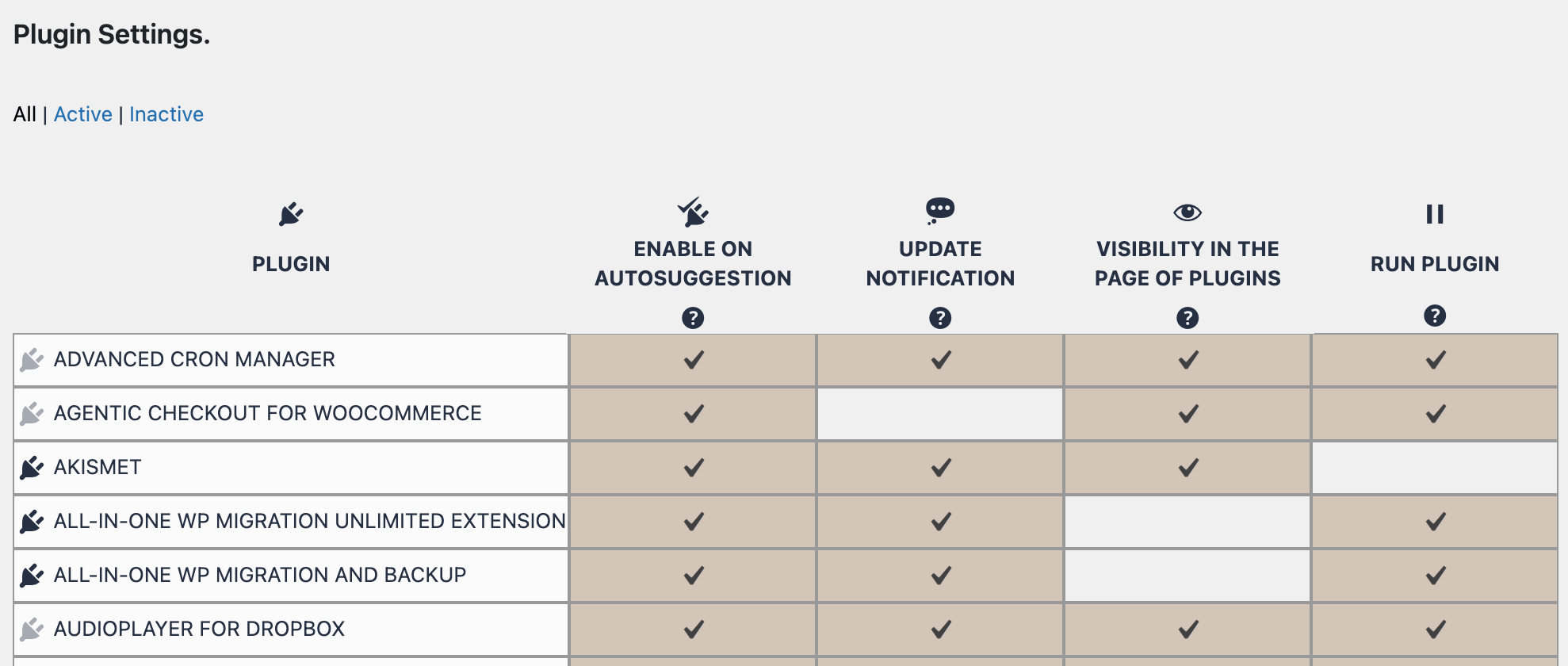
The page shows a table with:
- The plugin name
- Four settings columns
Filter links at the top to show:
- All
- Active
- Inactive
This makes it easier to work with large plugin lists.
Plugin list
The table includes the installed plugins found by WordPress and recognized by FDP PRO.
Each row shows the plugin name with a details link. Clicking the plugin name opens the standard WordPress plugin details screen for that plugin.
Filter links
At the top of the page, you can filter the list by plugin state:
- All shows the full list
- Active shows only active plugins
- Inactive shows only inactive plugins
This is useful when you want to focus only on the plugins currently running on the site, or only on installed plugins that are inactive.
Setting columns
Enable on autosuggestion
This option controls whether a plugin can be considered active during FDP autosuggestion processes.
- If enabled, the plugin is allowed in autosuggestion analysis.
- If disabled, the plugin is excluded from the autosuggestion process.
This is useful for plugins that can interfere with automated checks, such as:
- Maintenance mode plugins
- Coming soon plugins
- Plugins that redirect visitors
- Plugins that add dynamic output and make automated analysis unreliable
Some known maintenance and coming soon plugins are automatically excluded and cannot be re-enabled from this column.
Update notification
This option controls whether WordPress should show update notifications for that plugin.
If disabled, WordPress will stop showing update notices for that plugin.
This can be useful when:
- You want a cleaner update screen
- You intentionally do not want notifications for a plugin
- You manage updates in a different workflow
Visibility in the Plugins page
This option controls whether the plugin is visible in the standard WordPress Plugins page.
If disabled, the plugin will not appear in the Plugins screen.
This is useful when you want to hide technical or controlled plugins from certain users.
Run plugin
If disabled:
- The plugin remains installed
- The plugin is not loaded or executed anywhere
- It is treated as present but inactive
This option should be used carefully because it can immediately affect site behavior globally.You may need a plugin that remains active on the Plugins page but stays in sleep mode when you don’t want to trigger any actions hooked to its activation or deactivation.
How to use the page
- Open Plugin Settings
- Filter the list if needed
- Find the plugin you want to configure
- Check or uncheck the desired options
- Click Save
The page saves all plugin settings together.
Example use cases
- Disable a maintenance plugin in autosuggestion to avoid breaking automated analysis
- Hide a technical plugin from the Plugins page
- Suppress update notifications for a plugin
- Prevent a plugin from running globally without deactivating it from the plugins page, so you don’t trigger any actions hooked to its deactivation.
Important notes
- These are global plugin settings, not page-specific FDP rules
- Run plugin affects execution everywhere
- Visibility affects the Plugins screen
- Update notification affects WordPress notices
- Some maintenance/coming soon plugins are forced off for autosuggestion
Best practice
Use this page for exceptional plugin-level control, not for normal per-page optimization.
- Use row settings for page-specific rules
- Use Plugin Settings only for global behavior changes
Be especially careful with Run plugin, as it affects both frontend and backend.
Suggested workflow
- Decide if the rule should be global or page-specific
- If global, change it here
- Save settings
- Verify frontend and backend behavior
- Refine page-level rules if needed
Example
Suppose you use a coming soon plugin that redirects visitors. This can interfere with FDP autosuggestion.
In that case, open Plugin Settings and make sure it is disabled for autosuggestion. This keeps FDP automated tests reliable while still allowing you to manage the plugin separately.