
Documentation: How to Deactivate Plugins on Specific Pages
Getting started
The goal of Freesoul Deactivate Plugins (FDP) is to let you load plugins only where they are actually needed, improving performance and reducing unnecessary overhead.
You can deactivate plugins based on:
- A single post (blog post, page, or any public custom post type) → Singles
- The post type → Post Types
- Archives (post type archives) → Archives
- Term archives (categories, tags, taxonomies) → Term Archives
- Device type → Device
- Search results page → Search
- Cron jobs (PRO) → Cron Jobs
- Custom URLs → Custom URLs
- Backend pages → Backend and Backend URLs
- Background actions (Ajax) → Actions
- Logged-in user (PRO) → Users
Suggested workflow
FDP unloads plugins based on the settings listed above (Singles, Post Types, Custom URLs, etc.).
Some settings can overlap, especially:
- Singles
- Post Types
- Custom URLs
When a frontend page loads, FDP follows this priority order:
- Custom URLs (highest priority)
- Singles
- Post Types
If a page URL matches a Custom URL rule, FDP will ignore Singles and Post Types for that page.
If no Custom URL matches, FDP checks:
- Singles (if the row is active)
- Otherwise, Post Types
This priority system is the most confusing part for new users, so pay close attention.
Example
- You deactivate some plugins in Post Types for the post type “Pages”.
- You deactivate a different set of plugins in Singles for the page “Contact Us”.
Result:
- All pages use the Post Types configuration
- The page “Contact Us” uses the Singles configuration only if its row is active
If the Singles row is not active, FDP will fall back to the Post Types settings.
Recommended approach:
- Use Singles only for pages that need a special set of plugins
- Use Post Types for all remaining pages
Overview of plugin deactivation options
Below is an overview of all available options. Click each tab to learn how the related settings work.
In the Singles section you can choose which plugins to deactivate on individual posts, pages, or any public custom post type.
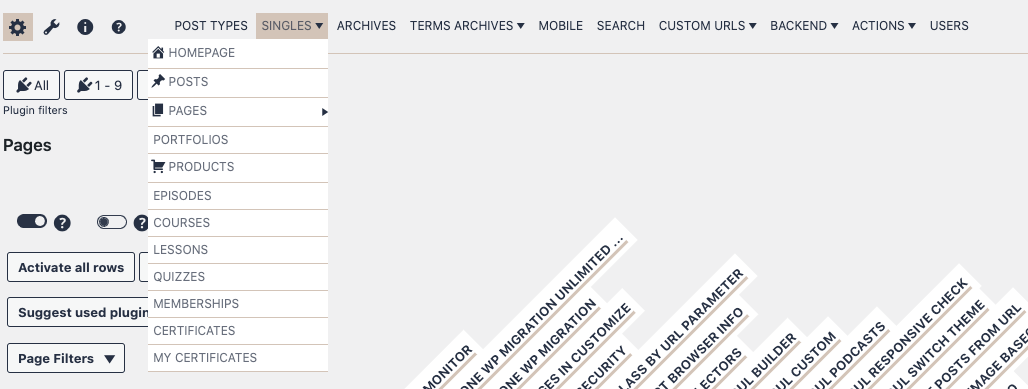
The Singles menu includes a submenu for every public post type registered on your site.
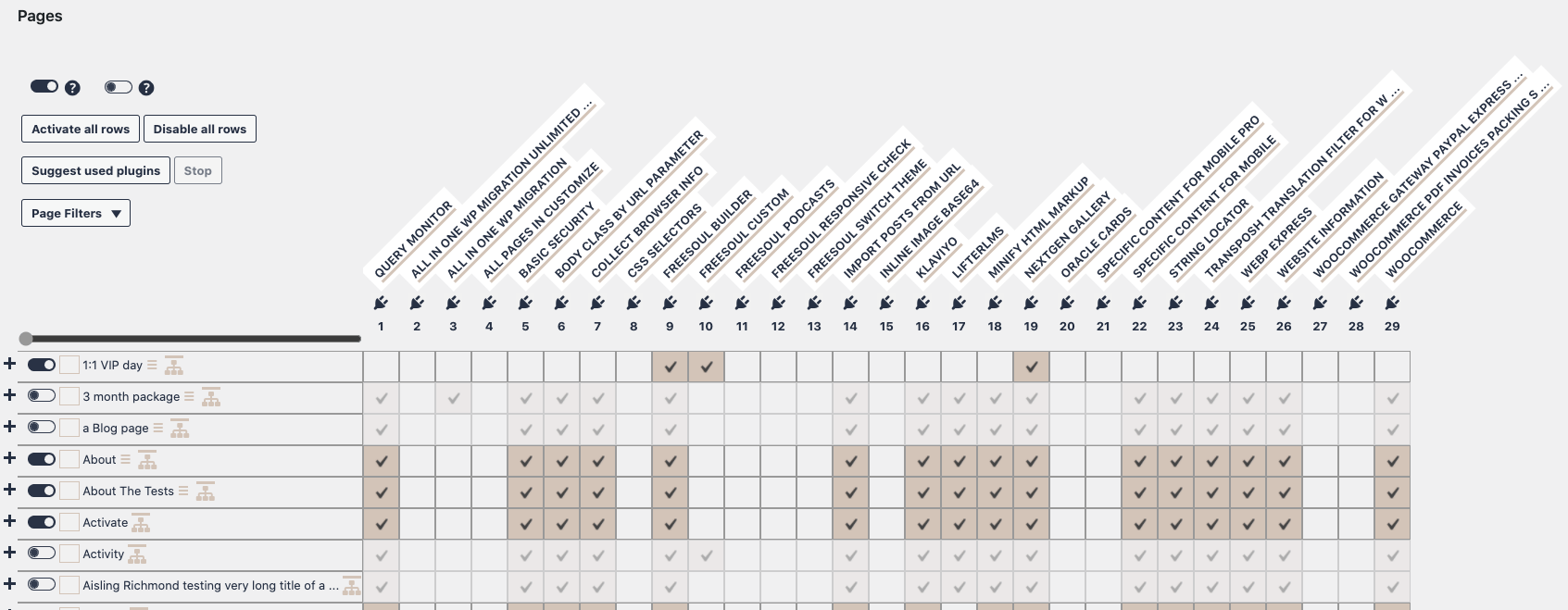
In this example, the page “1:1 VIP Day” loads only Freesoul Builder, Freesoul Custom, and NextGEN Gallery.
Because the row is active, the Singles settings override the Post Types settings.
The recommended strategy is to use Post Types for most pages and Singles only when a page needs a different configuration.

In the Post Types section you decide which plugins stay active for each post type.
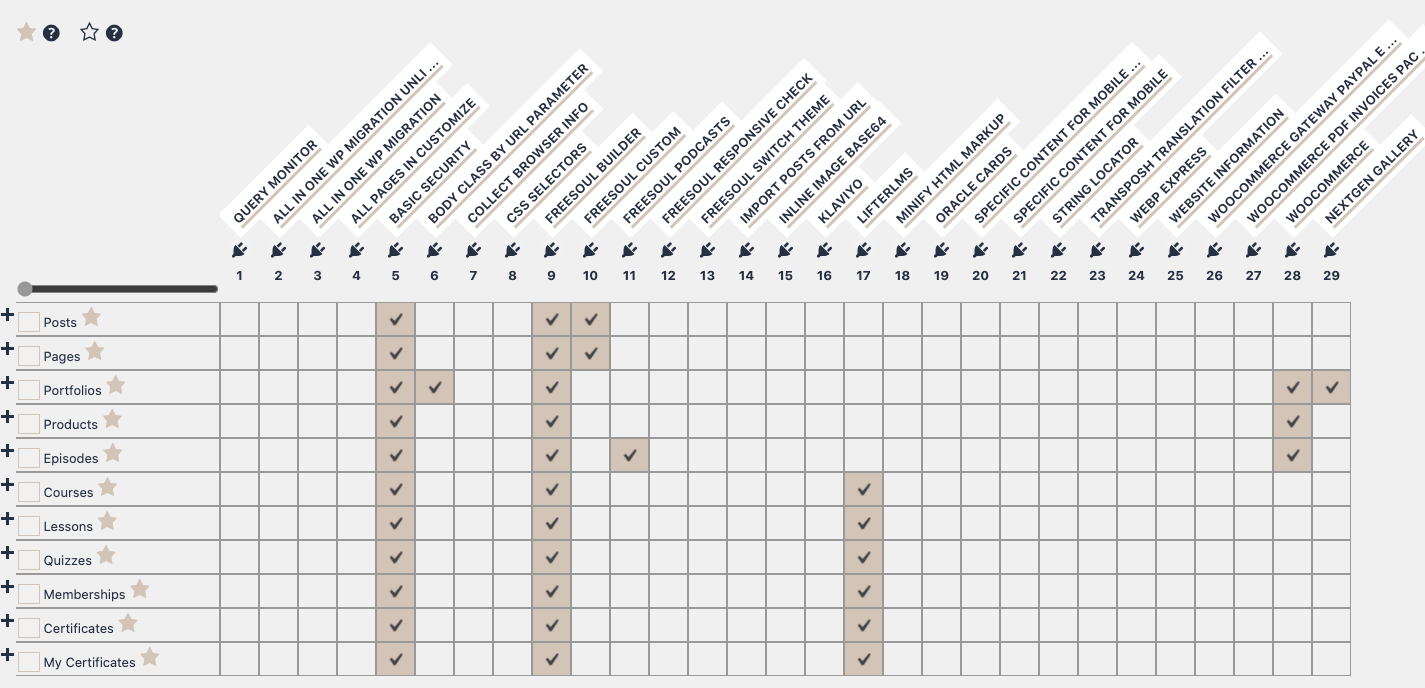
With these settings:
- Pages and blog posts load only Basic Security, Freesoul Builder, and Freesoul Custom
- Lessons load Basic Security, Freesoul Builder, and LifterLMS
If a specific page needs different plugins, you can override this using Singles.
Archive pages are managed through the Archives settings.
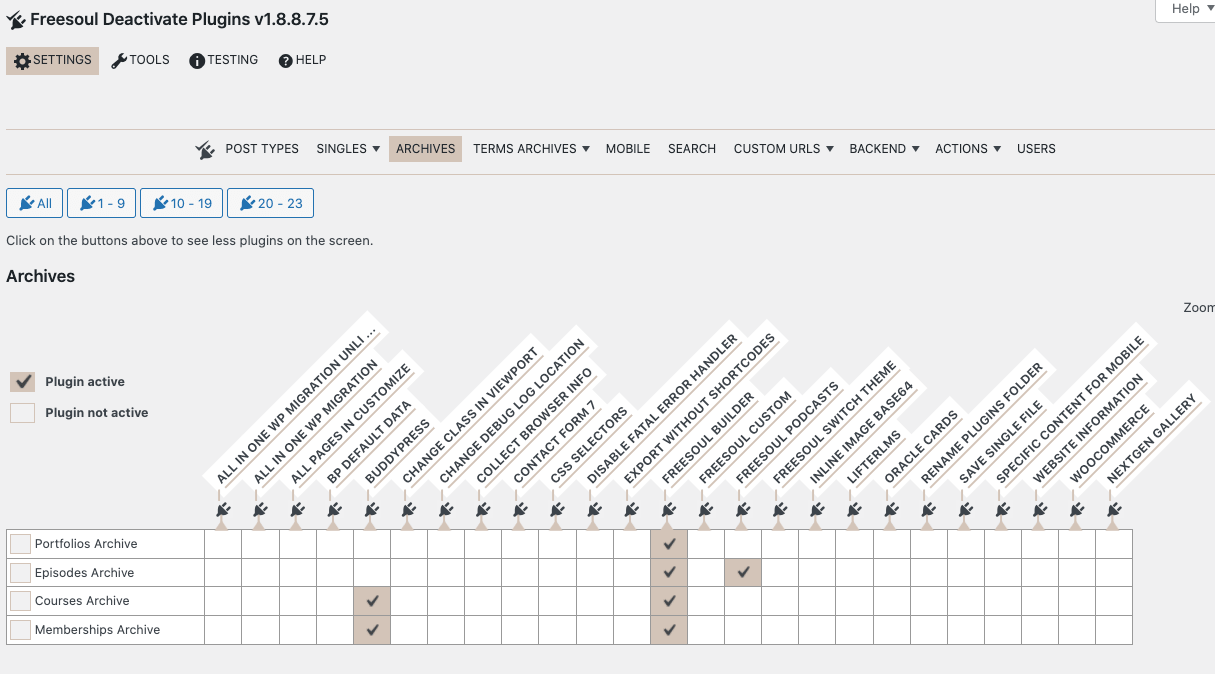
Each archive can have its own active plugins.
Be careful: disabling required plugins can break pages. FDP is a powerful tool, but results depend on correct usage.
PRO users get automatic suggestions for unused plugins.
Term Archives control plugin loading on category, tag, and taxonomy pages.
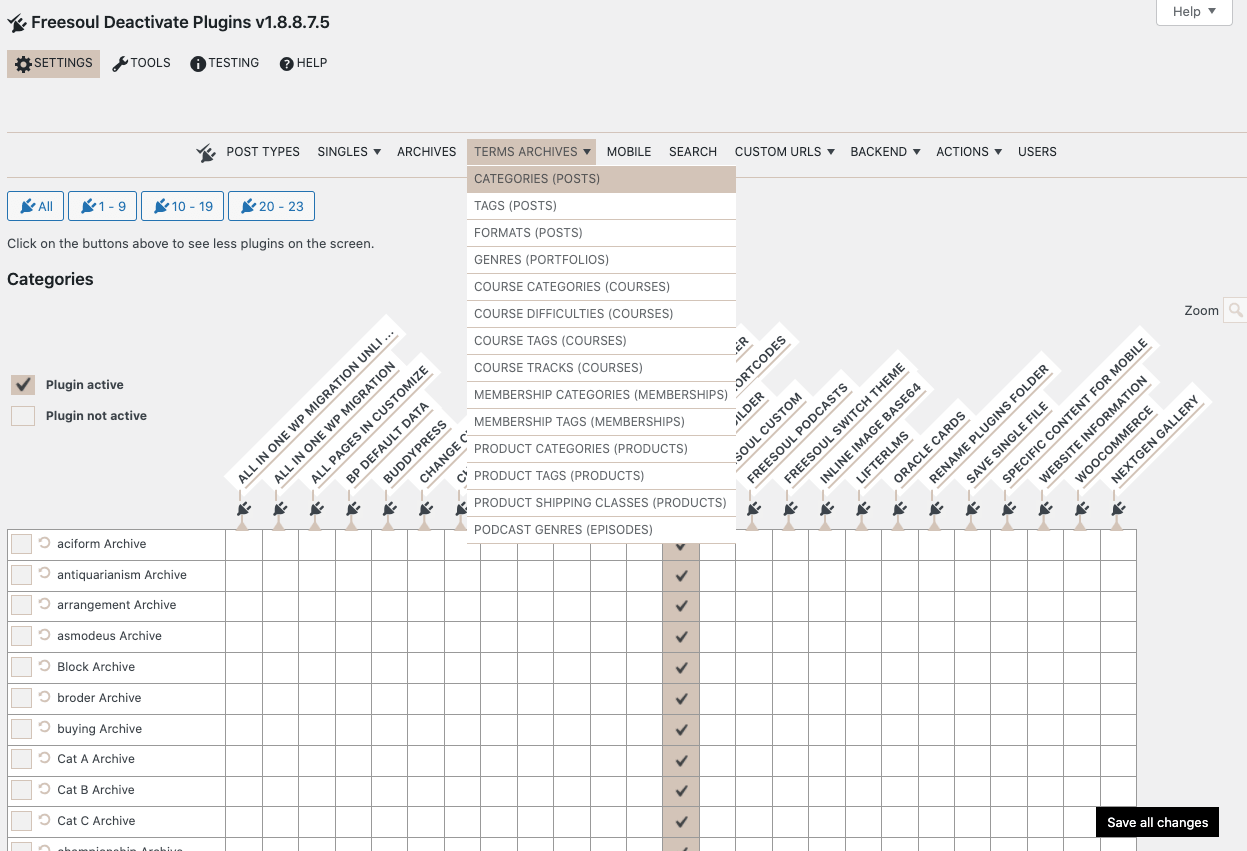
In this example, only Freesoul Builder remains active on category archive pages.
You can deactivate plugins based on the visitor’s device (mobile / desktop – desktop is PRO only).
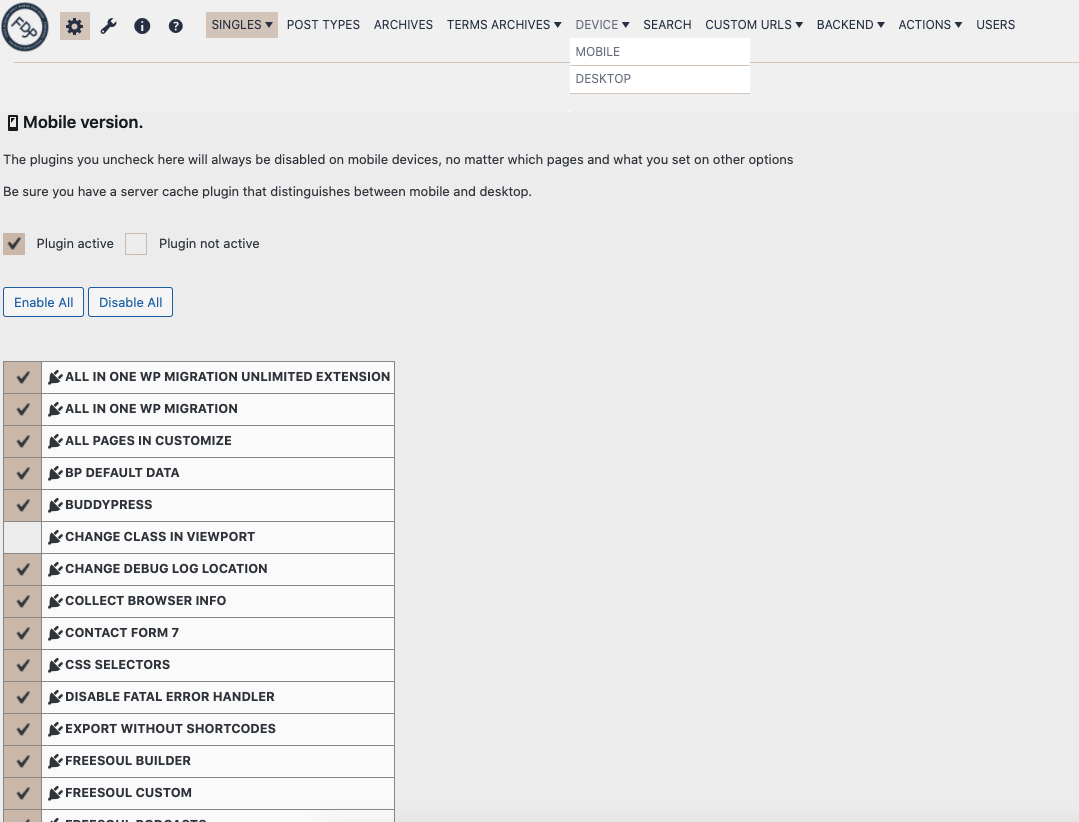
Tablets and phones are treated as mobile devices.
Be careful:
- Use a cache plugin that separates mobile and desktop
- Disabled plugins may leave orphan shortcodes
Specific Content For Mobile can help avoid shortcode issues.
Here you control which plugins stay active on search results pages.
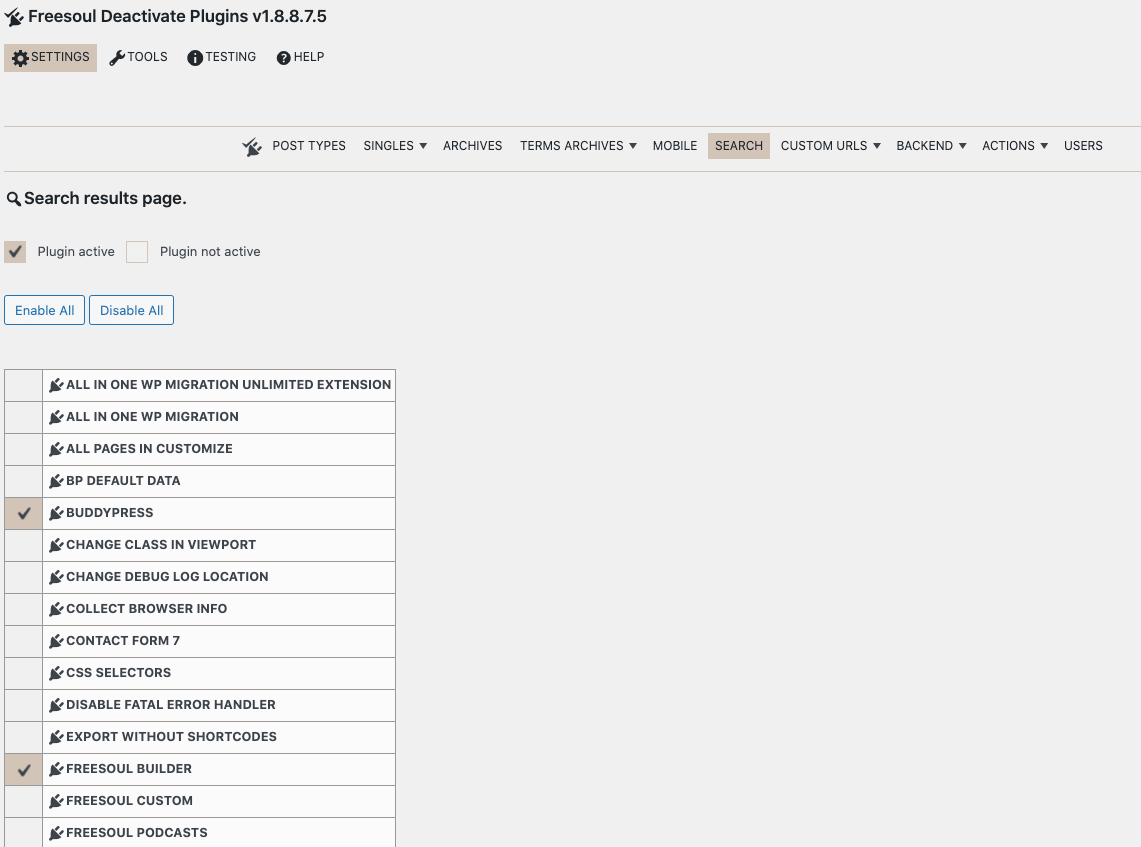
Usually, search pages only need the theme and basic layout plugins.
Custom URLs allow plugin deactivation based on URL patterns.
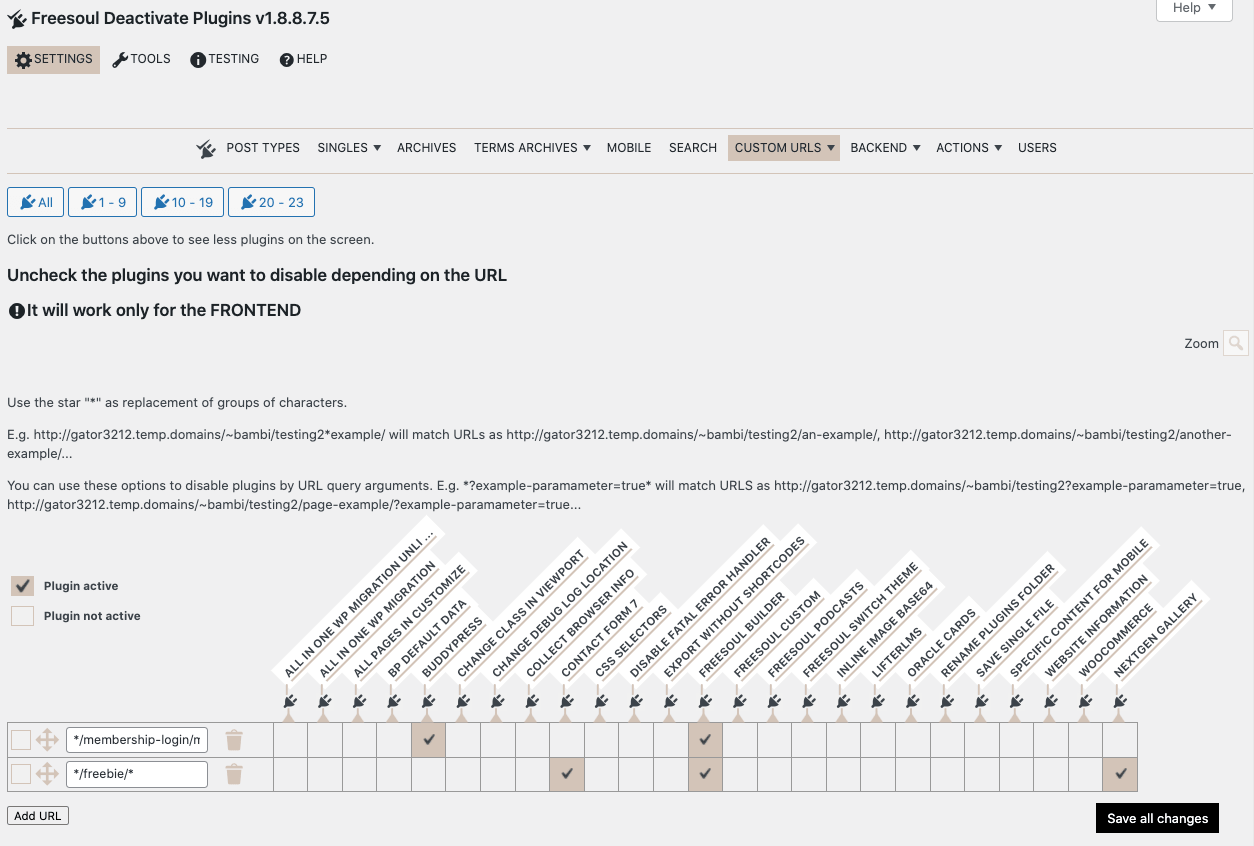
Use * as a wildcard and match query parameters if needed.
Backend settings let you disable plugins inside the WordPress admin area.

Backend Singles lets you disable plugins on specific admin pages.
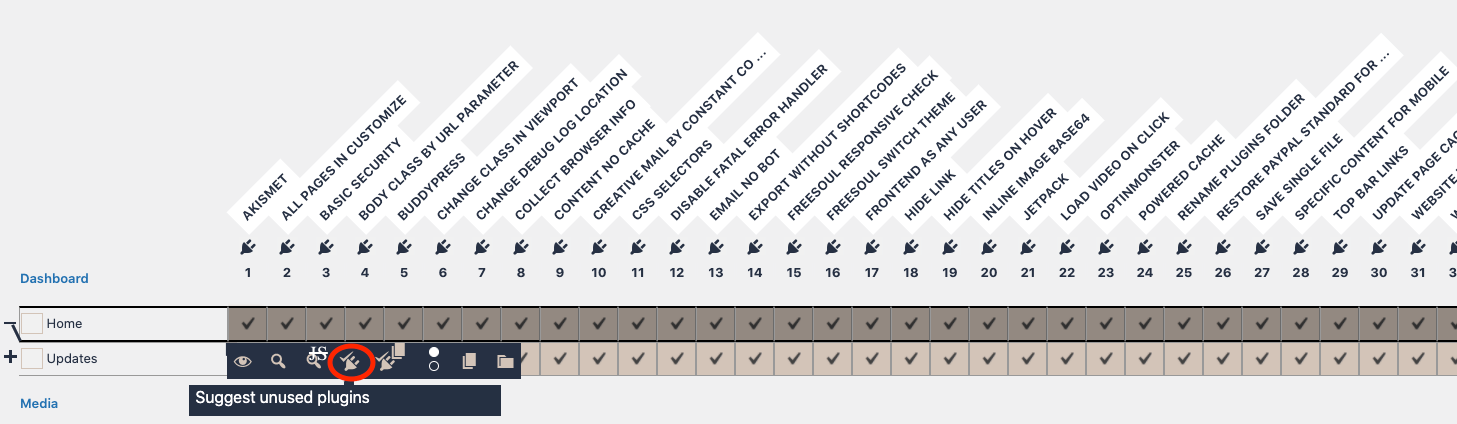
Click the plus icon to get automatic suggestions for unused plugins.
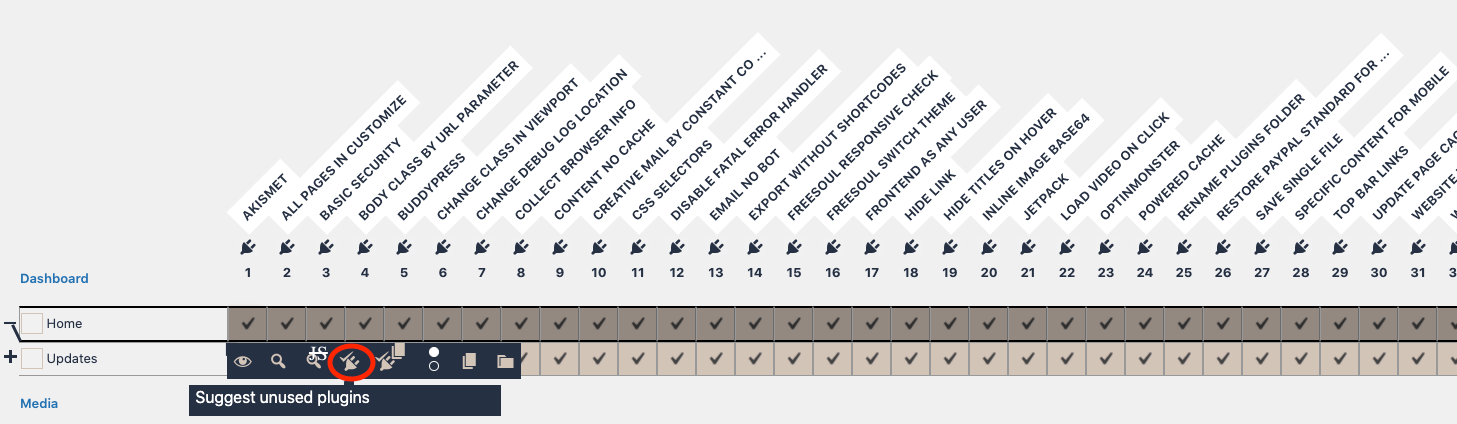
Always preview the page before saving.

Disabling backend plugins can greatly improve admin performance.
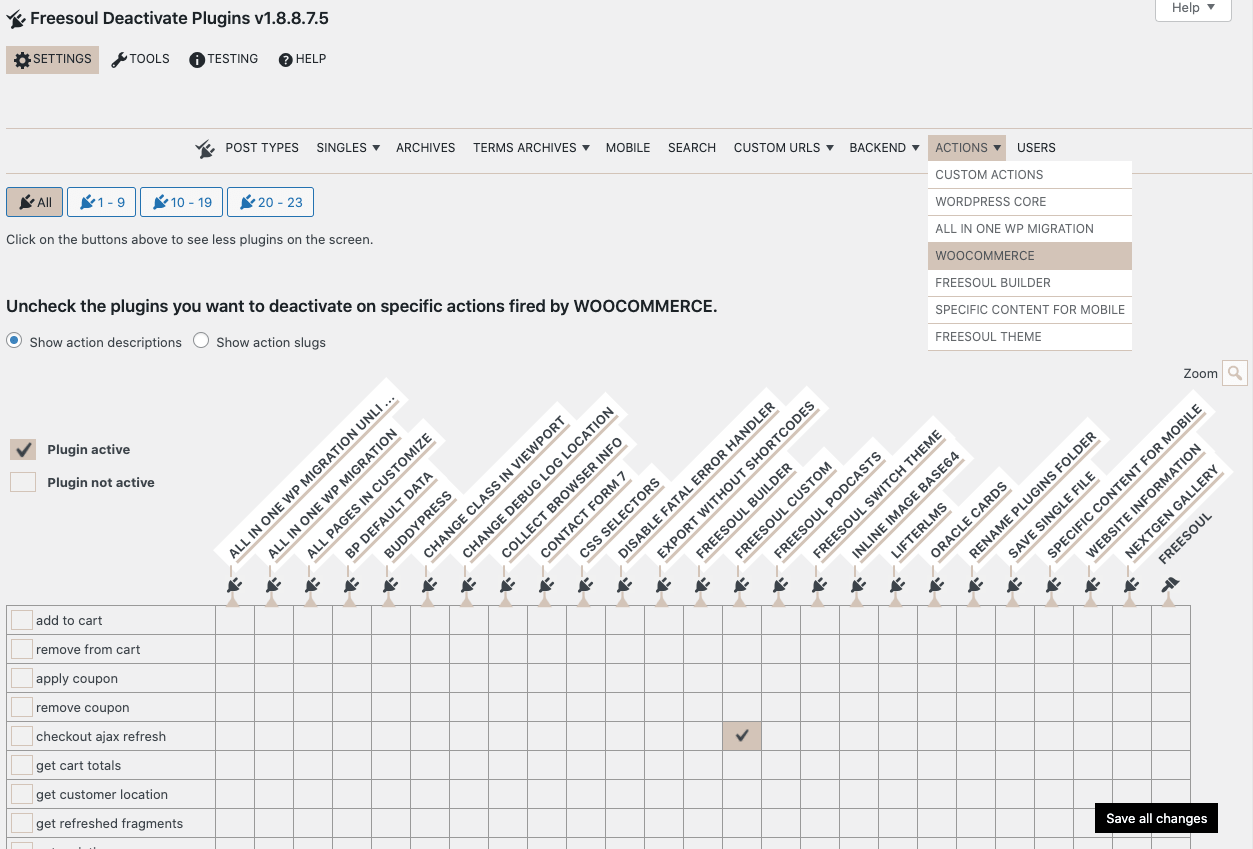
Here you can disable plugins during specific Ajax actions.
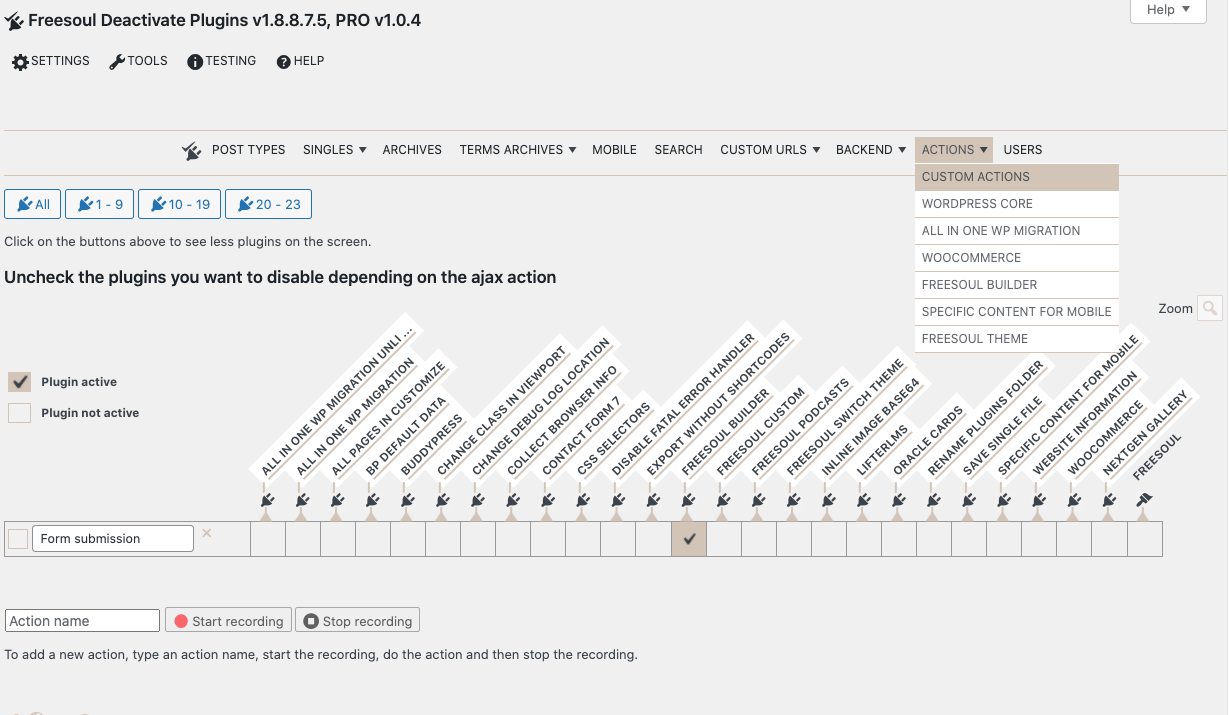
PRO users can record any Ajax action without writing code.

You can disable or hide plugins based on the logged-in user (PRO only).
Decision tree: Which setting should I use?
Use this step-by-step decision tree to quickly understand where you should configure plugin deactivation.
Start here
- Is this about the WordPress admin (backend)?
- Yes → Go to Backend or Backend URLs (PRO)
- No → Continue
- Is this about an Ajax request or background action?
- Yes → Use Actions
- No → Continue
- Should plugins change depending on the logged-in user?
- Yes → Use Users (PRO)
- No → Continue
Frontend pages
- Do you want to target one specific page or post?
- Yes → Use Singles
- No → Continue
- Do you want to target all pages of the same post type?
(e.g. all Pages, all Posts, all Products)- Yes → Use Post Types
- No → Continue
- Do you want to target an archive page?
- Post type archive → Use Archives
- Category / tag / taxonomy → Use Term Archives
- Do you want to target pages by URL pattern?
(e.g. query parameters, wildcard paths)- Yes → Use Custom URLs
- No → Continue
- Do you want different plugins for mobile vs desktop?
- Yes → Use Device
- No → Continue
- Is this the search results page?
- Yes → Use Search
Priority reminder (very important)
When multiple settings could apply to the same page, FDP follows this priority:
- Custom URLs (highest priority)
- Singles (only if the row is active)
- Post Types
If a page matches a Custom URL rule, Singles and Post Types are ignored.
Best practice summary
- Use Post Types as your base configuration
- Use Singles only for exceptions
- Use Custom URLs only when URL-based logic is required
- Always preview pages before saving
Real-world examples for each setting
This section shows practical examples of when to use each FDP setting, following the decision tree logic.
Backend / Backend URLs
Use when: You want to speed up the WordPress admin area.
- Disable WooCommerce plugins on the Media Library page
- Disable page builder plugins on Users or Tools pages
- Disable SEO plugins on admin pages where they are not needed
Typical goal: Faster admin pages and less memory usage.
Actions (Ajax)
Use when: A plugin runs heavy Ajax requests that don’t need all plugins.
- Disable most plugins during WooCommerce checkout Ajax calls
- Disable analytics plugins during form submissions
- Optimize Ajax requests from page builders or LMS plugins
Typical goal: Faster Ajax responses and reduced server load.
Users (PRO)
Use when: Plugin behavior should depend on who is logged in.
- Hide migration plugins from non-admin users
- Disable advertising plugins for customers who already purchased
- Hide developer tools from editors or authors
Typical goal: Security, cleaner backend, role-based optimization.
Singles
Use when: One specific page or post needs a custom plugin set.
- Contact page needs the form plugin, other pages don’t
- Landing page needs a slider plugin, blog posts don’t
- Sales page needs checkout plugins, informational pages don’t
Typical goal: Fine-grained control for exceptional pages.
Post Types
Use when: Most pages of the same type share the same needs.
- All Pages use only the page builder and theme plugins
- All Blog Posts don’t need WooCommerce
- All Products need WooCommerce but not LMS plugins
Typical goal: Base configuration for the whole site.
Archives
Use when: Optimizing post type archive pages.
- Blog archive doesn’t need contact form plugins
- Portfolio archive only needs the builder plugin
- Course archive must keep the LMS plugin active
Typical goal: Lightweight listing pages.
Term Archives
Use when: Optimizing category, tag, or taxonomy pages.
- Blog category pages don’t need sliders or forms
- Product category pages don’t need blog plugins
Typical goal: Faster taxonomy archives.
Custom URLs
Use when: Logic depends on URL patterns, not content type.
- Disable plugins when a specific query parameter is present
- Optimize dynamically generated URLs
- Handle pages created outside WordPress standard routing
Typical goal: Advanced or edge-case optimizations.
Device
Use when: Mobile and desktop require different plugins.
- Disable sliders on mobile for performance
- Disable animation plugins on mobile devices
- Load lighter layouts for phones and tablets
Typical goal: Better mobile performance.
Search
Use when: Optimizing search result pages.
- Disable WooCommerce on search results
- Disable sliders and forms on search pages
Typical goal: Faster search results with minimal plugins.
Final recommendation
- Start with Post Types
- Override only when needed using Singles
- Use Custom URLs only for advanced cases
- Always preview before saving
Most common mistakes (and how to avoid them)
Freesoul Deactivate Plugins is a powerful tool. Most issues reported by users are not bugs, but configuration mistakes.
This section highlights the most common ones and shows you how to avoid them.
1. Disabling a plugin that is required to render the page
What happens:
- Blank pages
- Missing layouts
- Broken shortcodes
Typical causes:
- Disabling a page builder on pages built with that builder
- Disabling WooCommerce on product or checkout pages
- Disabling an LMS plugin on course or lesson pages
How to avoid it:
- Always preview the page before saving
- Start by disabling only a few plugins at a time
- Ask yourself: “Which plugin actually generates this content?”
2. Forgetting that Custom URLs have the highest priority
What happens:
- Singles or Post Types settings appear to be ignored
Typical causes:
- A Custom URL rule matches more pages than expected
- Wildcards (*) are too broad
How to avoid it:
- Use Custom URLs only when strictly necessary
- Keep URL patterns as specific as possible
- If something doesn’t work, temporarily disable Custom URLs and test again
3. Creating a Singles rule but leaving the row inactive
What happens:
- The page still follows Post Types settings
Typical causes:
- The switch on the left side of the Singles row is turned off
How to avoid it:
- Always check that the Singles row is active
- Remember: inactive rows are ignored completely
4. Overusing Singles instead of Post Types
What happens:
- Complex and hard-to-maintain configurations
- Higher risk of inconsistent behavior
Typical causes:
- Using Singles for every page
How to avoid it:
- Use Post Types as your base configuration
- Use Singles only for exceptions
5. Disabling plugins on mobile without handling shortcodes
What happens:
- Visible shortcode text like
[rev_slider]
Typical causes:
- Disabling plugins that provide shortcodes used in the content
How to avoid it:
- Use Specific Content For Mobile
- Or remove/replace shortcodes via custom code
6. Using a cache plugin that does not distinguish mobile and desktop
What happens:
- Desktop users see the mobile version (or vice versa)
Typical causes:
- Cache plugin does not separate device-specific caches
How to avoid it:
- Use a caching plugin that supports mobile/desktop separation
- Clear cache after changing Device settings
7. Disabling plugins in the backend and losing menu items
What happens:
- Admin menu items disappear
Typical causes:
- Plugins that add admin menus are disabled on backend pages
How to avoid it:
- Use FDP’s rebuilt admin menu feature
- Preview backend pages before saving
8. Making too many changes at once
What happens:
- Hard to understand what broke the site
Typical causes:
- Disabling many plugins in one step
How to avoid it:
- Change one setting at a time
- Test and preview after each change
Golden rules
- Post Types first, Singles second, Custom URLs last
- Preview before saving
- When in doubt, disable fewer plugins