
What Row Memory Does
Row Memory lets you store the current state of one row in your browser.
Each saved slot can contain:
- the current plugin checkboxes for that row
- the selected theme for that row, when a theme selector is available
- the time when the slot was saved
These saved combinations are temporary browser-side presets.
They are not applied to live traffic until you actually save the FDP settings or use the row for preview/testing.
Important: Row Memory Is Local to Your Browser
Row Memory is stored in your browser using local storage.
That means:
- it is available only in the browser where you saved it
- it is not shared with other users
- it is not synced between devices or browsers
- clearing browser storage may remove the saved slots
This feature is designed for quick experimentation, not for permanent storage.
Where to Find the Button
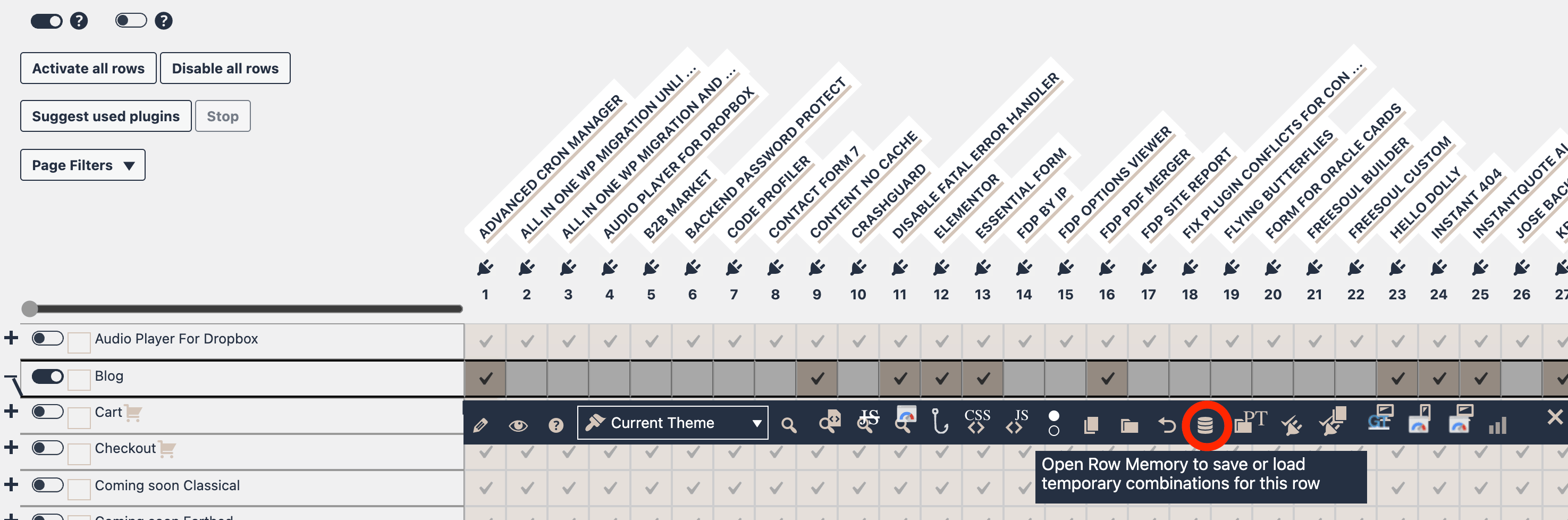
Open the row action bar for the row you want to work on.
Inside the row actions, look for the database icon.
That is the Row Memory button.
Click on the Row Memory button to save or load temporary combinations for that row
When to Use It
Row Memory is useful when:
- you want to compare multiple plugin combinations on the same row
- you want to test different setups before saving
- you want to keep a few candidate configurations ready while profiling or previewing
- you want to switch back and forth between temporary variants without copying the row manually
A common workflow is:
- Build a first plugin combination.
- Save it to Slot 1.
- Build a second combination.
- Save it to Slot 2.
- Load Slot 1 or Slot 2 whenever you want to compare them again.
How to Open Row Memory
- Open the FDP page that contains the row you want to test.
- Expand the row action bar.
- Click the Row Memory button.
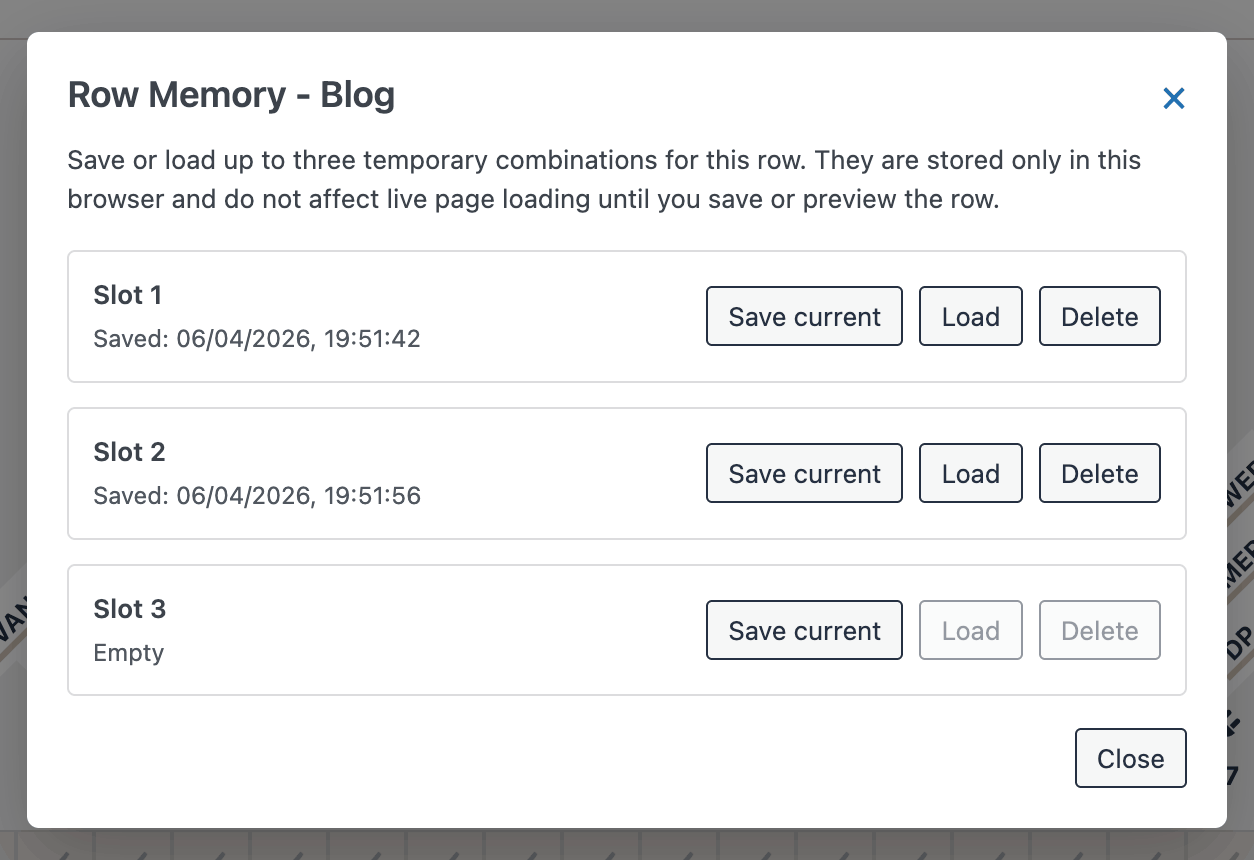
A popup opens with 3 slots.
Each slot shows:
- the slot number
- whether it is empty
- or the date and time when it was last saved
The 3 Available Actions
Each slot includes three actions:
- Save current
- Load
- Delete
Save current
Click Save current to store the row’s current state into that slot.
If the slot already contains data, it will be overwritten.
After saving, the popup shows a confirmation message such as:
Current row settings saved to slot 1.
Load
Click Load to apply the saved slot back to the current row.
This restores:
- the plugin checkbox states
- the theme selection, if the row supports theme selection
After loading, the popup shows a confirmation message such as:
Slot 1 loaded into this row.
Delete
Click Delete to remove the saved content from that slot.
After deletion, the slot becomes empty again.
The popup shows a confirmation message such as:
Slot 1 deleted.
What Exactly Gets Saved
Row Memory saves the current state of the row as it appears in the matrix.
That includes:
- the on/off state of the row checkboxes
- the theme selector value if the row has a theme dropdown
- the save timestamp
It does not save the configuration globally in WordPress.
It only stores a temporary snapshot for that row in the browser.
What Happens When You Load a Slot
When you load a slot, FDP applies the saved state directly to the current row.
That means it updates the row checkboxes and refreshes the row counters, including the active and disabled plugin totals for that row.
If the row has a theme selector and the slot includes a theme value, that theme selection is also restored.
The row is updated immediately in the interface, but the settings are still only in the editor until you save them normally.
When a Slot Cannot Be Loaded
Sometimes a slot may no longer match the current row.
For example:
- the row now contains a different number of plugin options
- the available options changed because of plugin activation/deactivation
- the row structure no longer matches the saved state
In that case FDP shows an error such as:
Slot 1 can not be loaded on this row because the available options are different.
This is expected behavior.
Row Memory only works when the saved slot is compatible with the current row structure.
Browser Storage Availability
Row Memory depends on browser local storage.
If local storage is blocked by the browser or by privacy settings, FDP shows this message:
Row Memory is not available because local storage is blocked by this browser.
In that case the feature cannot be used until browser storage becomes available again.
Recommended Workflow
- Configure the row as version A.
- Save it to Slot 1.
- Change the row to version B.
- Save it to Slot 2.
- Change the row to version C.
- Save it to Slot 3.
- Load any slot to compare previews, profiling results, or plugin combinations.
- Save the final choice normally when you are done.
This is especially useful before:
- previewing a row
- profiling a row
- comparing theme variations
- testing different plugin combinations on the same target
Best Practices
- Use Row Memory for short-term experimentation.
- Save your final configuration normally once you decide which version you want to keep.
- Re-save a slot if the row has changed significantly.
- Do not rely on Row Memory as permanent storage.
- Use different slots for clearly named mental variants, for example:
- Slot 1: safest setup
- Slot 2: aggressive optimization
- Slot 3: test setup for debugging
Summary
The Row Memory button gives you 3 temporary browser-side slots for the current row.
Use it to:
- save row configurations quickly
- restore them instantly
- compare multiple combinations
- experiment safely before saving permanently
It is a fast and convenient way to test row-level configurations without losing alternative setups while you work.