
REST API Settings
Use the REST API settings to disable specific plugins when a request is handled through the WordPress REST API.
This page is useful when your website, theme, custom code, or third-party services use REST endpoints and you want to reduce plugin loading only for those requests, without affecting normal frontend page views or backend screens.
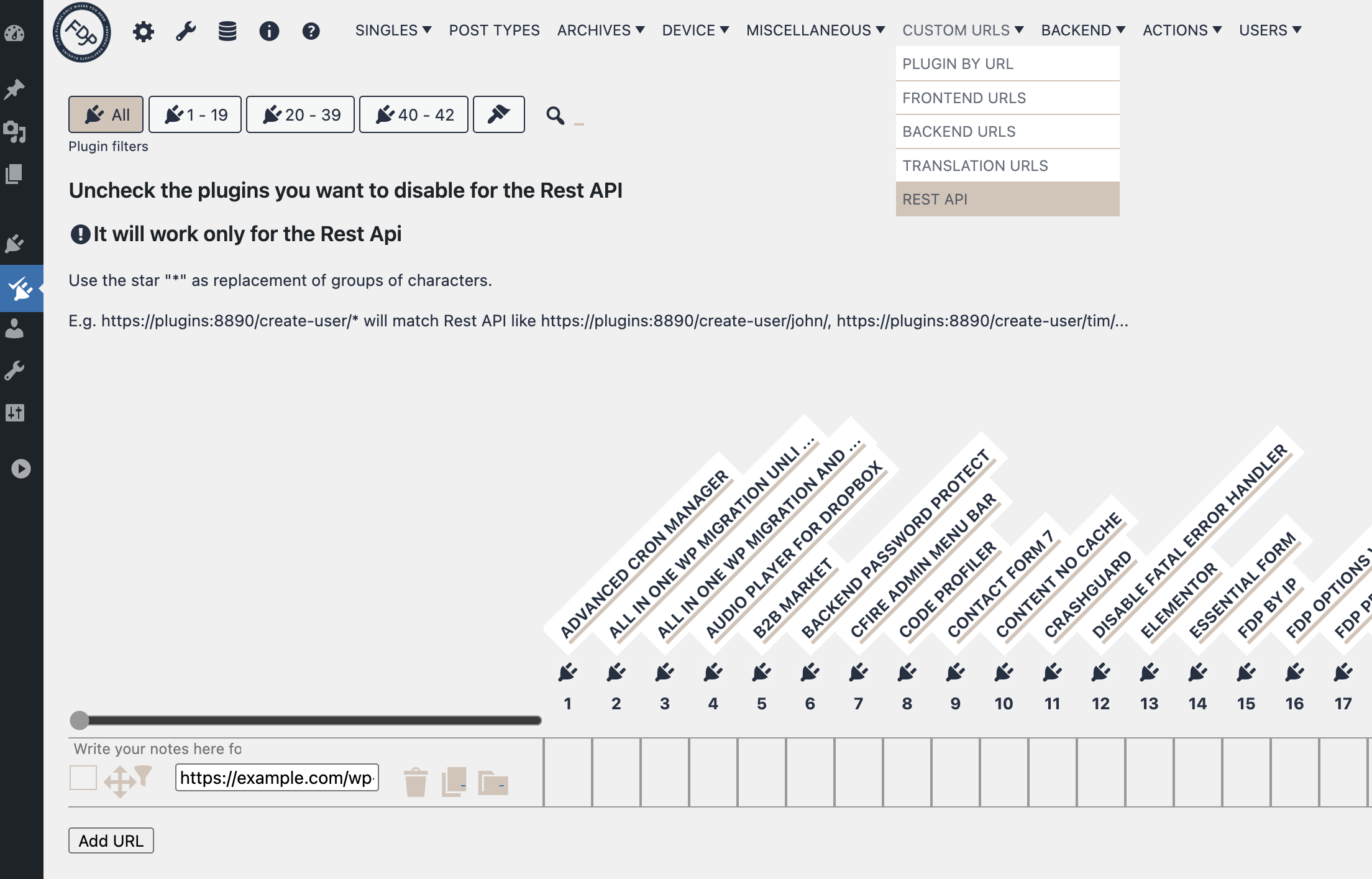
What This Page Does
Each row represents a REST API URL pattern.
For every row, you can choose which plugins should remain active and which plugins should be disabled when the current REST API request matches that pattern.
You can also control theme loading for the matched REST API pattern.
These rules are stored separately from normal frontend URL rules, so changing REST API settings does not change your standard frontend URL settings.
How Matching Works
The field on the left side of each row is the REST API pattern.
You can use the wildcard * to match any group of characters.
Example:
https://example.com/wp-json/my-namespace/create-user/*This can match requests such as:
- https://example.com/wp-json/my-namespace/create-user/john/
- https://example.com/wp-json/my-namespace/create-user/tim/
The plugin checks the current request URI against the saved patterns and stops at the first matching row. Because of this, row order matters.
How to Configure a Row
- Enter the REST API URL pattern.
- Uncheck the plugins you want to disable for that pattern.
- Leave checked the plugins that must remain active.
- If needed, use the Theme column to decide whether the theme should stay active for that pattern.
- Save your changes.
In this interface, checked means active and unchecked means disabled.
Theme Column
The last column controls theme loading for the matched REST API rule.
- If the Theme checkbox is active, the current theme remains loaded.
- If the Theme checkbox is not active, FDP can replace the theme for that matched REST API request.
This can be useful when you want a lighter REST response and the theme is not needed.
Priority and Row Order
Rules are evaluated from top to bottom.
The first matching row wins.
If two patterns could match the same request, place the more specific one above the more generic one.
Example:
Put
https://example.com/wp-json/my-plugin/orders/*above
https://example.com/wp-json/my-plugin/*so the more specific rule is applied first.
Wildcard Tips
Use * when a URL contains dynamic parts such as IDs, slugs, tokens, or usernames.
Good examples:
- https://example.com/wp-json/wp/v2/posts/*
- https://example.com/wp-json/my-plugin/v1/orders/*
- https://example.com/wp-json/*
Be careful with very broad patterns. A generic pattern can affect many endpoints and may disable plugins that are still required.
Notes, Copy, Paste, and Global Row Toggle
Like other FDP matrix pages, the REST API page supports row-level management tools.
You can:
- write notes for each row
- copy and paste row settings
- toggle all plugin checkboxes in a row at once
- add new rows
These tools help when several endpoints need similar configurations.
Important Behavior
These settings are intended for REST API requests.
In the current implementation, the same option set is also evaluated for requests detected as REST-like in these situations:
- the request is a REST request
- the URL contains
/wp-json/ - the request contains POST data, unless POST handling has been explicitly allowed through constants
This means the page is primarily for REST API optimization, but depending on your setup it can also influence some POST-based request flows.
Related REST API Options in FDP PRO
The dedicated REST API page is not the only REST-related feature in FDP PRO.
There are also General Bloat options related to REST API behavior:
- REST API non-logged users
If disabled, the REST API is blocked for users who are not logged in. Logged-in users are not affected. - REST API link tag into page header
Controls the REST API discovery link printed in the page header. - Link header for the REST API
Controls the REST API link sent in HTTP headers.
These options are different from the REST API matrix page:
- the matrix page controls which plugins and theme are loaded for matching REST requests
- the General Bloat options control REST API exposure and discovery behavior
Best Practices
- Start with a specific endpoint instead of a very broad pattern.
- Disable only plugins you are sure are not needed by that endpoint.
- Keep authentication, security, ecommerce, multilingual, custom fields, and caching plugins active if the endpoint depends on them.
- Use broad wildcard rules only after testing narrower rules.
- Order rows from most specific to most generic.
- Save changes and test the real endpoint after every important change.
Testing Recommendations
After saving a rule, test the actual endpoint that should match it.
Check at least:
- response status code
- returned JSON data
- authentication behavior
- custom headers if your API depends on them
- plugin-dependent features such as custom fields, permissions, SEO metadata, ecommerce data, multilingual data, or webhook handling
If something breaks, re-enable the last plugin you disabled and test again until you identify the dependency.
Troubleshooting
If a rule does not seem to work:
- make sure the request URL really matches the pattern
- verify the row is above any broader rule that may match first
- confirm that the endpoint is actually being served as a REST request or through
/wp-json/ - check whether a required plugin was disabled
- test with the theme left active if theme replacement may affect the response
If a request still behaves unexpectedly, simplify the rule, test one endpoint at a time, and disable plugins incrementally instead of all at once.
Summary
The REST API settings page lets you create URL-based REST rules and decide, row by row, which plugins and whether the theme should remain active.
Use it to reduce plugin load on API endpoints, improve performance, and isolate only the functionality each endpoint really needs, while keeping your standard frontend and backend settings separate.