
Preview a Row Before Saving
Use the Preview button to open a temporary preview of the page using the plugin state currently shown in a single row.
This is one of the most important buttons in Freesoul Deactivate Plugins because it lets you test a row before saving it permanently.
What the Preview Button Does
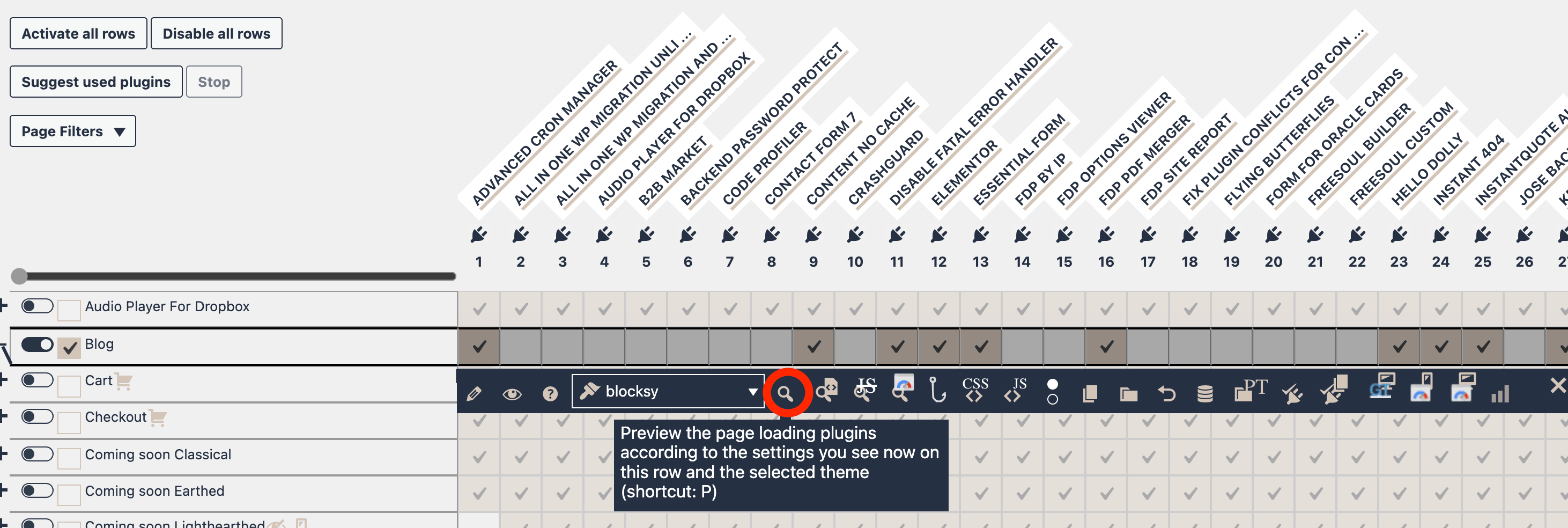
The preview button opens the page represented by the current row and loads plugins according to the row state you see in the table at that moment.
That means FDP uses the current row configuration, including any changes you have made in the interface, even if you have not saved them yet.
In practice, the preview is based on the current on-screen row state, not only on previously saved settings.
Where to Find the Button
- Open the FDP page where the row is listed.
- Click the plus icon at the beginning of the row.
- In the action bar, click the lens icon.
What the Standard Preview Shows
The standard preview opens the page using:
- the plugins currently active in that row
- the selected theme for that row, when a theme selector is available
So if you disable plugins or change the theme and then click Preview, the page loads with those temporary settings applied.
You Do Not Need to Save First
A key point is that preview does not require you to save the row first.
FDP temporarily stores the current row setup, opens the preview URL, and applies that setup only to the preview request.
This is why the preview button is so useful for safe testing.
- change the row
- preview the result
- decide whether to keep the change
- save only if the preview looks correct
What Counts as “Current Row State”
- checked and unchecked plugin boxes
- the current theme selection
- the row type being previewed
If you change something and click Preview immediately, FDP uses the updated state.
Theme Selection and Preview
If the row includes a theme selector, the preview uses the selected theme.
This allows you to test plugin and theme changes together.
- change plugins
- select a theme
- click Preview
- inspect the result
Related Preview Buttons
Other preview-related buttons may include:
- preview and show loaded files
- preview with JavaScript disabled
- PageSpeed Insights
- hooks preview
- CSS and JS inspection
For a normal preview, always use the lens icon.
Standard Preview vs Other Variants
- Standard Preview: check if the page works
- Files Preview: inspect loaded assets
- No JS Preview: debug JavaScript issues
- PSI: performance analysis
Best Way to Use the Preview Button
- Open the row actions
- Change plugin selection
- Optionally change theme
- Click Preview
- Check the result
- Save if correct
Why Preview Before Saving
Preview helps you avoid saving broken configurations.
- test plugin necessity
- check JS/CSS behavior
- validate theme dependencies
- compare configurations
Common Use Cases
- verify page rendering
- test forms and widgets
- check if plugins can be disabled
- compare themes and plugins
- validate before production
What Preview Does Not Do
The preview does not save the row permanently.
You must still save FDP settings to apply changes globally.
If Preview Does Not Work
- expired security token
- expired login session
- stale cookies
- invalid target row
Try refreshing, logging in again, or using a clean browser session.
Summary
The preview button lets you preview a row using its current plugin state.
Use it to:
- test before saving
- validate plugin changes
- preview theme variations
- work faster and safer
It is the safest way to validate a row before making it permanent.