
Plugin Settings (PRO)
The Plugin Settings section allows you to control how individual plugins behave inside Freesoul Deactivate Plugins, especially in relation to the automatic suggestion system, visibility, and update management.
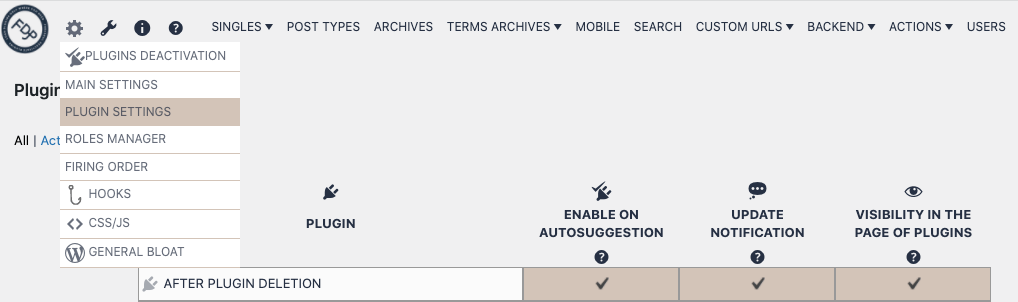
You can find this section under:
Freesoul Deactivate Plugins → Settings (gear icon) → Plugin Settings
Exclude Plugins from Auto-Suggestion
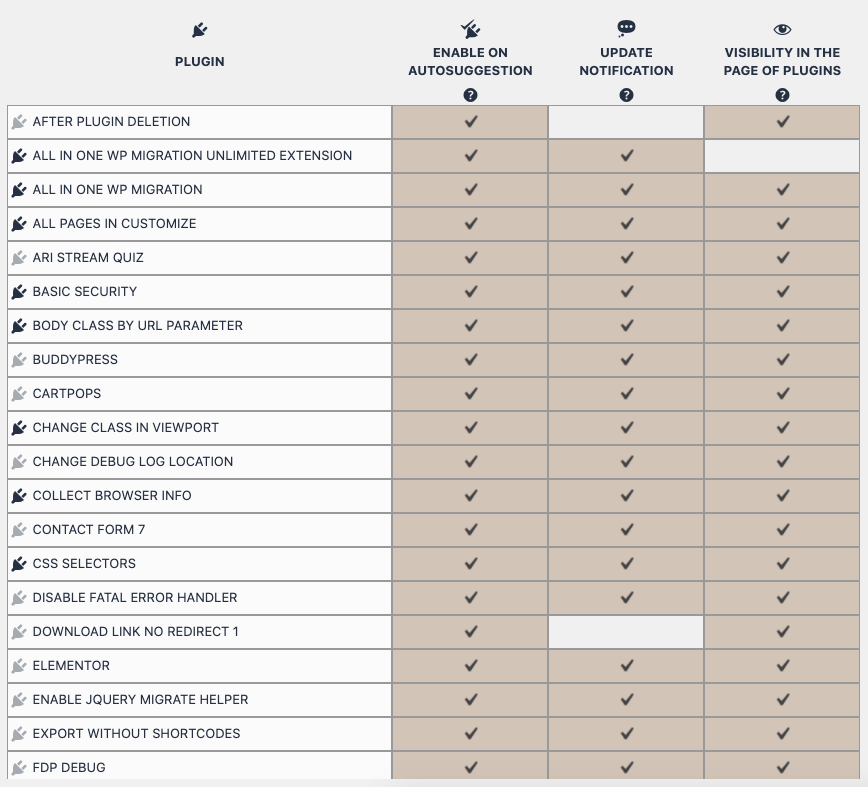
You can choose which plugins should be disabled during the auto-suggestion scan.
This is essential for plugins that would cause the scan to fail or produce unreliable results, such as:
- Maintenance mode or “Coming Soon” plugins
- Plugins that always output the same page
- Plugins that generate highly dynamic content
If these plugins remain active during the scan, FDP may be unable to detect which plugins are actually needed.
Why This Matters
The auto-suggestion system works by:
- Simulating page loading
- Disabling one plugin at a time
- Detecting changes in page content and meta output
If a plugin forces the page to always look the same—or always look different—FDP cannot reliably detect unused plugins.
Hide Plugin Update Notifications
You can hide update notifications for specific plugins.
This is useful when:
- You want to prevent updates during a critical period
- A plugin update requires testing before deployment
- You are managing a client site with strict update policies
Only users who can access FDP settings will be able to see hidden plugins and updates.
Hide Plugins from the Plugins Page
You can also hide selected plugins from the WordPress Plugins page.
This helps:
- Reduce clutter in the plugins list
- Prevent accidental deactivation or updates
- Protect essential or sensitive plugins
Hidden plugins remain fully active and visible to users with permission to access FDP settings.
Real-World Examples
- Maintenance mode active
Exclude the maintenance plugin from auto-suggestion so FDP can detect unused plugins correctly. - Dynamic blog widgets
Exclude plugins that load a random number of posts to avoid false positives. - Client-managed website
Hide critical plugins and their update notifications to prevent accidental changes.
⚠️ Important Warning
- Incorrect exclusions can lead to misleading auto-suggestions
- Hiding plugins does not secure them—it only hides them from view
- Always document hidden plugins for future administrators
Best Practices
- Exclude maintenance and coming-soon plugins from auto-suggestion
- Exclude plugins with highly variable output
- Hide critical plugins on client sites
- Review exclusions after major site changes
✅ Mini Checklist
- ☐ Maintenance / coming-soon plugins excluded in the auto-suggestion
- ☐ Dynamic content plugins reviewed
- ☐ Critical plugins hidden if needed
- ☐ Update notifications intentionally hidden when needed
- ☐ Role permissions verified
In Summary
The Plugin Settings (PRO) give you precise control over:
- Auto-suggestion reliability
- Plugin visibility
- Update management
Configured correctly, this section ensures accurate suggestions while keeping your plugin environment clean and protected.