
Plugin by URL
This feature allows you to activate specific plugins only on certain pages, while keeping them deactivated elsewhere.
How It Works
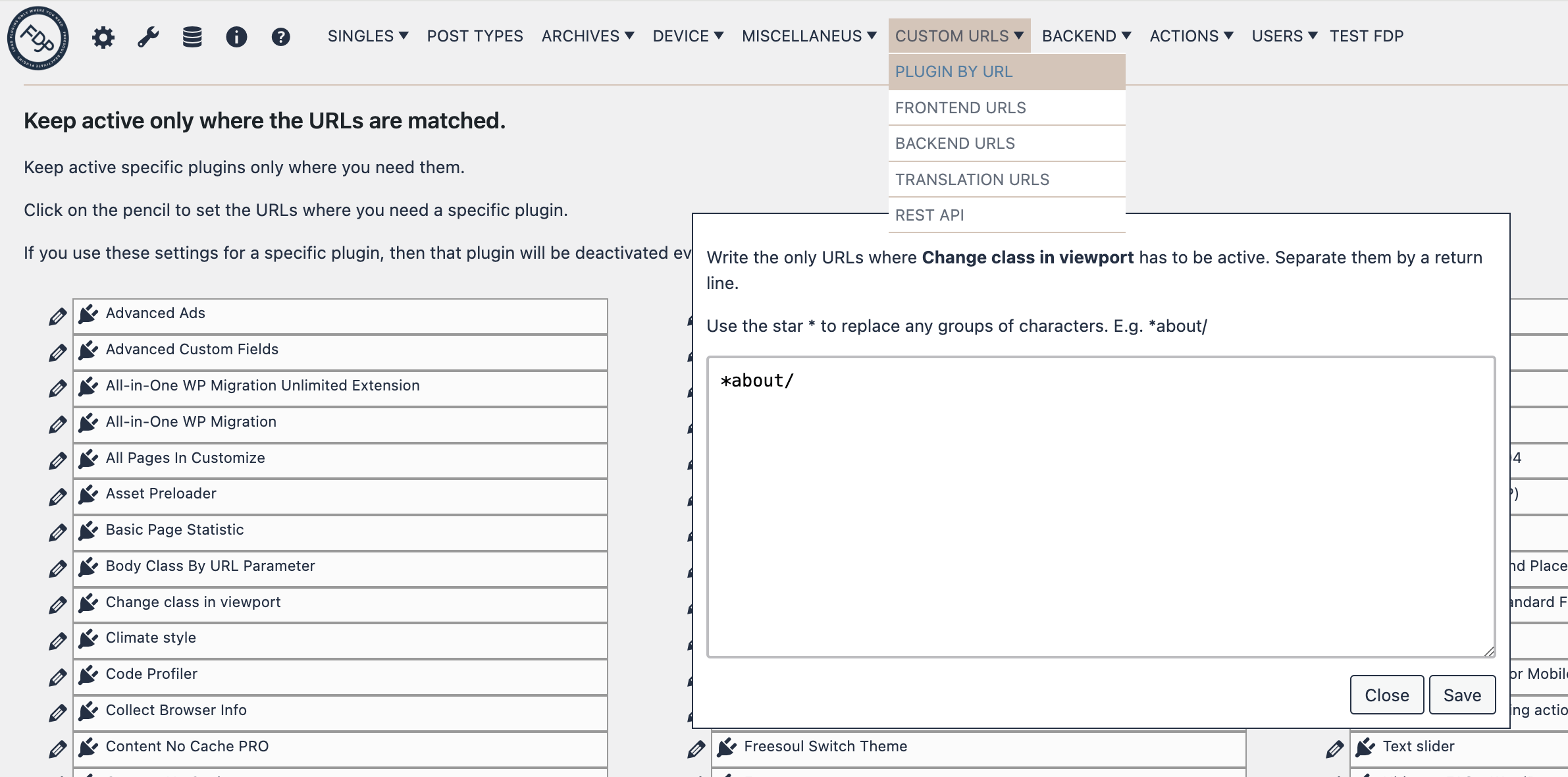
- Go to Custom URLs → Plugin by URL.
- Click the pencil icon next to the plugin you want to configure.
- Specify the URLs where this plugin should remain active.
Once configured, the plugin will be deactivated on all pages except the URLs you specified.
Important Notes
- Only the Custom URLs settings can override Active on Frontend plugins. All other FDP settings will be overridden.
- To match the homepage, use
[home]as the URL. - With the free version, you can set up to 3 plugins. The PRO version has no limits.
⚠️ Warning
- Be careful not to leave essential plugins deactivated on pages where they are needed.
- Ensure URLs are written correctly, including trailing slashes if necessary.
✅ Mini Checklist
- ☐ Identify which plugins should be active only on specific pages
- ☐ Go to Custom URLs → Plugin by URL
- ☐ Add the URLs where the plugins should remain active
- ☐ Test the pages to confirm plugins are active only on the desired URLs
Real-World Examples
- Activate a slider plugin only on the homepage or landing pages.
- Enable a form plugin only on the Contact page.
- Activate a gallery plugin only on the Portfolio pages.