
FDP Add-ons
Freesoul Deactivate Plugins already lets you manage your plugins based on many conditions. However, if you need to match very specific conditions, you can create your own custom FDP add-on with just a few lines of code.
A FDP add-on is a lightweight plugin designed for your specific use case.
FDP add-ons are supported from FDP v. > 2.1.8.
Let’s look at an example. Imagine you want to deactivate certain plugins based on the user’s IP address. The current version of FDP doesn’t support this natively. In this case, you can create an FDP add-on to define your custom conditions.
We will show you how to do this soon.
How to create an FDP add-on
Create a plugin folder
First, create a new folder in your plugins directory, located at wp-content/plugins.
The folder needs a name. Any name allowed for a plugin directory is fine, but it’s best practice to include the word FDP and a term that describes the purpose of the add-on.
For example, if we want to create an FDP add-on to disable specific plugins based on the IP address, we could name the directory FDP-by-IP.
Create the main file
Inside the directory you just created, create a PHP file with the same name as the folder, using the .php extension.
Following our example, we will create the file FDP-by-IP.php.
At this point, we have a folder named FDP-by-IP and an empty main file located at wp-content/plugins/FDP-by-IP/FDP-by-IP.php.
Next, we need to add the plugin header to the main file to turn it into a WordPress plugin.
You can refer to the WordPress Codex for more information about plugin headers.
Here is an example of the main file:
<?php

/*

Plugin Name: FDP by IP

Description: FDP add-on to deactivate plugins by IP address

Author: Your Name

Author URI: https://yourwebsite.com/

Domain Path: /languages/

Text Domain: fdp-by-ip

Version: 0.0.1

*/
What you see above is enough for the main file. You don’t need to write any additional code in it.
Thanks to this main file, WordPress recognizes your FDP add-on as a plugin—nothing more.
The next step is to create a JSON file that contains the information FDP needs to generate the settings page for your add-on.
Create the JSON file.
In the same directory as your add-on, create a JSON file named fdp.json.
This file must contain the information that FDP needs to generate the settings page for your plugin.
Let’s explain using our example. Below is the content of the JSON file that works for this case:
{

"parent_menu": "users",

"submenu_name": "By IP",

"description": "Disable plugins by IP address."

}
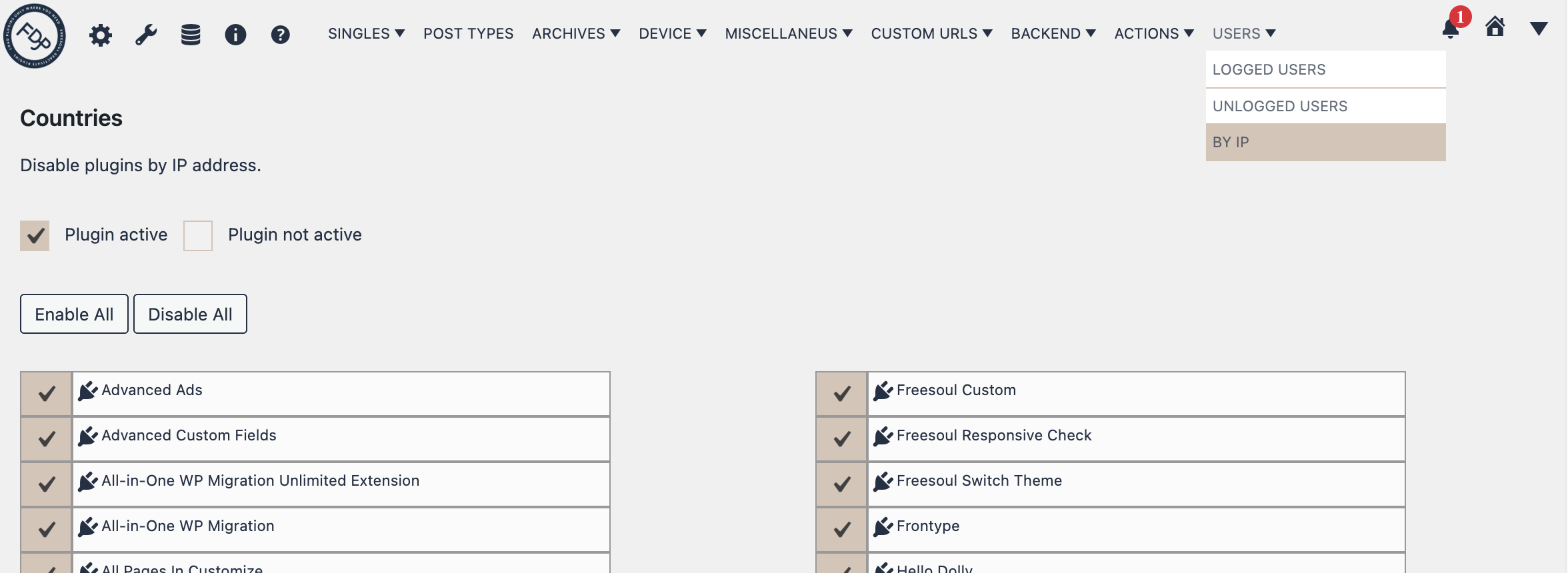
After creating the JSON file, when you activate your add-on, you will see its settings page under Freesoul Deactivate Plugins => Users => By IP.
As shown in the picture, the description you add in the JSON file will be displayed on the settings page.
The following FDP parent menu slugs are available for the property parent_menu:
- singles
- post-types
- archives
- device
- miscellaneous
- integration
- users
Create the conditions.php file.
In the same directory of your add-on, create a file named conditions.php.
Inside this file, you need to assign your conditions to the variable $conditions.
Continuing with our example, here is the code to disable specific plugins depending on the IP address:
$conditions = isset( $_SERVER['REMOTE_ADDR'] )

    && in_array(

        sanitize_text_field( $_SERVER['REMOTE_ADDR'] ),

        array( '172.31.155.111', '172.31.114.119' )

     );
Add-on activation.
After creating your add-on, activate it from the Plugins page.
It is important to activate it while Freesoul Deactivate Plugins is active. If you activate it when FDP is not active, FDP will not recognize it as an add-on, and it will not work.
Wrapping up.
To create a custom FDP add-on for your specific case, you need to:
- Create a directory in the plugins directory.
- Name the directory with a descriptive name, preferably including the word FDP.
- Create the PHP main file in the directory.
- Name the main file with the same name as the directory.
- Add the plugin header to the main file.
- Create a JSON file in the directory.
- Include the properties “parent_menu”, “submenu_name”, and “description” in the JSON file.
- Create the conditions.php file in the directory.
- Assign the conditions to the variable
$conditionsin the conditions.php file. - With FDP active, activate your add-on from the Plugins page.
- That’s it!