
By Plugin (PRO)
How to disable specific plugins when another plugin is disabled
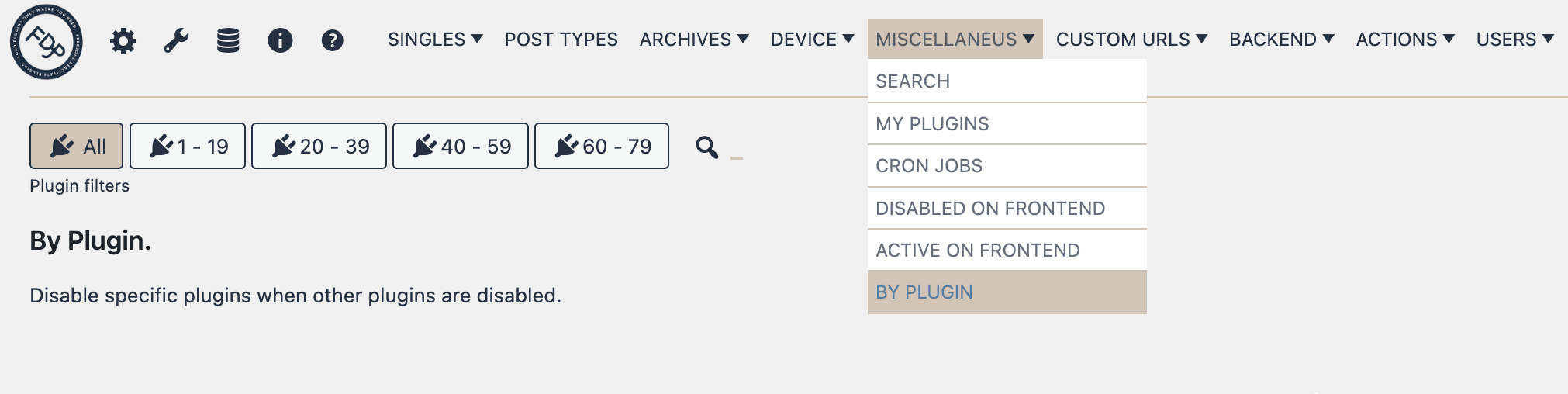
Sometimes you may want to automatically disable dependent plugins when a parent plugin is deactivated. For example, you may want to disable all WooCommerce add-ons whenever WooCommerce itself is deactivated.
- Go to Freesoul Deactivate Plugins → Miscellaneous → By Plugin
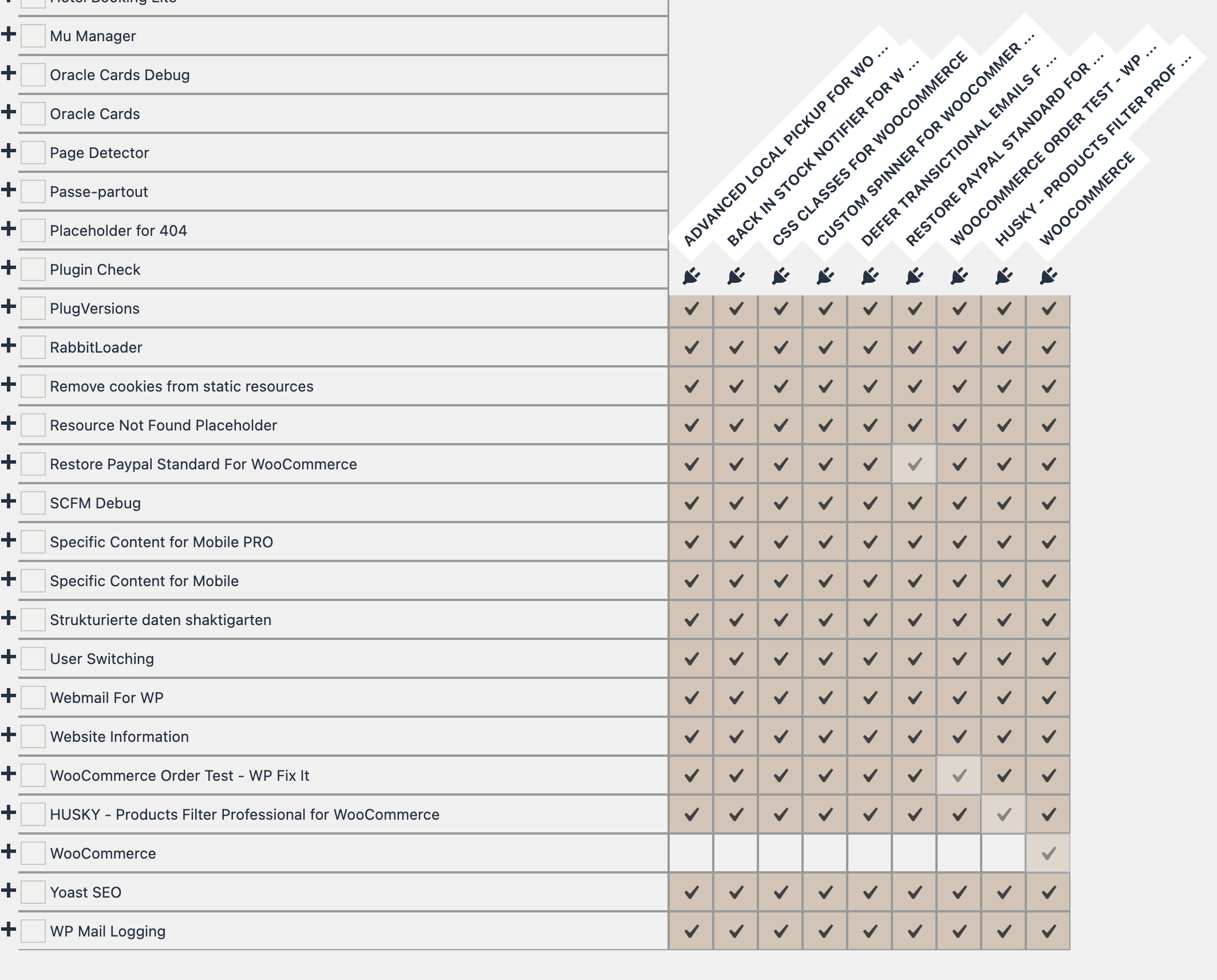
- Locate the row corresponding to the parent plugin (e.g., WooCommerce)
- Disable all its add-ons or dependent plugins in that row
- Click Save Changes
⚠️ Warning
- Dependency caution: Make sure you correctly identify all add-ons or dependent plugins; otherwise, you may break functionality when the main plugin is disabled.
- Test after changes: Always check the frontend and backend behavior after saving changes.
✅ By Plugin Checklist
- ☐ Identify the parent plugin whose deactivation should trigger others
- ☐ List all dependent or add-on plugins
- ☐ Disable the dependent plugins in the corresponding row
- ☐ Save changes and test site functionality
Real-world example
- If WooCommerce is disabled, automatically disable WooCommerce Subscriptions, WooCommerce Bookings, and other add-ons.
- If a membership plugin is disabled, disable all associated membership extensions or payment gateways.
- If a page builder plugin is disabled, disable all its add-ons to prevent errors.
Tip: Use this feature to maintain consistent site behavior and prevent errors when key plugins are deactivated.