
Backend: How to Deactivate Plugins on Specific Backend Pages (PRO)
Freesoul Deactivate Plugins PRO allows you to optimize the WordPress backend by selectively disabling plugins on backend pages.
Where to Find
Under the menu item Backend, you will find links to:
- Backend Singles
- Backend URLs
Disable Plugins in the Backend (PRO)

Backend Singles
Backend Singles allows you to disable plugins that are not needed on specific backend pages. Click the plus icon to open the actions panel. Clicking the highlighted icon in the picture enables FDP to suggest plugins that are unused on that page.
Before saving, click the lens icon to preview the page. If everything is fine, save your changes.
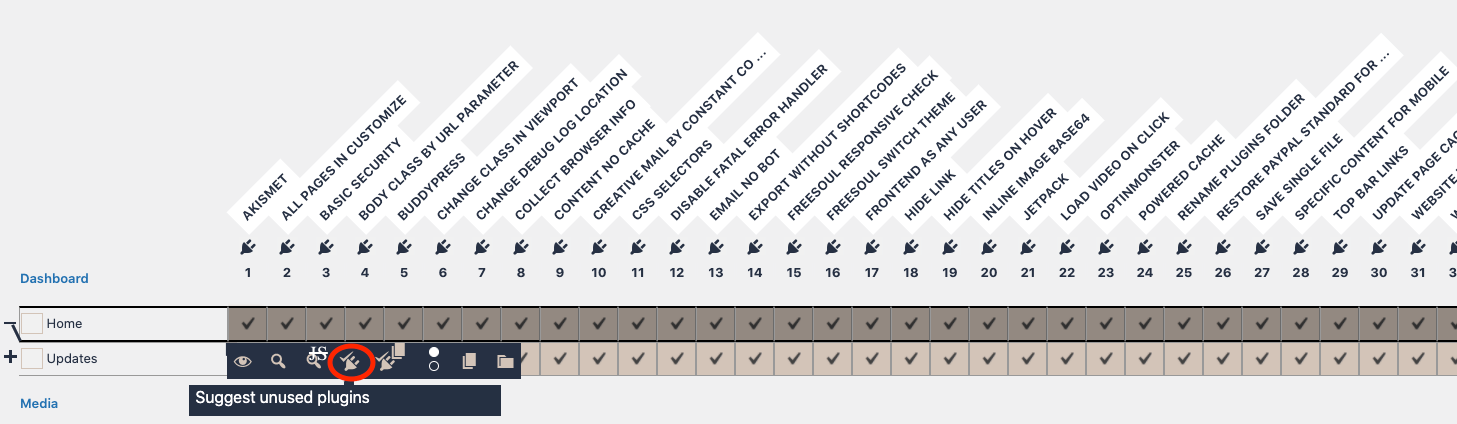
Disabling unused backend plugins improves backend performance.
Note: If a plugin is disabled on a page, WordPress will not load its admin menu items, but FDP ensures that the full admin menu is displayed everywhere, even on pages with disabled plugins.
Watch the video below for a practical example of backend optimization with FDP:

Disable Plugins in the Backend with Custom URLs (PRO)
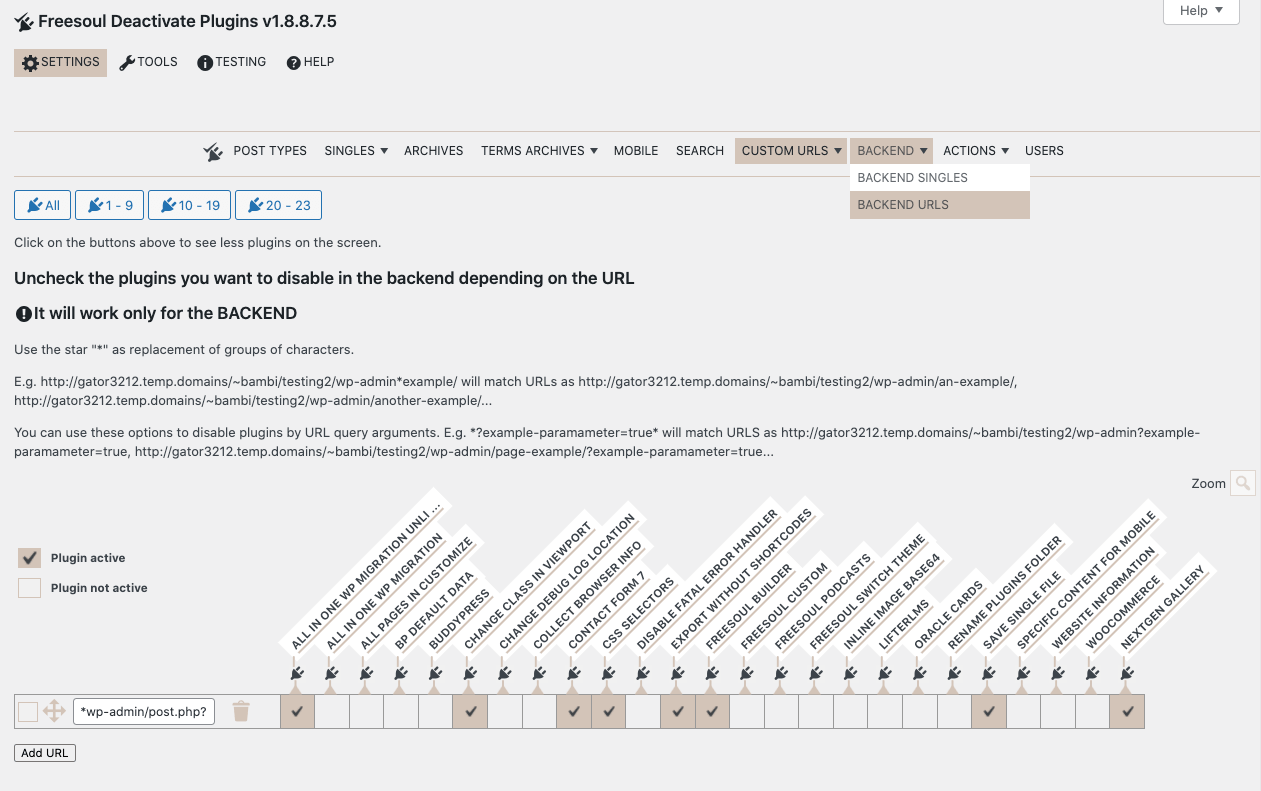
On the Backend URLs settings page, you can disable unused plugins for all backend pages that match the custom URLs you specify.
- Use
*as a wildcard for groups of characters. Example:https://your-domain.com/wp-admin*example/matcheshttps://your-domain.com/wp-admin/an-example/andhttps://your-domain.com/wp-admin/another-example/. - Plugins can also be disabled based on URL query arguments. Example:
*?example-parameter=true*matcheshttps://your-domain.com/wp-admin?example-parameter=trueandhttps://your-domain.com/wp-admin/page-example/?example-parameter=true.
Disable Plugins in the Backend Everywhere (PRO)
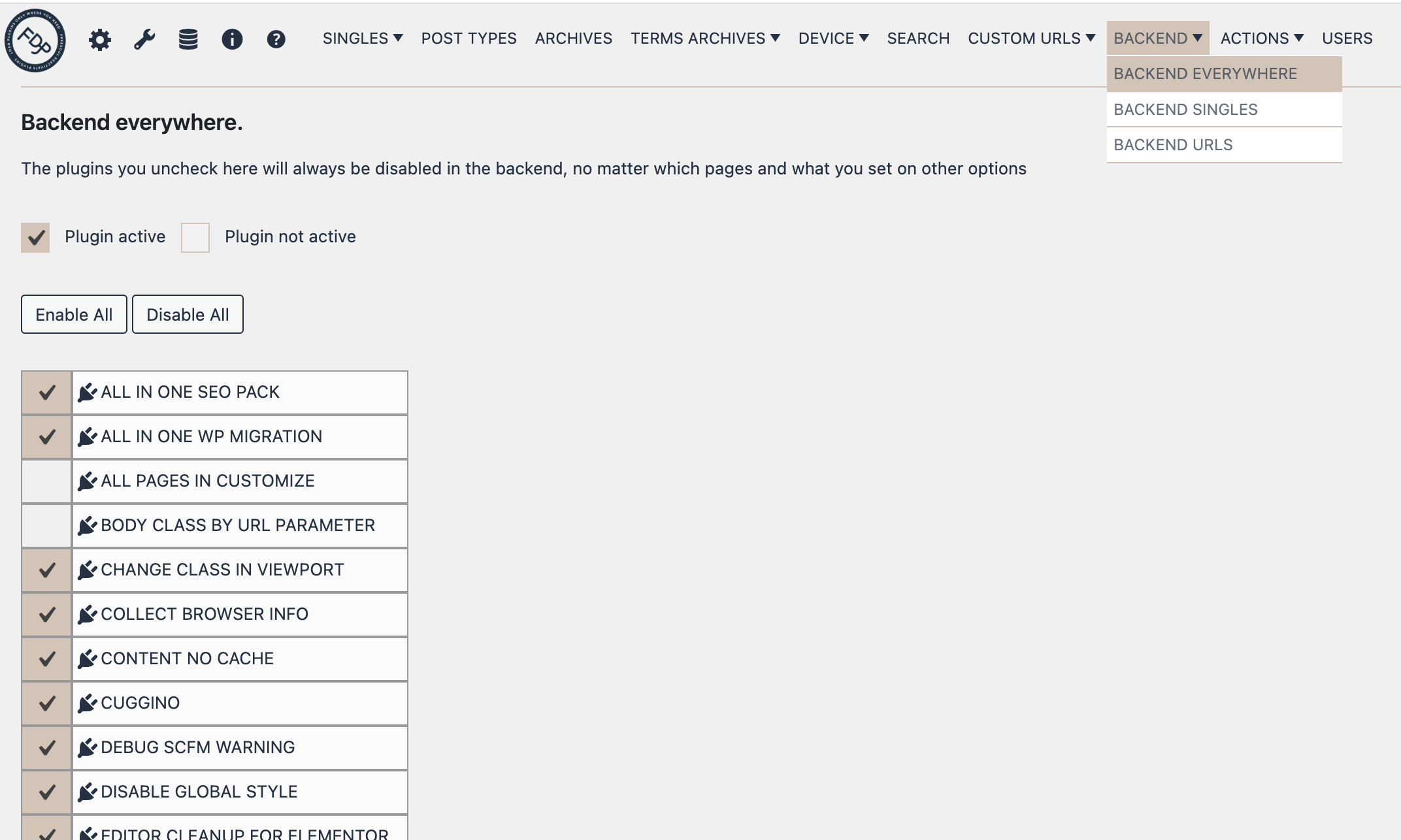
On the Backend Everywhere settings page, you can disable unused plugins on all backend pages.
Use this option for plugins that should never run in the backend, such as front-end performance or marketing plugins.
⚠️ Warning
- Disabling the wrong plugin may prevent essential backend functionality.
- Always preview backend pages before saving changes.
- Be cautious with plugins that add critical functionality.
✅ Mini Checklist
- ☐ Identify backend pages where plugins are unnecessary
- ☐ Use Backend Singles or Backend URLs to disable plugins
- ☐ Preview changes with the lens icon
- ☐ Save changes once verified
Real-World Examples
- Disable front-end performance plugins on wp-admin pages to speed up the backend.
- Deactivate gallery or slider plugins on backend pages where they are not needed.
- Disable unused WooCommerce add-ons on backend pages where they are not needed