
Device: How to Deactivate Plugins Depending on the Device
Freesoul Deactivate Plugins allows you to disable specific plugins based on the device used to visit your site: mobile devices or desktops (desktop option available in the PRO version only).
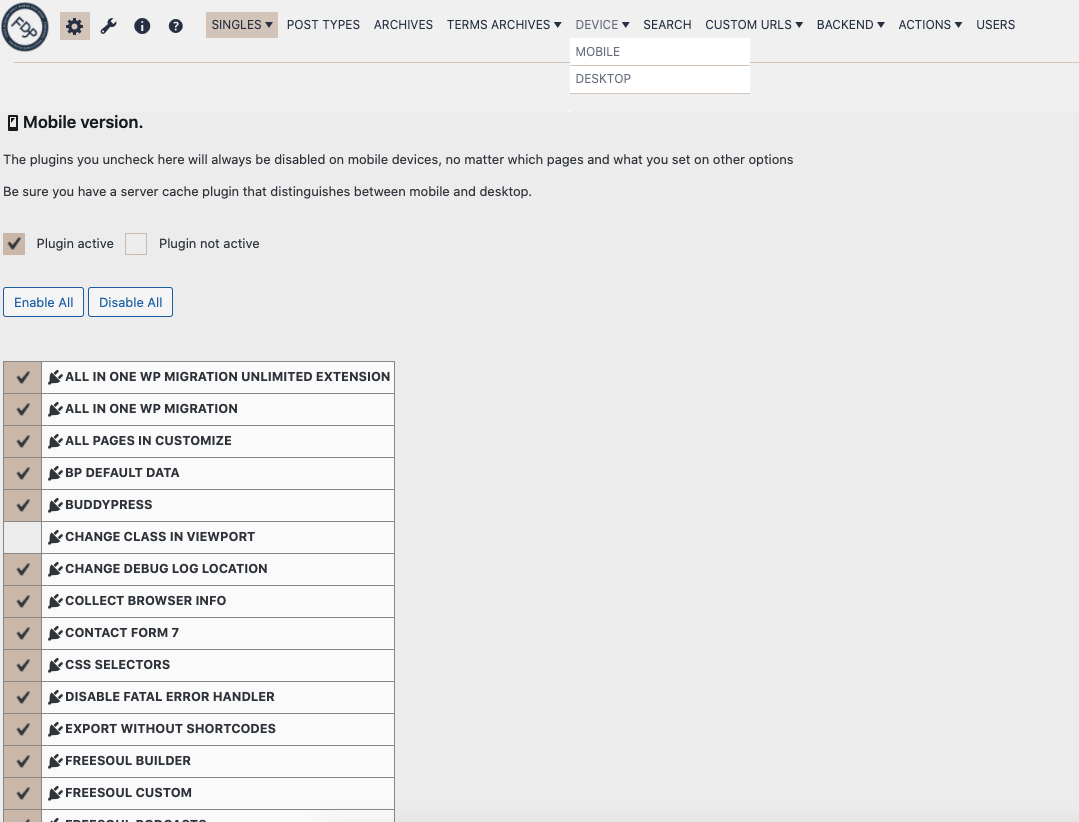
How It Works
- When a page is loaded on a mobile device (phone or tablet), you can choose which plugins to disable.
- All other plugins are managed according to your other FDP settings.
In the example above, the plugin Change Class In Viewport will not run on mobile devices.
Freesoul Deactivate Plugins treats tablets and mobile phones as mobile devices.
Important Considerations
- You may have a caching plugin that does not differentiate between mobile and desktop. If a mobile user caches a page first, desktop users may see the mobile version.
- Disabling plugins on mobile may create orphan shortcodes. For example, if you disable Revolution Slider on mobile, you may see
[revslider alias="example-alias"]instead of the slider.
To avoid these issues:
- Use a caching plugin that differentiates between mobile and desktop, such as W3 Total Cache or WP Fastest Cache.
- Install Specific Content For Mobile to manage mobile-specific content and avoid orphan shortcodes.
Advanced Custom Code
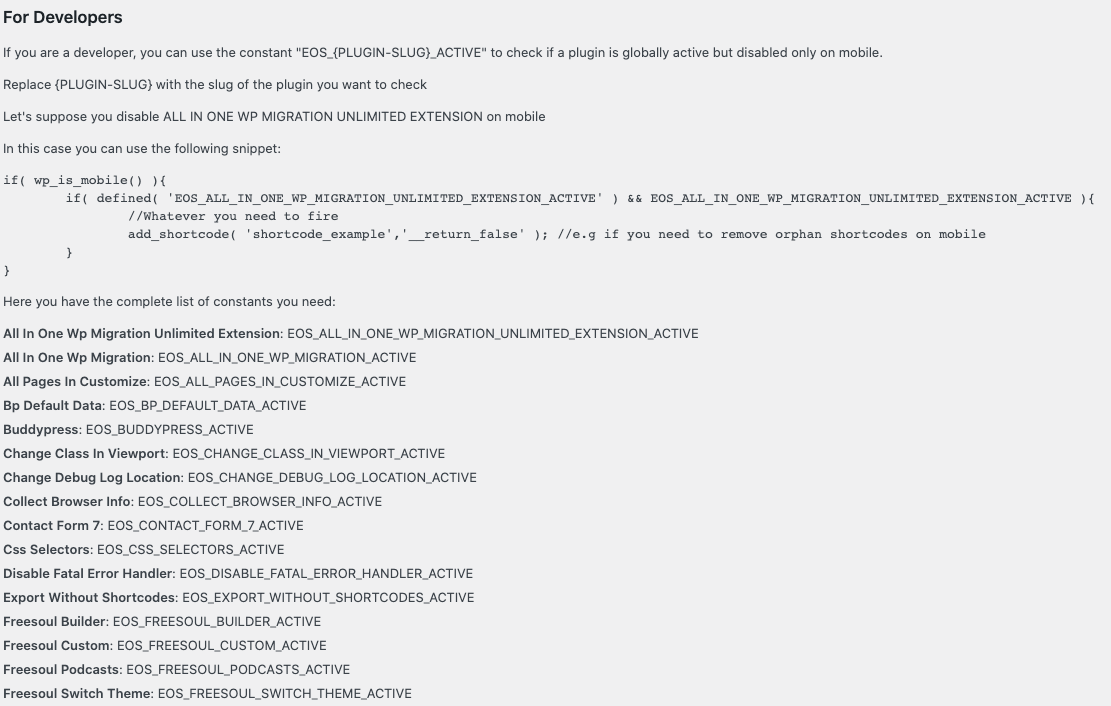
You can also handle mobile plugin logic using custom code in your child theme’s functions.php or a functional plugin (created via FDP → Tools → Create Custom Plugin).
Use the constant format EOS_{PLUGIN-SLUG}_ACTIVE to check if a plugin is globally active but disabled only on mobile. Replace {PLUGIN-SLUG} with the plugin’s main folder name in all caps.
Example: Suppose you disable Revolution Slider (revslider) on mobile:
if( wp_is_mobile() ){ if( defined( 'EOS_REVSLIDER_ACTIVE' ) && EOS_REVSLIDER_ACTIVE ){ // Remove orphan shortcodes on mobile add_shortcode( 'rev_slider', '__return_false' ); } }
This means: if the visitor is on mobile and Revolution Slider is globally active but disabled on mobile, the output of the [rev_slider] shortcode will be empty.
⚠️ Warning
- Caching risk: Ensure your caching plugin differentiates between mobile and desktop to prevent showing incorrect versions.
- Orphan shortcodes: Disabling plugins on mobile may break content if shortcodes are not handled properly.
- Test thoroughly: Always check mobile and desktop views after applying settings.
✅ Mini Checklist
- ☐ Identify plugins to disable on mobile/desktop
- ☐ Enable device-specific settings in FDP
- ☐ Test pages on both mobile and desktop devices
- ☐ Handle orphan shortcodes using Specific Content For Mobile or custom code
- ☐ Ensure caching plugin differentiates between devices
Real-World Examples
- Disable heavy sliders or animations on mobile devices to improve performance.
- Disable WooCommerce product carousel plugins on mobile if not needed.
- Keep essential plugins like SEO or analytics active on all devices.