
How to Remove Autoload from Unneeded Options (PRO)
WordPress loads all options marked as autoload = yes on every page request. While this mechanism is useful, it is often abused by plugins and themes, leading to unnecessary database bloat and slower page loads.
Freesoul Deactivate Plugins PRO allows you to safely manage autoloaded options and remove autoload from those that don’t need it.
What Is Autoload?
If you inspect your database using tools like phpMyAdmin and look at the wp_options table, you’ll see a column named autoload.
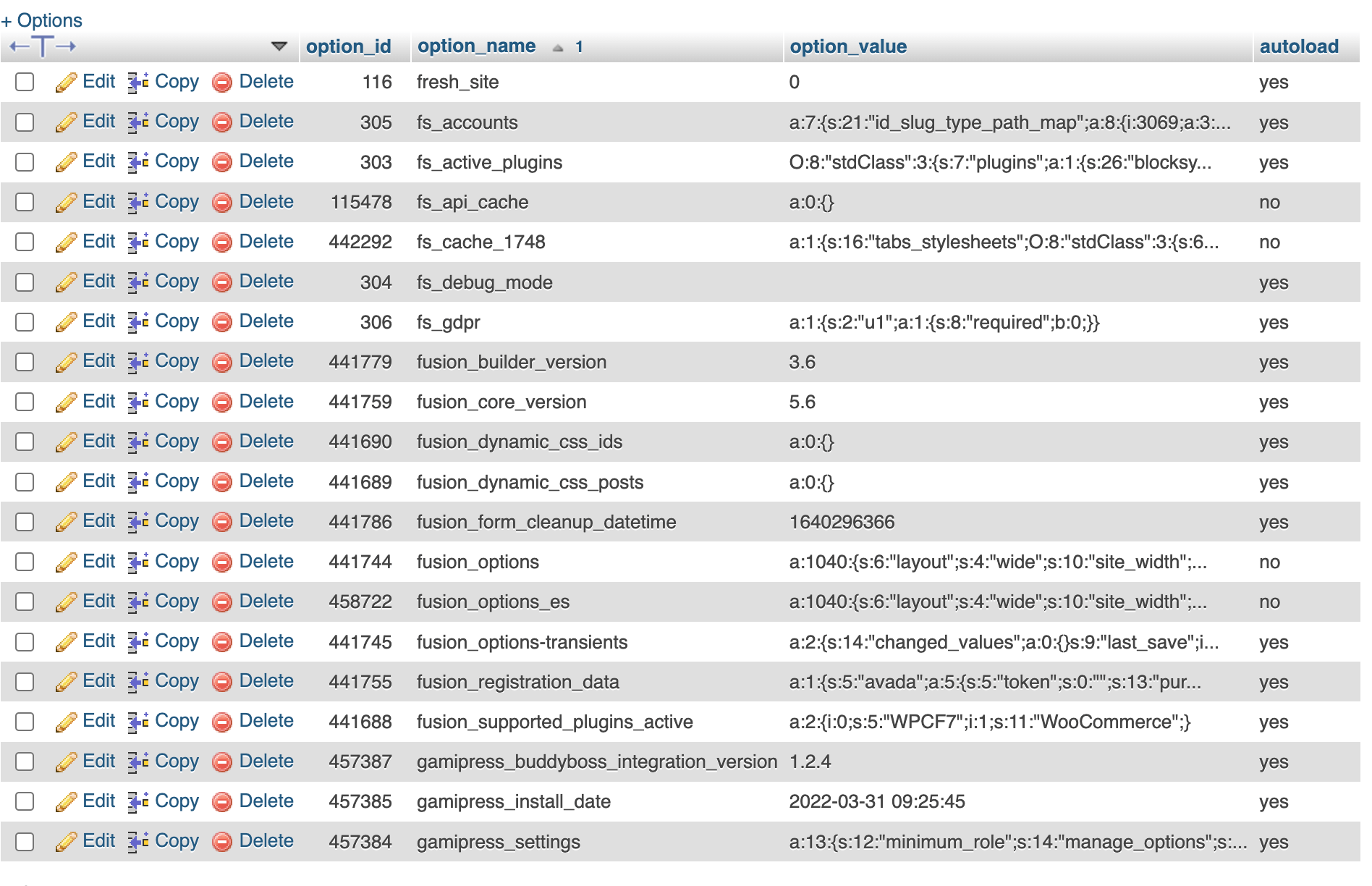
Options can be:
- autoload = yes → loaded on every page request
- autoload = no → loaded only when explicitly requested
When WordPress starts generating a page, it:
- Loads all autoloaded options with a single query
- Stores them in memory (autoload cache)
- Avoids additional queries during the same page request
This is ideal only if those options are truly needed everywhere.
Why Autoload Can Become a Problem
In real-world sites:
- Many plugins autoload options used only in the backend
- Some options are used only on a single page (e.g. contact forms)
- Large serialized options are autoloaded unnecessarily
- Options remain autoloaded even after a plugin is removed
As a result:
- Every page loads more data than needed
- Memory usage increases
- Time To First Byte (TTFB) gets worse
Autoload bloat affects every single page, even the homepage.
How to Remove Autoload from Options (PRO)
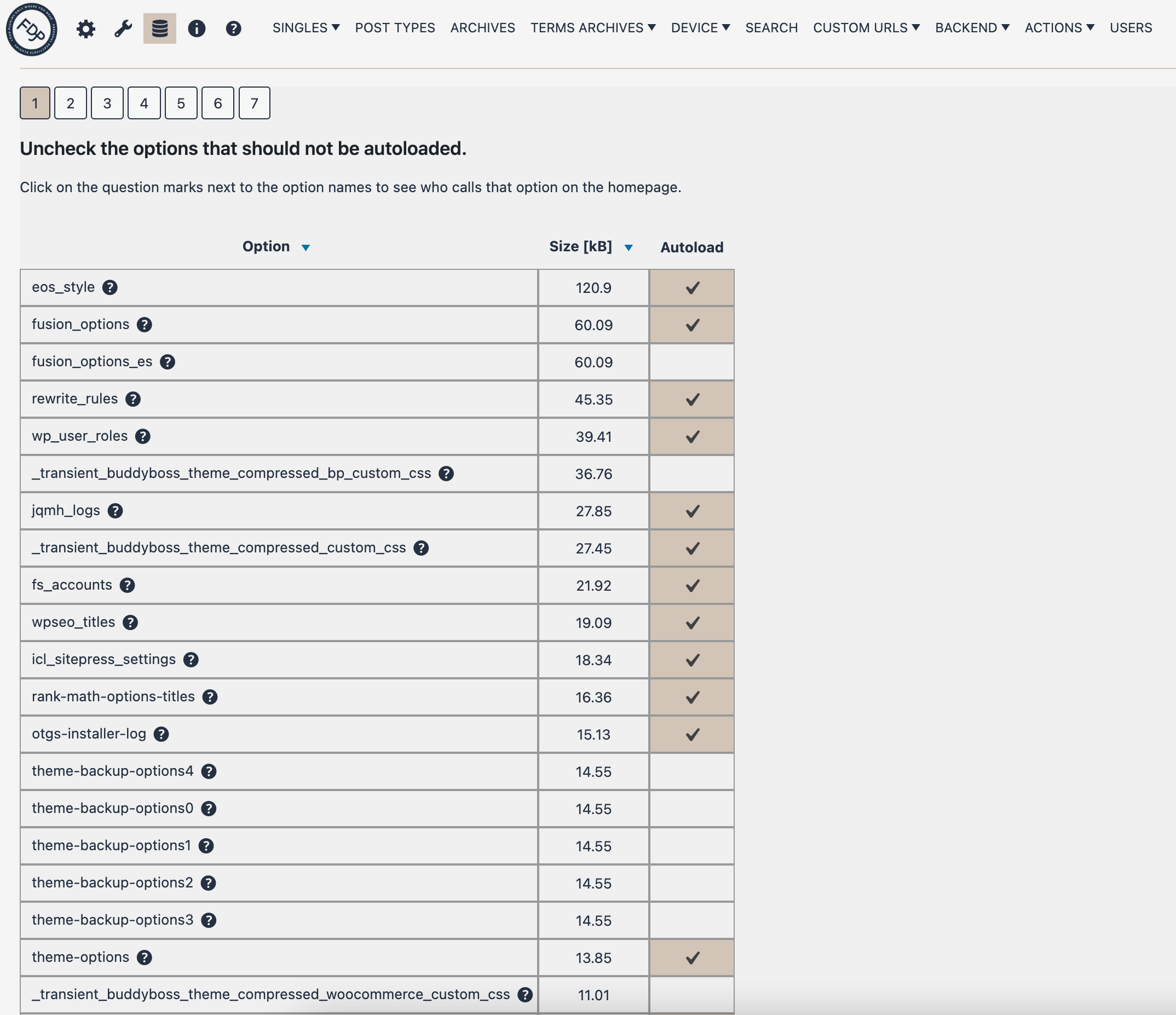
If you are a PRO user, you can manage autoloaded options safely from the FDP interface:
- Go to Freesoul Deactivate Plugins → Database (icon) → Autoload
- Review the list of autoloaded options
- Uncheck the options that don’t need to be autoloaded
- Save the changes
How to Identify Which Plugin Adds an Option
Next to each option name, FDP provides a question mark icon.
By clicking it:
- FDP shows which files access that option
- You can see whether it comes from:
- A plugin (and which one)
- The active theme
- WordPress core
This makes it easy to decide whether an option truly needs to be autoloaded.
Practical Examples
-
- Contact form plugin
If the form exists only on the contact page, its options should not be autoloaded. - WooCommerce extensions
Some extensions autoload options even when used only during checkout. - Removed plugins
Options left behind by uninstalled plugins can safely have autoload removed. - Backend-only features
Settings pages, admin notices, or editors rarely need autoload.
- Contact form plugin
⚠️ Important Warnings
- Do NOT remove autoload unless you know exactly what you’re doing
- Always test frontend and backend performance after changes
- Use a staging environment when possible
Best Practices
-
-
- Focus on large or suspicious autoloaded options first
- Remove autoload incrementally
- Check which plugin uses the option before changing it
- Re-enable autoload if something breaks
-
✅ Autoload Cleanup Checklist
- ☐ Backend-only options reviewed
- ☐ Removed plugins’ options checked
- ☐ Large serialized options evaluated
- ☐ Frontend tested after changes
In Summary
Autoloaded options are loaded on every request, making them one of the most impactful performance factors in WordPress.
With Freesoul Deactivate Plugins PRO, you can:
-
-
- Identify autoload abuse
- Safely remove unnecessary autoload
- Reduce memory usage and TTFB
-
Used correctly, this feature delivers immediate and measurable performance gains.